

On the cart page you add the widget as an app block. A cart drawer takes no app blocks, so there the widget needs a placement by CSS selector: the element in your theme it should sit next to. The placement helper in the theme editor finds that selector for you, you just click the spot.
Before you start
Set up the cart widget and turn on its app embed, see How to let customers choose a pickup point in the cart.
Use the desktop preview in the theme editor. The helper works only in a preview at least 800 px wide.
Turn on the placement helper
In ShipDock, open Settings → Widget → Cart widget settings. Under Placement in the cart, click Pick element next to CSS selector. The theme editor opens on App embeds.
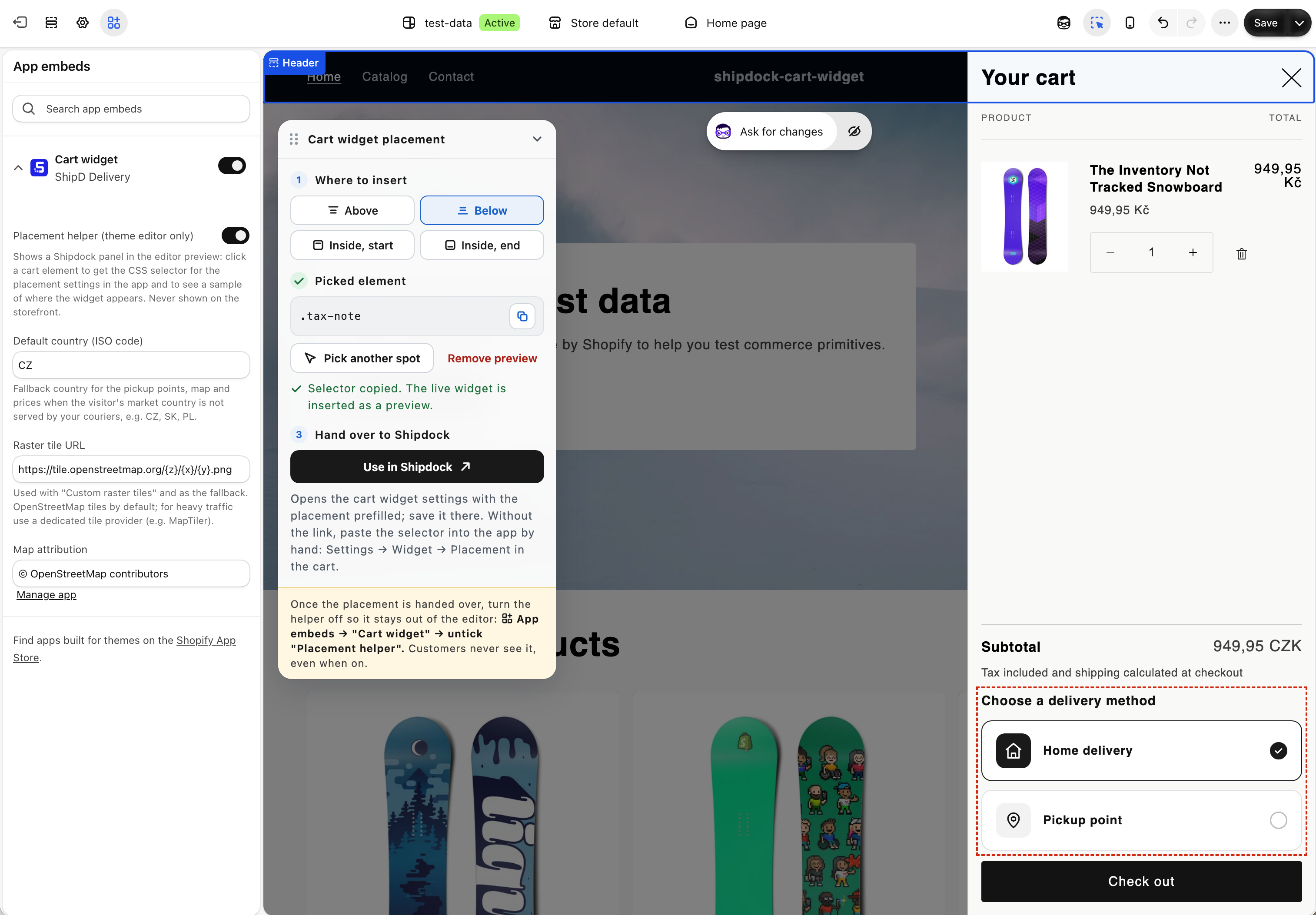
Under Cart widget, turn on Placement helper (theme editor only). The Cart widget placement panel appears in the editor preview.
Pick the spot
In the preview, add a product to the cart and open the cart drawer.
In the panel, click Pick a spot, hover an element in the drawer and click it. A blue line shows where the widget goes. Esc stops picking.
Under Where to insert, choose Above, Below, Inside, start or Inside, end. The live widget appears in the drawer as a preview. Not right? Click Pick another spot or Remove preview.
Tip: Pick an element that is always in the drawer, for example the subtotal, the tax note or the area around the checkout button. A product line changes with the cart.
Hand it over to ShipDock
Click Use in Shipdock. The cart widget settings open with the new placement filled in, set to Show on: All pages, so the widget also appears in a drawer opened from a product page.
Click Save. Nothing is saved until you do.
If the link does not open, the selector is already copied: in ShipDock click Add placement under Placement in the cart, paste it, choose the Position and Save.
Turn the helper off
Back in the theme editor, open App embeds → Cart widget, untick Placement helper (theme editor only) and save the theme.
Note: The helper exists only in the theme editor preview. Customers never see it on your store, even when it is on. Turning it off just keeps it out of your way in the editor.
Check it
Open your store as a tester (Open as tester in the cart widget settings), add a product and open the drawer. The widget should be there. Check the cart page too.
Troubleshooting
The widget is missing after a theme update: the theme may have changed its code and the selector no longer matches. Pick the spot again.
The helper does not react: switch the editor preview to desktop, and pick an element inside the cart. The helper picks only elements in your theme's sections.
Need help? Write to us in the chat and we are happy to help you set up the placement for your theme.