When a customer chooses delivery to a pickup point but doesn't select a specific point, ShipDock can email them a reminder. There are two ways to send it:
When: About 5 minutes after the order, once. Shopify Flow action: When your workflow says so, for example after 12 hours or again the next day.
Conditions: Fixed: pickup point rate, no point selected. Shopify Flow action: Your own: shipping method, country, payment status and anything else Flow can check.
Set up in: ShipDock Settings → Notifications. Shopify Flow action: Shopify Flow.
Both send the same email: your texts from the Email customizer, in the customer's language, from the same sender.
Install the Shopify Flow app in your store, if it isn't installed yet.
A paid ShipDock plan (Lite or higher).
Set up the reminder email in ShipDock first: Sender name, Reply to email, subject and message in Settings → Notifications. The Flow action sends nothing until the email is set up.
Add the Pickup point selector block to the Order status page, so the button in the email leads to a page where the customer can pick the point. See How to add the pickup point widget to the Thank you and Order status pages.
Decide what happens to the automatic reminder. The Enable email reminder switch controls only the automatic reminder; the Flow action works whether it is on or off. To use only Flow, turn it off.
In Shopify admin, open Apps → Flow and click Create workflow.
Click Select a trigger and choose Order created.
Add a Wait step and set how long to wait, for example 12 hours.
Add a Condition step that lets only pickup point orders through: Shipping line title contains the name of your pickup point shipping rate, for example Zásilkovna výdejní místo. If you have several pickup point rates, add one condition per rate and join them with OR.
Add an action, search for ShipDock and choose Send pickup point reminder.
In the action, keep Order set to the order from the trigger. Optionally fill in Minimum hours since the last reminder (see below).
Name the workflow and click Turn on workflow.
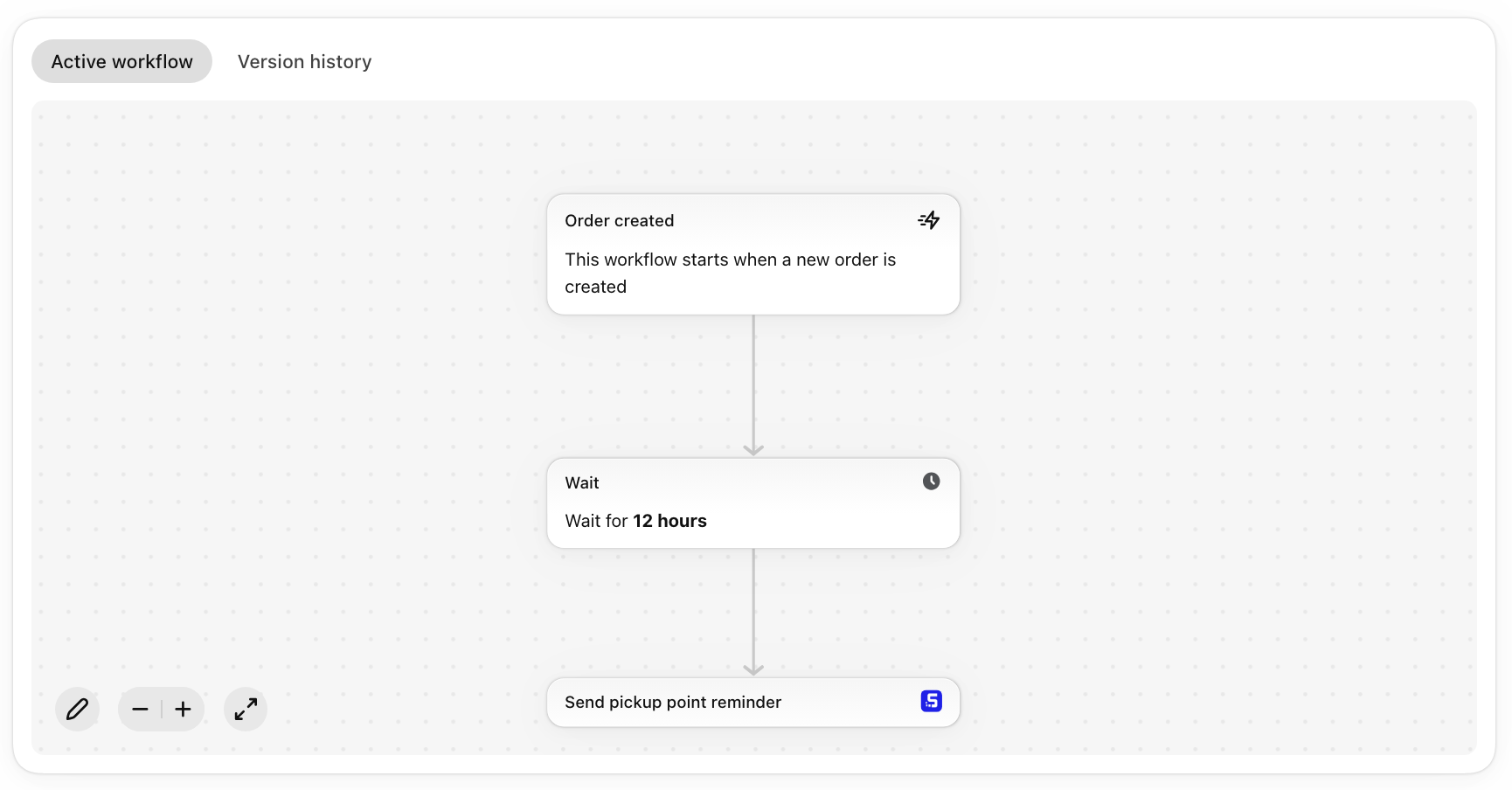
Instead of building the workflow step by step, you can import ours: Download the workflow (.flow)
It contains Order created → Wait 12 hours → Send pickup point reminder.
In Shopify admin, open Apps → Flow.
Click Import and choose the downloaded file.
Add the Condition step from step 4 above between Wait and the action. The imported workflow has no condition.
Adjust the Wait time and Minimum hours since the last reminder in the action if you need to.
Click Turn on workflow.
The action checks the order at the moment it runs and skips the email when:
the customer has already selected a pickup point,
the order has no customer email,
the reminder email is not set up in Settings → Notifications,
Minimum hours since the last reminder is set and ShipDock sent a reminder for this order within that time.
A skipped email does not stop or fail the workflow. Flow retries the action only when sending itself fails.
If the automatic reminder stays on, a customer can get two emails: the automatic one after about 5 minutes and the one from your workflow. Either turn off Enable email reminder, or set Minimum hours since the last reminder in the action, for example to 6, so the action skips orders that got a reminder in the last 6 hours.
Later reminder instead of 5 minutes. Turn off Enable email reminder, then: Order created → Wait 2 hours → Condition: shipping line title contains your pickup point rate name → Send pickup point reminder.
Second reminder the next day. Keep the automatic reminder on and add: Order created → Wait 24 hours → Condition: shipping line title contains your pickup point rate name → Send pickup point reminder with Minimum hours since the last reminder set to 20.
Only for some orders. Add more conditions before the action, for example the shipping country or Order financial status equals paid.
The same email as the automatic reminder: your texts from the Email customizer, in the customer's language, from the same sender (including your own domain if you set one up), with a button that opens their Order status page. You can personalise it with Liquid variables, see Liquid variables for the pickup point reminder email.
The customer got two reminders: the automatic reminder and your workflow both sent one. Turn off Enable email reminder, or set Minimum hours since the last reminder in the action.
A customer with home delivery got the reminder: the workflow has no condition for pickup point orders. Add the condition from step 4.
No email was sent: the customer had already selected a point, the order has no customer email, or the reminder email is not set up in ShipDock. Check the workflow's run history in Flow.
The button in the email opens a page without a selector: add the Pickup point selector block to the Order status page.
You can still send a reminder for one order by hand: in ShipDock Orders, click Send reminder on the order.
