Some shipping rates should allow cash on delivery and others should not, for example because a courier does not support COD or because you charge more for COD. With this rule, ShipDock decides which payment methods the customer sees in checkout, based on the name of the shipping rate they picked:
The rate name contains one of your keywords: only COD payment methods are shown.
The rate name contains no keyword: COD payment methods are hidden.
ShipDock does not add a COD fee to the order. If you want to charge one, use a separate, more expensive COD rate (see "Charge a COD fee" below).
You need a paid plan (Lite or higher). Without it, the Enable switch is locked.
Your COD payment method is active in Shopify (see How to set up cash on delivery (COD)).
The rule treats these payment methods as COD: Shopify's Cash on Delivery (COD) and every name in your Custom payment methods list. If your COD method has another name, add it there first. Otherwise the rule treats it like a card payment: it is hidden for your COD rates and shown for all other rates.
Every shipping rate that should allow COD needs a keyword in its name, for example PPL (Cash on Delivery + 50 Kč). A common setup is two versions of each rate: a normal one and a COD one.
Rates from Shopify (Manual rates mapping):
In your Shopify admin, go to Settings → Shipping and delivery and open your shipping profile.
For each rate where you want to offer COD, create a copy, for example PPL (Cash on Delivery + 50 Kč) next to PPL.
Save the shipping profile.
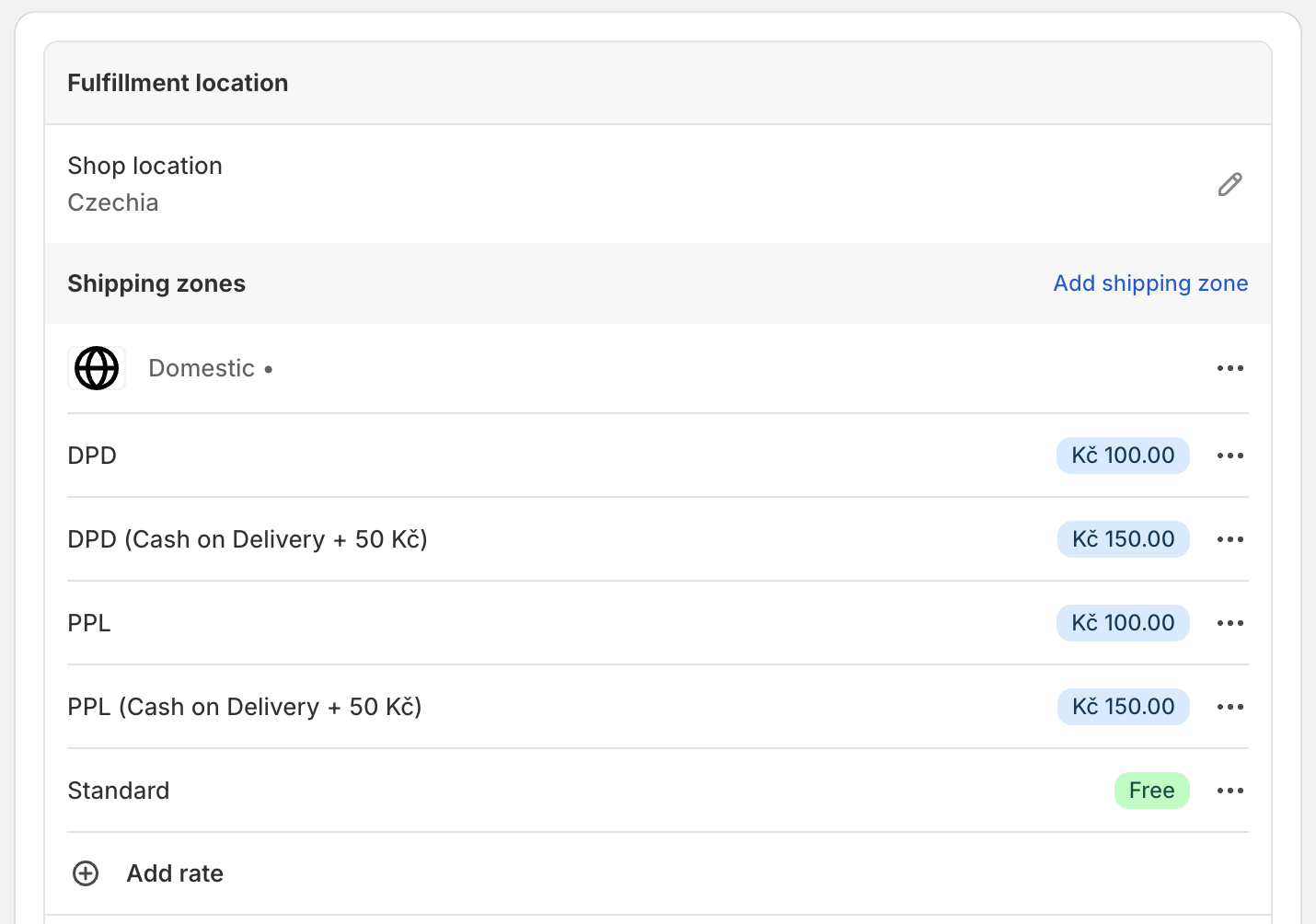
Rates from ShipDock (CCS - Dynamic Rates or CCS - Nearest Pickup Points): put the keyword into the Shipping name of the rate that should allow COD.
ShipDock has to know which courier ships the new COD rates, the same as for your original rates.
In ShipDock, open Providers and select the courier.
On the Pickup points or Home delivery tab, add the new rate name to the courier's Manual rates mapping, next to the original rate.
Save.
If you skip this, ShipDock does not know which courier ships these orders. In Orders they show that the shipping method "is not assigned to any provider", and you have to pick the courier for each order by hand. Rates created with CCS in ShipDock already belong to the courier.
Open Settings → Cash on Delivery.
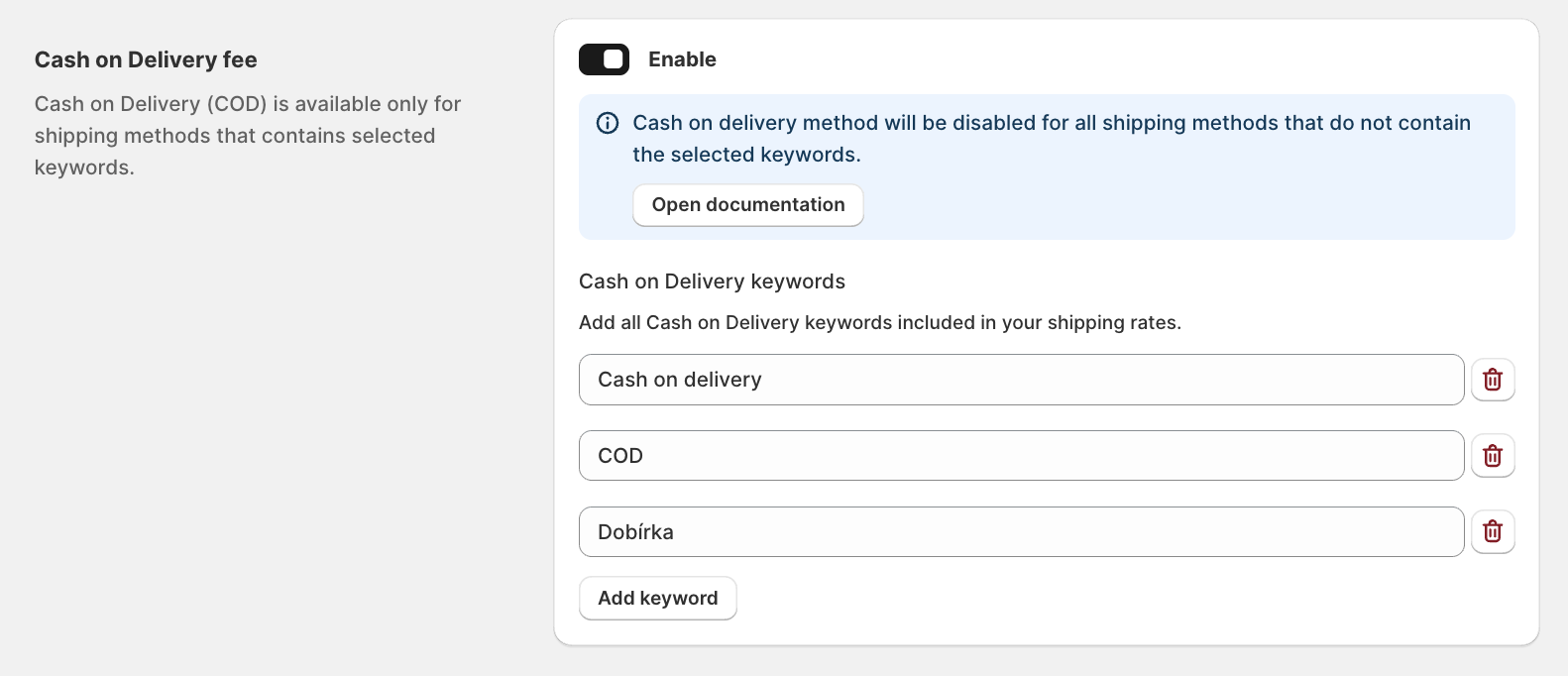
In the Cash on Delivery fee card, turn on Enable. The card shows "Cash on delivery method will be disabled for all shipping methods that do not contain the selected keywords."
Under Cash on Delivery keywords, check the keywords. The defaults are Cash on delivery, COD and Dobírka.
Click Add keyword to add more, for example Dobierka, Nachnahme, Utánvét or Pobranie. Remove a keyword with the delete icon next to it.
Click Save.
When you save, ShipDock adds a payment customization called "Hide COD for non selected shipping rates" to your Shopify store. There is no separate activation step. Saving again updates the same customization, and saving with Enable turned off switches it off.
Note: Keywords match any part of the rate name, and upper or lower case does not matter. COD also matches names like Barcode Express or a town like Codlea. Rates from CCS - Nearest Pickup Points can include the pickup point's street or city in their name, so a short keyword can match by accident. Use longer keywords if your rate names could contain those letters.
Before the customer enters an address and a shipping rate is selected, all payment methods are visible, COD included. Customers can see that you offer COD.
The customer picks a rate with a keyword, for example PPL (Cash on Delivery + 50 Kč): only COD payment methods stay visible.
The customer picks a rate without a keyword: COD payment methods are hidden and the other methods stay visible.
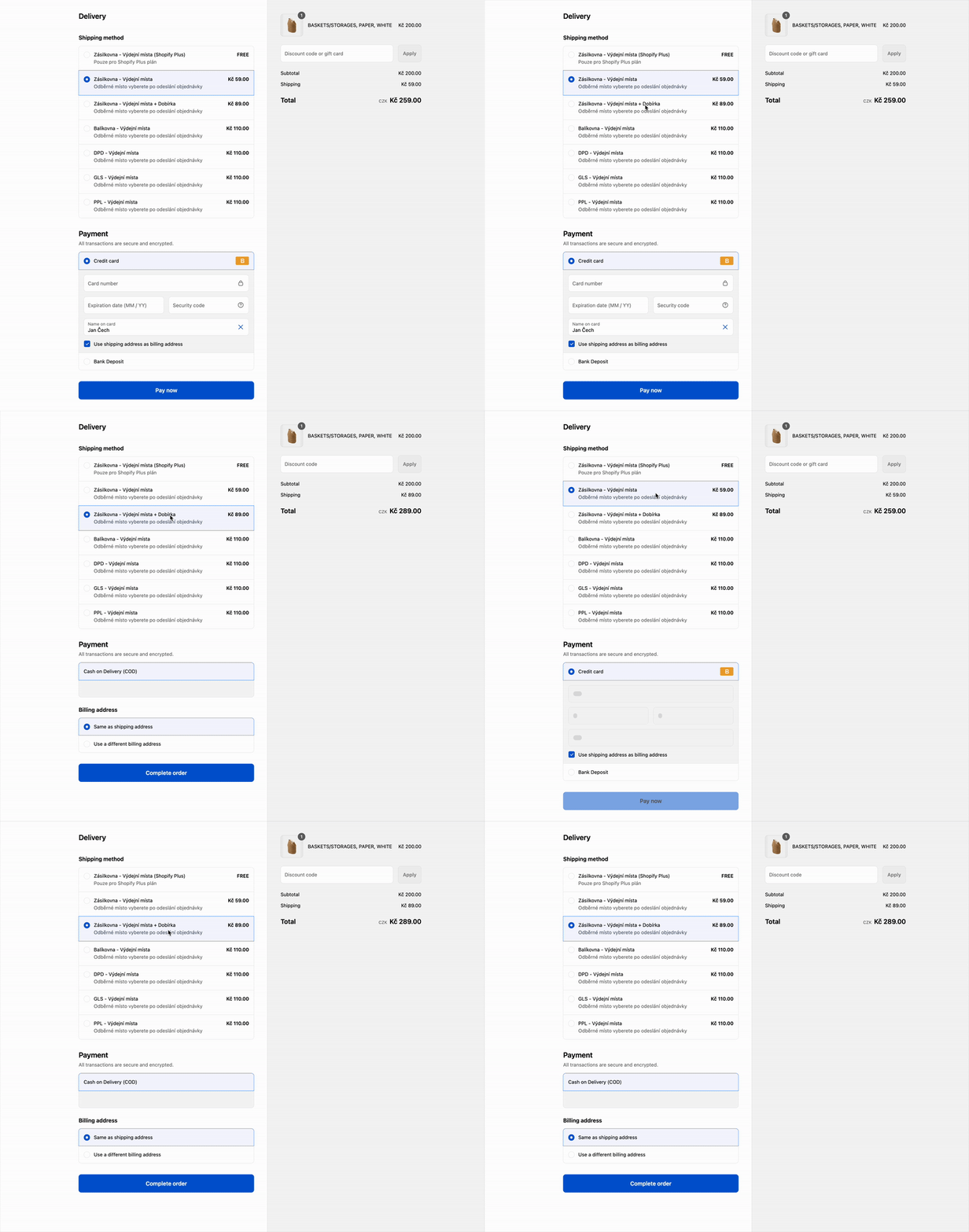
ShipDock adds no surcharge itself. The fee is the price difference between the normal rate and the COD rate:
Give the COD copy of the rate a higher price. Example: PPL costs 100 Kč, PPL (Cash on Delivery + 50 Kč) costs 150 Kč.
Turn on the rule above, so customers who pick the cheaper rate cannot choose COD, and customers who pick the COD rate can pay only with COD.
The order is not edited after checkout. The customer sees the full price, fee included, when choosing the shipping rate.
COD is offered for every rate: the rule is not enabled or not saved, the payment customization was deleted in Shopify (save the COD settings again to recreate it), or a keyword is too broad.
COD is never offered: the selected rate name does not contain any keyword, or the COD payment method is not active in Shopify.
My COD payment method disappears for the COD rate: its name is not Cash on Delivery (COD) and it is not in Custom payment methods. Add it there and save.
Customers who choose the COD rate cannot pay by card: this is how the rule works. A rate with a keyword allows only COD.
COD orders show "not assigned to any provider": map the COD rate to the courier (step 2).
The switch is locked and you want to turn the rule off: without a paid plan you cannot change the setting in ShipDock. Delete "Hide COD for non selected shipping rates" in Shopify Settings → Payments, or upgrade.
