This guide is for shops in Hungary that ship with Magyar Posta (MPL). Once MPL is connected, customers can pick a post office, partner point or MPL parcel locker, and you can create MPL labels in ShipDock.
You need a business contract with MPL and an ÉnPostám account with API access for your company. The four connection values are in the MPL developer portal at devportal.posta.hu/devapps, in your company view.
Plan: Lite is enough to connect Magyar Posta and show its pickup points to customers. To create shipping labels through MPL, you need Full.
If you offer cash on delivery, have the 24-digit number of the bank account where MPL should pay out COD money.
Magyar Posta has no test mode. Every label you create is a real shipment.
MPL sets up API access, not ShipDock. The process below is how MPL described it:
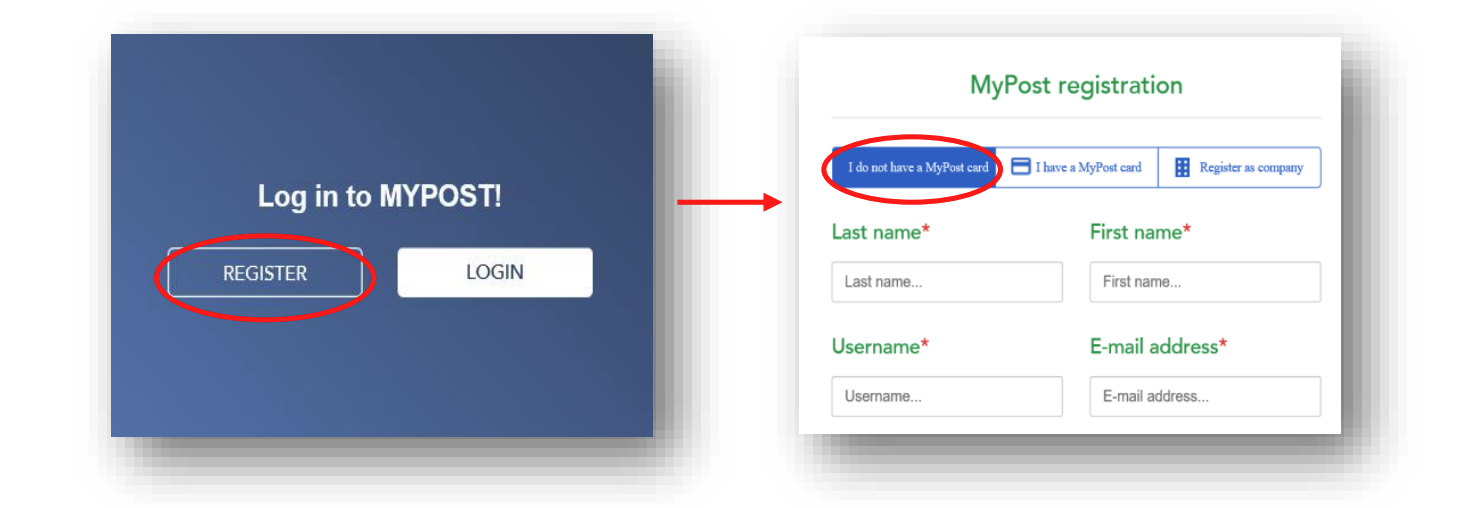
The person who will manage the API keys registers in ÉnPostám (MyPost) as a private individual. Skip this if they already have an account.
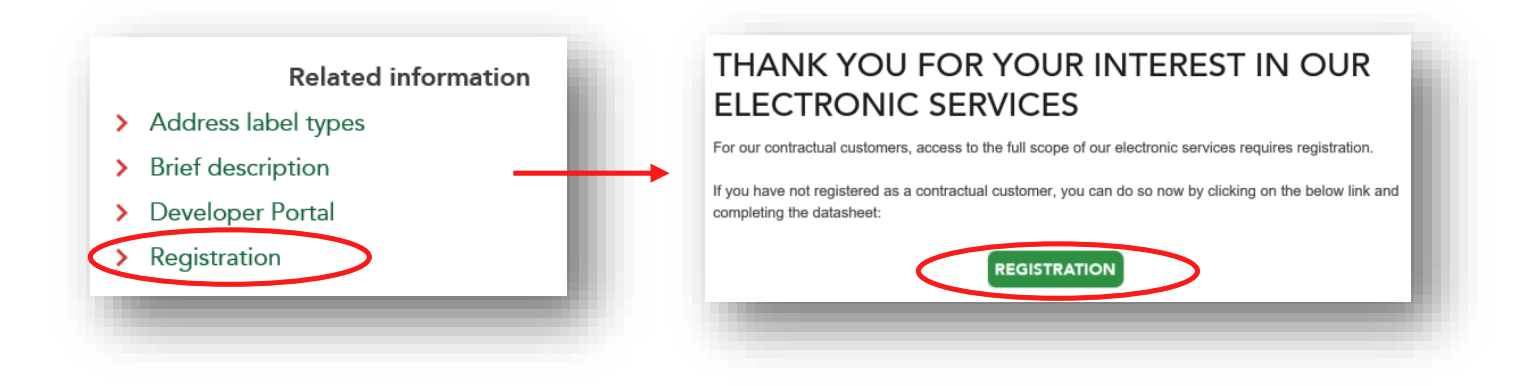
On the MPL API page, open Registration, fill in the Excel form with that person's details and the company details, and email it to [email protected].
MPL gives that person access to the company's API keys and sends a confirmation email.
The person logs in to the developer portal with their ÉnPostám login and switches to the company view.


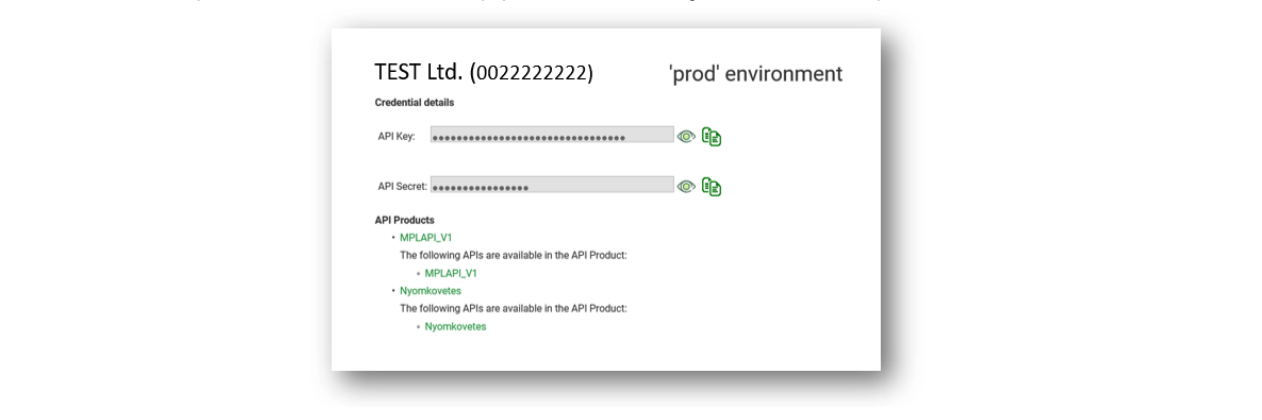
At the bottom of the page they copy the production key pair: API Key and API Secret.
In ShipDock, open Providers and click Create provider. You can also click Add a carrier on the ShipDock home page.
In the country selector, choose Hungary.
On the Magyar Posta card, click Select. ShipDock creates the courier and opens its General tab.
In the Connection card, turn on Connect provider throught API.
Fill in the four fields:
Api Key: from the developer portal, company view.
Api Secret: from the developer portal, company view.
Accounting code: in the developer portal, on the Applications page.
Agreement: your agreement code, in your ÉnPostám account or in your MPL contract.
In Sender details, fill in Name, Organization, Street, City, ZIP Code, Phone and Email. The phone must be a Hungarian number in international format, for example +36201234567.
For COD: in COD Details, enter the Account number, the sender's 24-digit bank account number (for example 123456781234567800000000).
In the Status panel, choose Active.
Click Save.
Note: A new courier starts with Connect provider throught API off and the status Inactive. Sender details and COD Details appear only after you turn the connection on.
Open the Pickup points and Home delivery tabs. Under Choose integration, pick Manual rates mapping (select your existing Shopify rates; for home delivery choose the service Business Parcel), CCS - Dynamic Rates (ShipDock calculates the rates; your Shopify plan must allow carrier-calculated shipping rates) or, on the Pickup points tab, CCS - Nearest Pickup Points. Details are in How to set up shipping rates.
Note: Magyar Posta pickup points work only with the widget display mode List with Map. If your widget uses Banner, the Pickup points tab shows the warning Pickup points requirements with a Go to Widget settings button. See How to choose the pickup point widget display mode.
For the widget itself, see How to add the pickup point widget to the Thank you and Order status pages or How to add the pickup point widget to checkout (Shopify Plus).
Customers can choose post offices, partner points and MPL parcel lockers in Hungary. To hide a type, use the Exclusion card on the Pickup points tab (Parcelshop, MagyarPosta box).
Home delivery: Yes, Business Parcel, within Hungary.
Pickup points: Yes, Hungary.
Cash on delivery (COD): Yes, needs the Account number in COD Details.
Mark COD orders as paid automatically: No.
Cancel from the app: No, cancel the shipment with MPL.
Test mode: No.
Insurance value: Yes, per order: Edit order → Override insurance value.
Label formats: PDF: Labels, A6 on A6 and Labels, A6 on A4, 4pcs/page (also with packing slips).
Magyar Posta in ShipDock is for shipping within Hungary.
COD orders are not marked as paid automatically. Mark them as paid in Shopify yourself after MPL pays you.
Deleting a parcel in Orders removes it only from ShipDock. Cancel the shipment with MPL as well.
Label creation fails with an error about the sender phone. Enter the phone as +36 followed by the number, without spaces.
Label creation fails for a COD order. Check that Account number in COD Details has exactly 24 digits.
Authentication error when creating a label. Check that Api Key and Api Secret are the production pair from the company view, not a personal or test key.
"Provider connection is disabled. Please activate API connection with credentials in the provider detail." Turn on Connect provider throught API and save.
"Shopify Shipping Rate (…) in order not assigned in Shipping settings." Map that shipping rate on the Magyar Posta Pickup points or Home delivery tab.
If you need help with the MPL registration, contact MPL business customer service.
