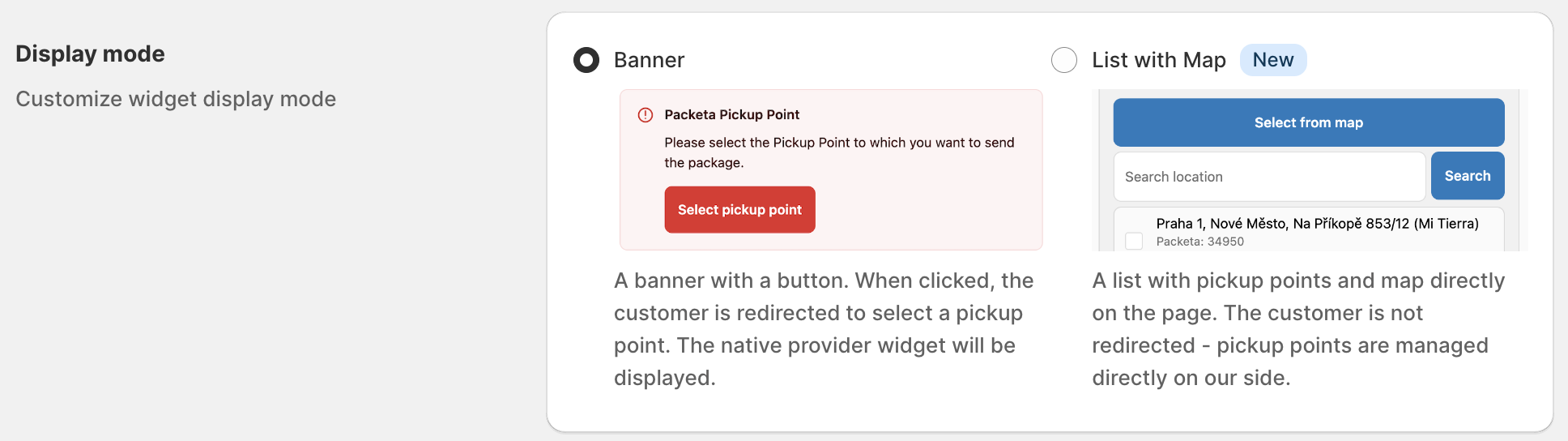
The pickup point widget on the Thank you and Order status pages has two display modes: Banner and List with Map. This guide compares them and shows how to switch.
The setting applies only to the Thank you and Order status pages. The checkout widget on Shopify Plus always shows the list with map.
Where the customer chooses: On a separate page that opens from the Select pickup point button. List with Map: Directly on the Thank you or Order status page, no redirect.
Pickup point map: The courier's own map. List with Map: ShipDock's list with search, plus a Google map.
Couriers: Packeta, DPD, PPL, GLS and Balíkovna only. List with Map: All couriers with pickup points in ShipDock.
Exclusion (hide pickup point types or networks): Not available. List with Map: Available.
Google Maps key: Not used. List with Map: Optional. Without it, customers get the list and search, no map.
Customer texts: Editable per store language in Settings → Translations. List with Map: Built in, not editable.
Languages: Every store language you fill in. List with Map: English, Czech, Slovak, Polish, Hungarian and Croatian. Other languages show English.
Default: Stores without Shopify Plus. List with Map: Shopify Plus stores.
Switching the mode needs a paid ShipDock plan (Lite or higher). Without one, both options are greyed out.
Your current mode is the default from when you installed ShipDock: List with Map on Shopify Plus, Banner on other plans.
If you use a courier other than Packeta, DPD, PPL, GLS or Balíkovna, choose List with Map.
In ShipDock, open Settings → Widget (Pickup points).
In Display mode (TY / OS page), choose Banner or List with Map.
Click Save. The Thank you and Order status pages use the new mode from then on.
If you chose List with Map, the Google Map APIs card appears on the same page. Add a key there to show the Select from map button. See How to get a Google Maps API key for the pickup point map.

Note: Without a Google Maps key, List with Map still works. Customers search and pick from the list, only the map button is missing.
To hide some pickup point types or partner networks (for example parcel lockers), open Providers → your courier → Pickup points → Exclusion. You can change the switches there only while the display mode is List with Map. With Banner, the table is locked and shows the warning "Pickup points requirements" with a Go to Widget settings button. Banner shows the courier's own map, so your exclusions don't apply to it.
On Shopify Plus, exclusions also apply to the checkout widget. To edit them, keep the display mode on List with Map, which is the default on Plus.
Banner: open Settings → Translations, tab Thank you / Order status page - Banner widget. For each store language you can edit Error message, Selected Pickup point title, Selected Pickup point description, Unselected Pickup point title and Unselected Pickup point description. If you add a language to your store later, click Resync languages.
List with Map: the texts are built in and follow the customer's checkout language: English, Czech, Slovak, Polish, Hungarian or Croatian. Customers in other languages see English.
