The pickup point list and search work without a key. With your own Google Maps key, customers also get a Select from map button that opens a map of pickup points. The map is used in checkout on Shopify Plus and on the Thank you and Order status pages in List with Map mode. The key doesn't affect Banner mode, which shows the courier's own map.
You need a Google account with a billing account in Google Cloud. Google bills map usage to your Google account. See Google Maps Platform pricing.
On stores without Shopify Plus, set Display mode (TY / OS page) to List with Map first. Otherwise the Google Map APIs card in ShipDock is hidden. Switching the mode needs a paid ShipDock plan. See How to choose the pickup point widget display mode.
Sign in to the Google Cloud console and select a project, or create one.
If the project has no billing account yet, set one up. This video shows how:
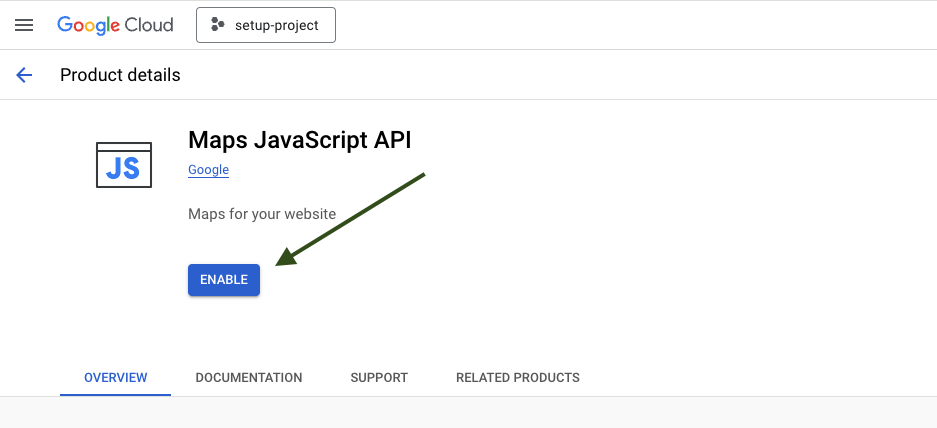
Open the API Library, find Maps JavaScript API and click Enable. This is the only Google API ShipDock needs. Address search runs in ShipDock, so you don't need Places.
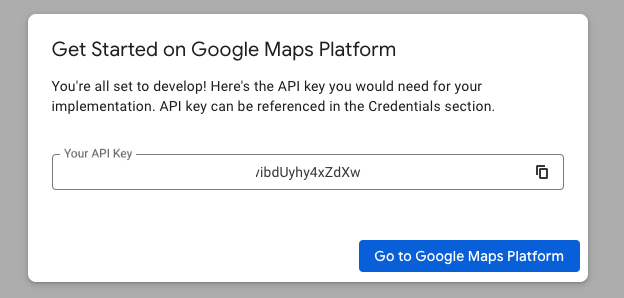
Open Credentials, create an API key if you don't have one yet, and copy it.
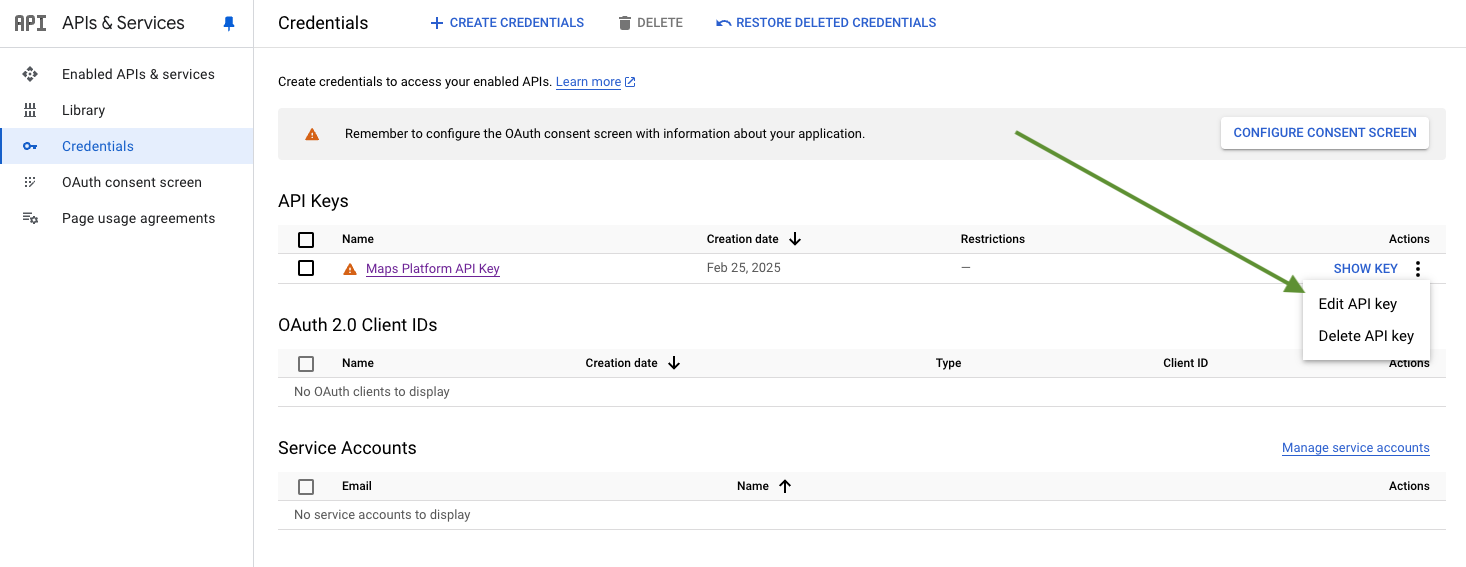
Edit the key. Under Application restrictions, choose Websites and add:
*.yourdomain.com and yourdomain.com (replace with your store's domain)
*.myshopify.com
https://shopify.com/*
https://shop.app
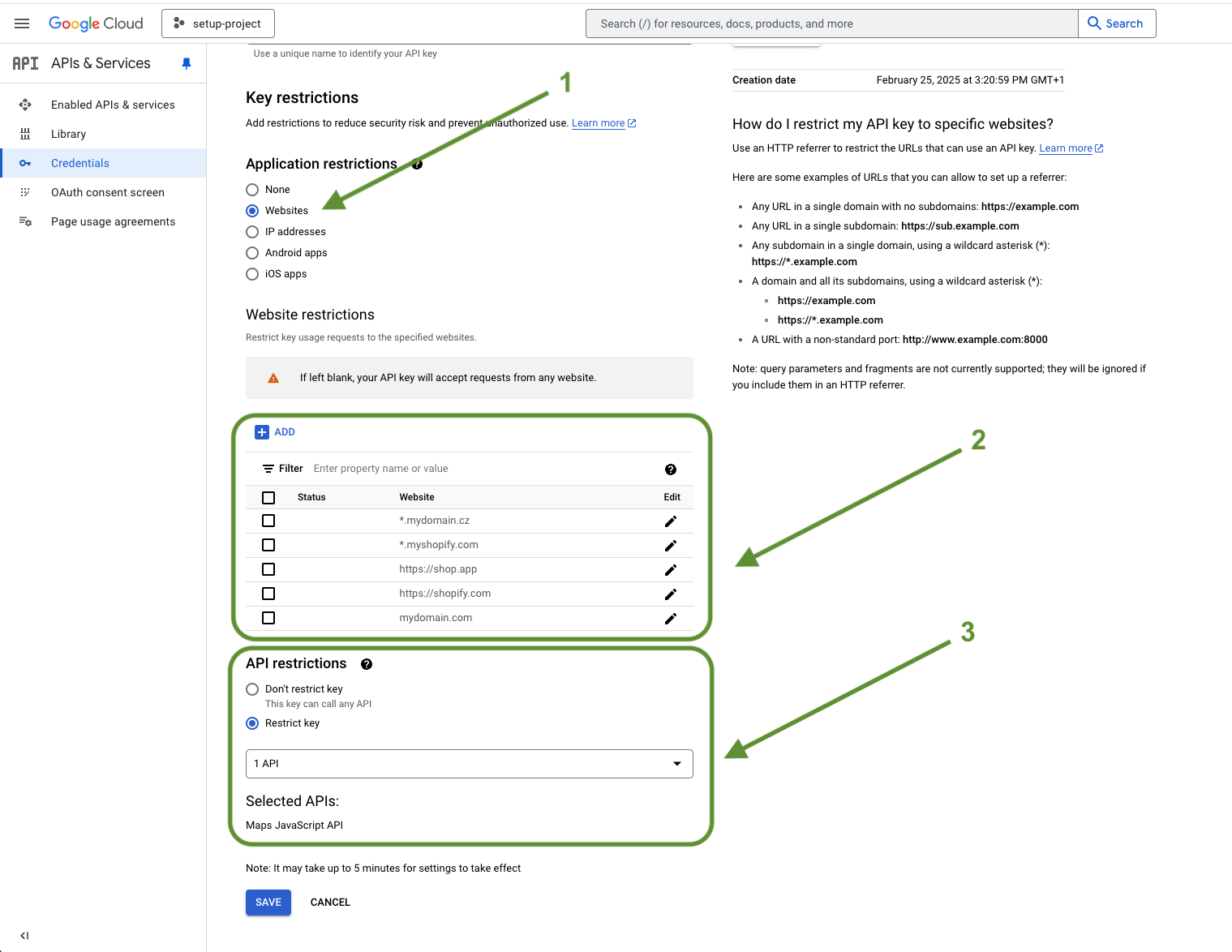
Click Save.
In ShipDock, open Settings → Widget (Pickup points).
In the Google Map APIs card, paste the key into Public Api Key.
Click Save.

Until you save a key, the card shows the banner "API Key is required to show the Map button".
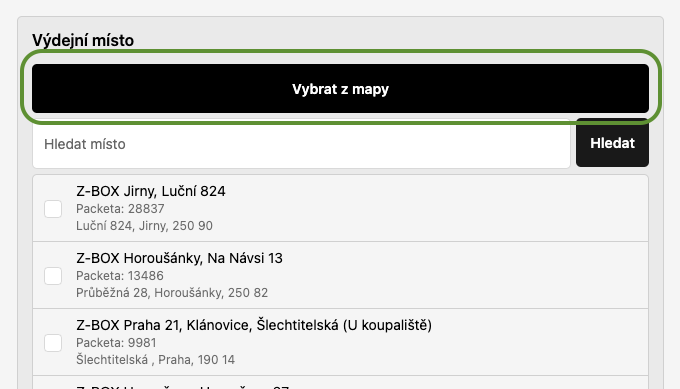
The widget shows a Select from map button next to the pickup point list. It opens a map with the courier's pickup points. When the customer clicks a marker, they see the point's details and a Select pickup point button.
The Select from map button is missing
The key is saved in Settings → Widget (Pickup points) → Google Map APIs → Public Api Key.
On stores without Shopify Plus, the display mode is List with Map. Banner mode never shows this button.
The map doesn't load
Maps JavaScript API is enabled in the same Google Cloud project as the key.
The project has an active billing account.
The website restrictions on the key include your store's domains from step 5. Test the map in checkout (Shopify Plus), on the Thank you page and on the Order status page.
