Cash on delivery lets customers pay the courier when the parcel arrives. You set up the payment method in Shopify, and ShipDock recognises COD orders and sends the amount to collect with the shipping label. Czech merchants often call it Dobírka; ShipDock recognises that name too.
You need a ShipDock plan. Creating shipping labels, which is when the COD amount goes to the courier, needs the Full plan.
At least one courier is connected in Providers.
Check that your courier supports COD (see "Which couriers support COD" below).
Use Shopify's built-in method if you can. ShipDock recognises it without any extra setup.
In your Shopify admin, go to Settings → Payments.
In the Manual payment methods section, select Cash on Delivery (COD).
In Additional details, enter the information you want shown next to the payment method in checkout.
In Payment instructions, enter what the customer should do to pay. Shopify shows it on the order confirmation page.
Click Activate Cash on Delivery (COD).
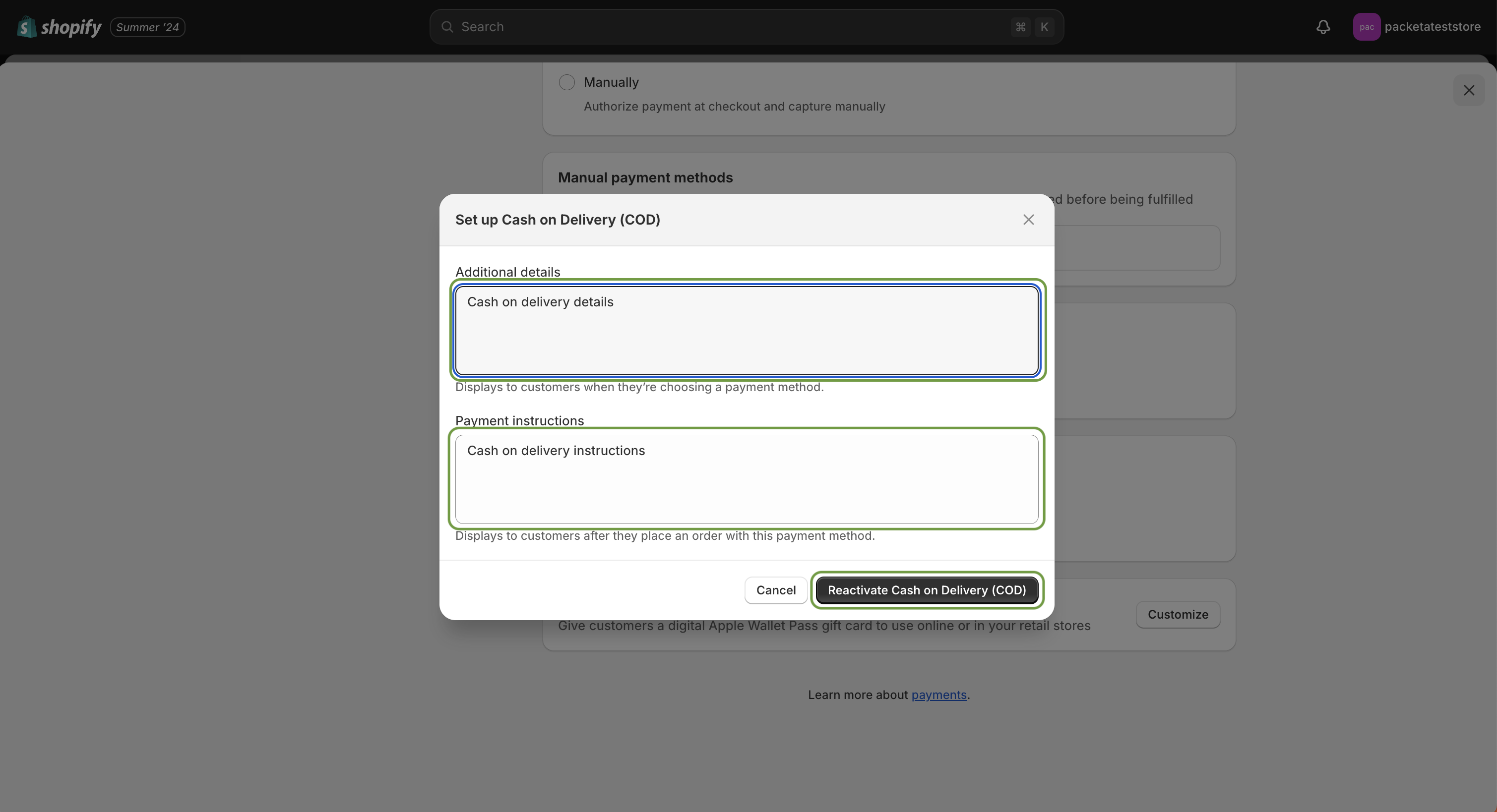
If you want a different name, for example in your customers' language:
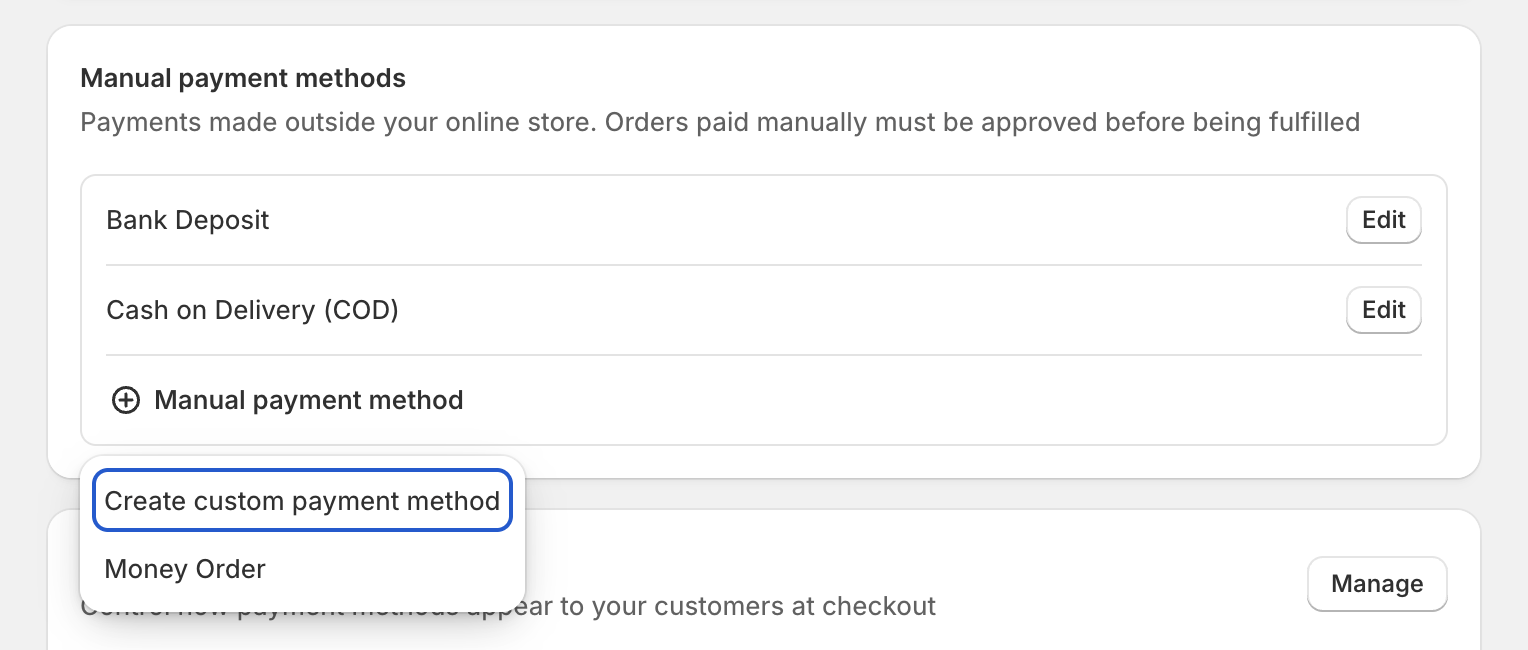
In Settings → Payments, in Manual payment methods, choose Create custom payment method.
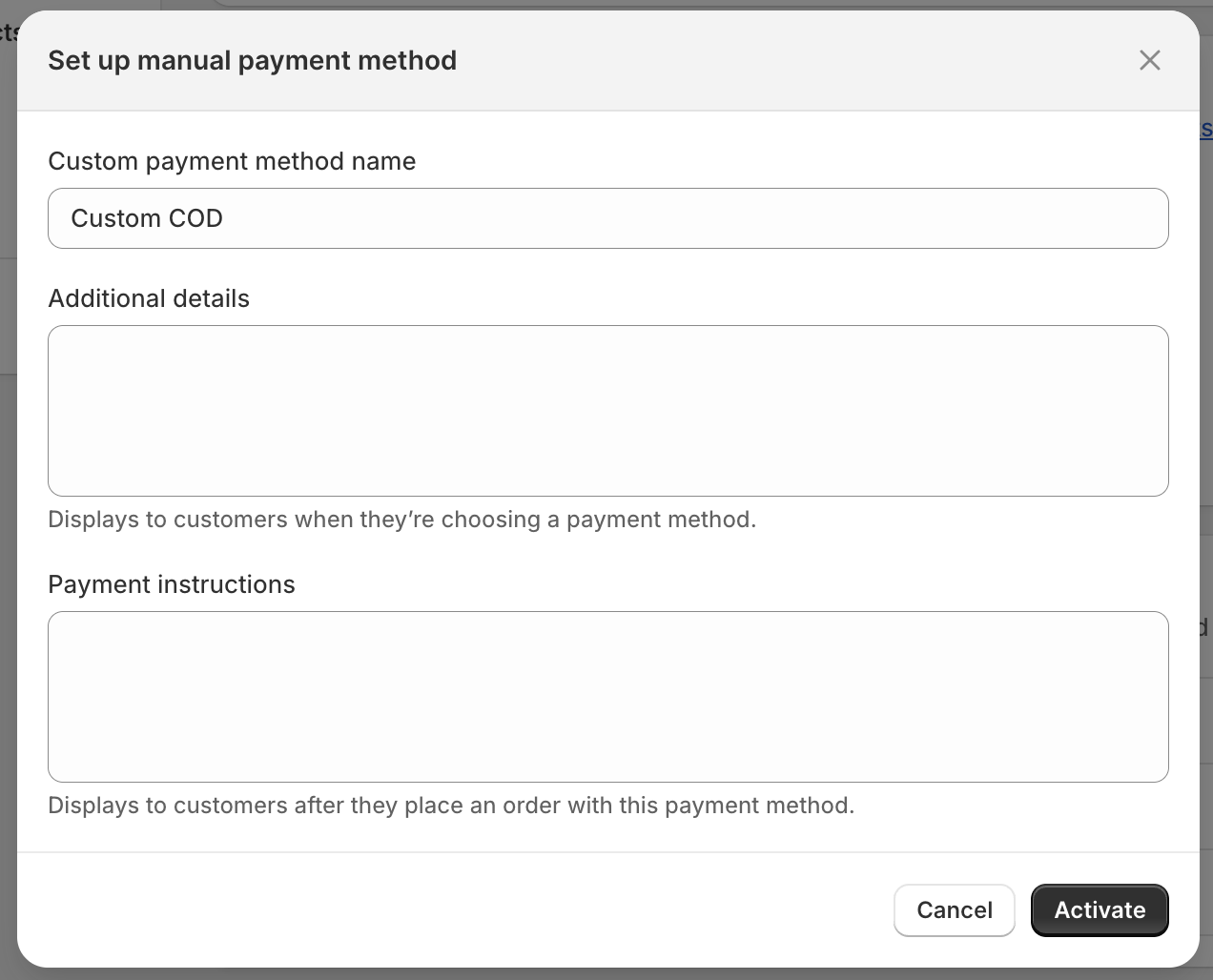
In Custom payment method name, enter the name, for example Platba při převzetí.
Fill in Additional details and Payment instructions.
Click Activate.
Continue with step 2 below if ShipDock does not recognise the name automatically.
ShipDock treats an order as COD when the name of its payment method:
contains "COD", "Dobírka" or "dobírkou" (upper or lower case does not matter). Shopify's Cash on Delivery (COD) matches, and so does a name like "Dobírka (platba při převzetí)".
or exactly matches a name in your Custom payment methods list (upper or lower case does not matter).
A name such as "Cash on delivery" without "COD", "Platba při převzetí" or "Nachnahme" is not recognised until you add it:
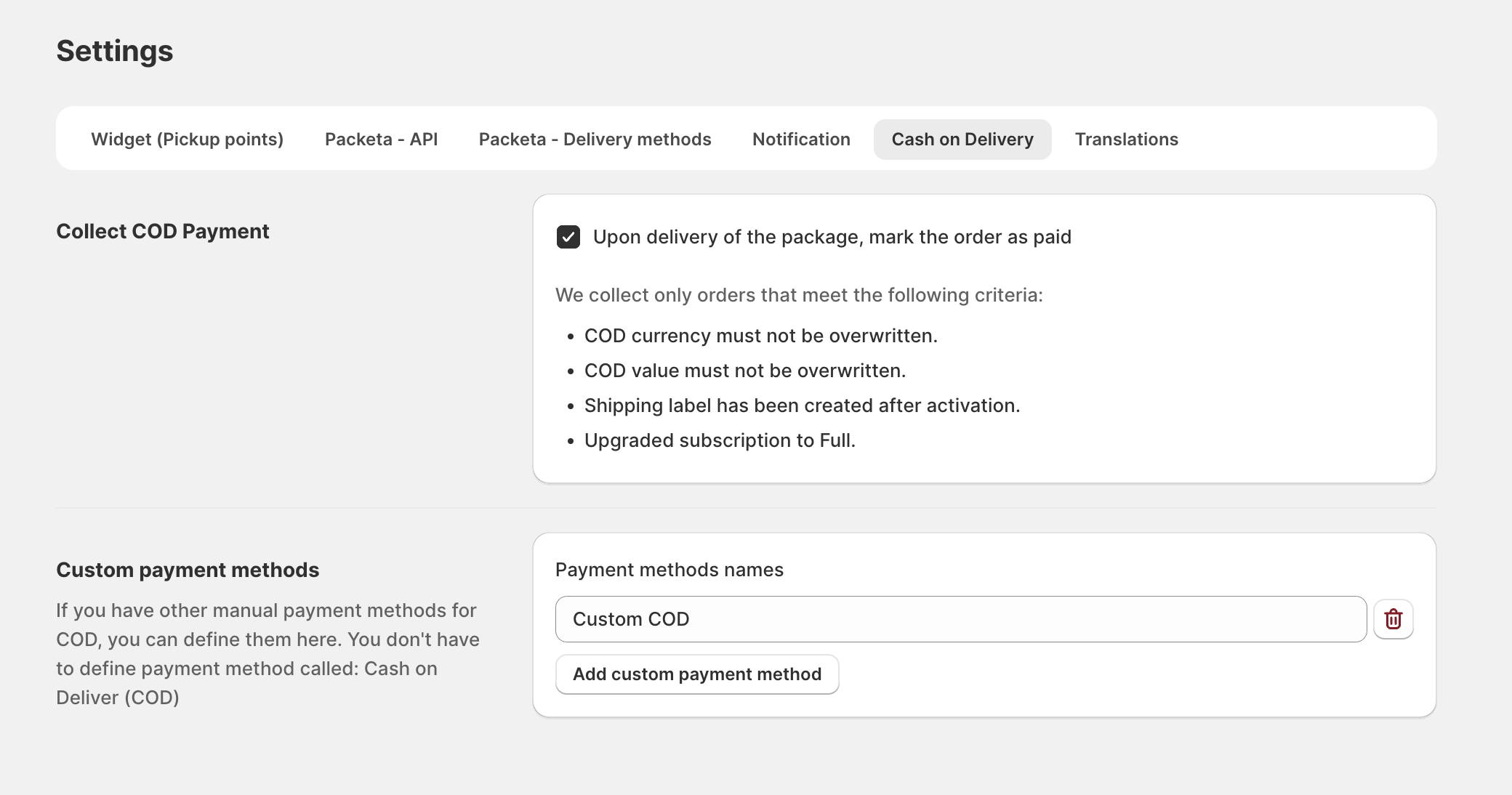
In ShipDock, open Settings → Cash on Delivery.
In the Custom payment methods card, click Add custom payment method.
Enter the payment method name exactly as it is in Shopify.
Repeat for every other COD payment method you use.
Click Save.
Tip: To check the result, open Orders in ShipDock. COD orders show a COD badge next to the payment status.
When you create the label, ShipDock adds the COD amount to the shipment:
Which orders: only COD orders whose payment status in Shopify is Pending or Partially paid. For a partially paid order, only the amount still to be paid is collected.
Currency: the currency the customer paid in. ShipDock does not convert COD amounts between currencies.
Rounding:
CZK: rounded to a whole number (499.50 becomes 500).
HUF: rounded up to a multiple of 5 (1,232 becomes 1,235).
Other currencies: rounded to 2 decimals.
Important: If a COD order is already marked as Paid in Shopify when you create the label, ShipDock sends no COD amount and the courier does not collect any money. Do not mark COD orders as paid before the label exists.
The courier, not ShipDock, collects the money and pays it out to you. By default it uses the bank account in your contract with the courier.
To use a different account for one courier connection:
Open Providers and select the courier.
On the General tab, find the COD Details card ("Override the default account for cash-on-delivery payments.").
Fill in the fields the courier asks for: IBAN, SWIFT, Account number or Receiver name.
Save. Leave the card empty to keep the account from your contract.
Note: Not every courier has the COD Details card. Couriers without it pay COD to the account set in your account with the courier.
You can change the amount or currency before you create the label:
Open Orders in ShipDock.
In the order row, click the pencil icon (Edit order).
Turn on Override COD value and enter the amount in COD value. It must be a whole number for CZK and a multiple of 5 for HUF; use a dot for decimals (20.50). Enter 0 to send the parcel without COD.
If the courier needs a different currency, turn on Override currency and choose it. The amount is not converted, so also override the COD value.
Save.
The override also works the other way: on an order that is not COD, Override COD value adds a COD amount, and the order shows the COD - Overriden badge.
Note: Orders with an overridden COD value or currency are not marked as paid automatically after delivery.
If the label already exists, the change does not reach the courier. Cancel the shipment () and create the label again.
Most couriers in ShipDock support COD, but not all, and some accept COD only in one currency (for example Fan Courier and Cargus accept COD only in RON). For a courier or currency without COD, creating the label usually fails with a message asking you to set the COD value to 0 or mark the order as paid. Check COD support in your courier's connection guide,
Tip: To stop customers from choosing COD with a courier that does not support it, offer COD only for selected shipping rates (see below).
No COD amount on the label: the payment method name is not recognised (add it to Custom payment methods), the order was already Paid in Shopify, or the courier does not support COD.
Wrong COD amount: check for a partial payment (only the outstanding amount is sent), the rounding rules above, and any Override COD value on the order.
The courier rejects the currency: use Override currency and Override COD value on the order so they match the currency the courier accepts.
