With Manual rates mapping, you tell ShipDock which of your Shopify shipping rates belong to which courier, and whether each one is a pickup point or a home delivery rate. ShipDock then knows:
which courier and service to use when it creates the shipping label,
for which orders to show the pickup point widget,
which orders are pickup point orders and which go to the customer's address.
If you use CCS - Dynamic Rates or CCS - Nearest Pickup Points, ShipDock creates the rates itself and you don't need to map anything.
You need the Lite plan or higher.
Connect the courier in ShipDock first (How to set up ShipDock). For some couriers, the Pickup points and Home delivery tabs stay disabled until the connection is complete.
Create the shipping rates in Shopify (Settings → Shipping and delivery), with different names for pickup point and home delivery: How to create shipping rates in Shopify for manual mapping.
In ShipDock, open Providers and click the courier.
Open the Pickup points tab.
Under Choose integration, select Manual rates mapping. It is selected by default.
In the Shipping rates mapping card, click Select pickup points.
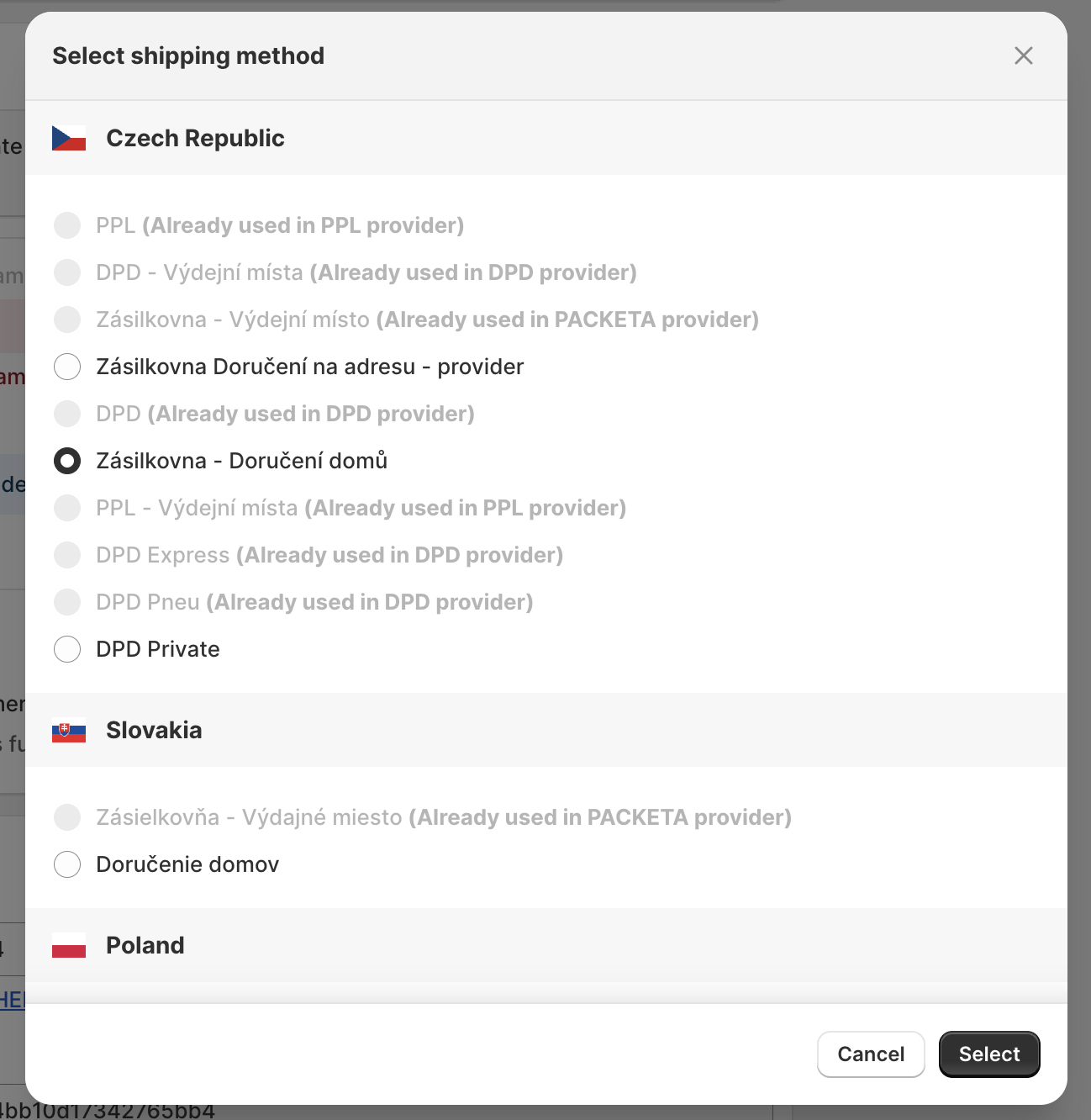
In the Select shipping method dialog, tick every rate that means pickup point delivery with this courier. You can tick several, for example one name per language.
If a rate you just created is missing, click Refresh shipping rates.
Click Select. The card now lists the rates under Shipping method name.
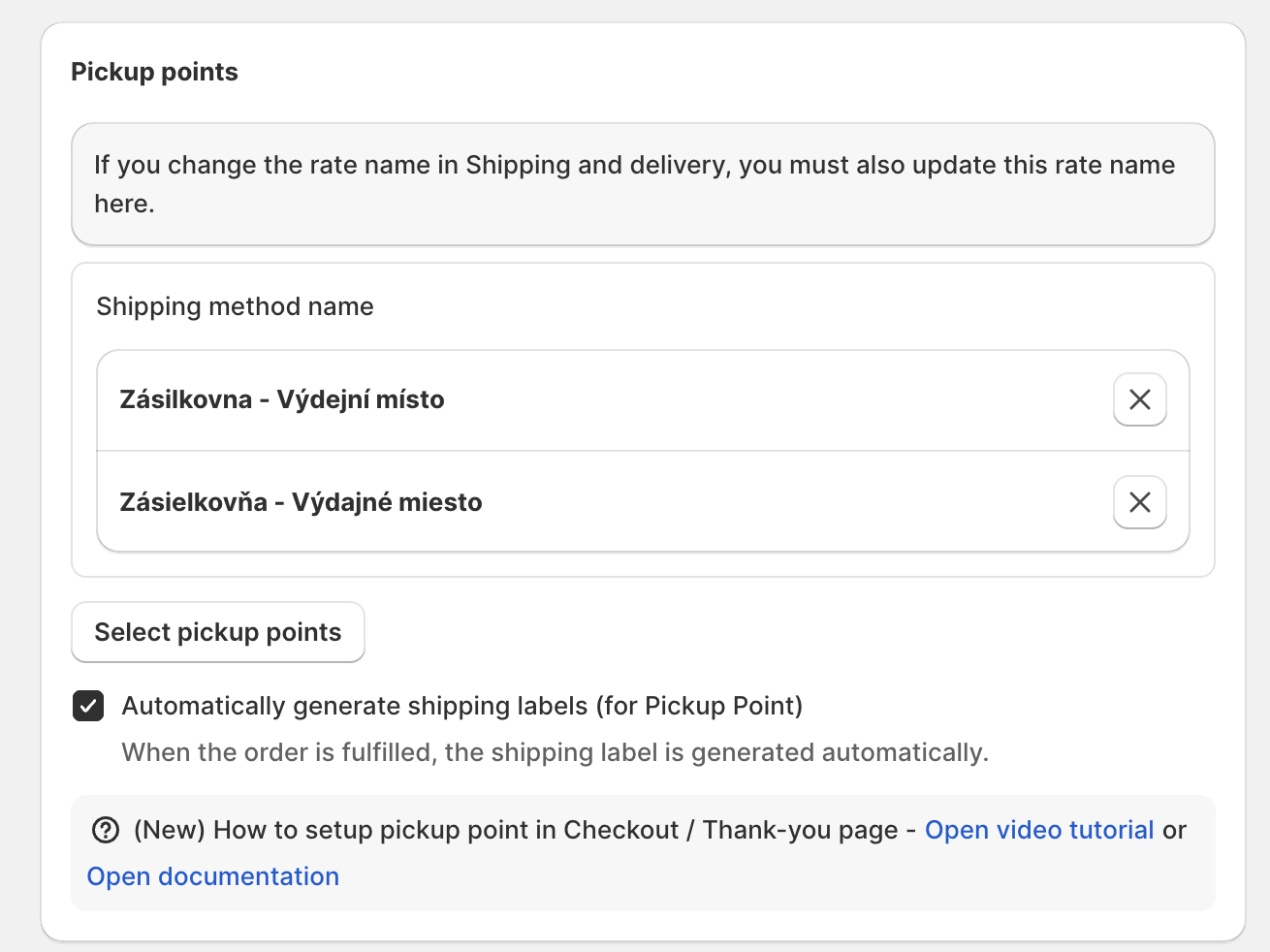
The screenshot shows the older layout. The card is now called Shipping rates mapping, and the automatic label options are in the General settings card below it.
Save the courier.
Add the pickup point widget so customers can choose a specific point: How to add the pickup point widget to the Thank you and Order status pages, or on Shopify Plus How to add the pickup point widget to checkout (Shopify Plus).
A mapped pickup point rate works in every country where the rate exists in your Shopify zones, so you map each name only once.
Tip: Add custom lets you type a rate name that is no longer in Shopify, for example after you renamed a rate. Older orders with that name are still recognised.
Home delivery rates are mapped per country, and for each one you choose the courier service.
In the same courier, open the Home delivery tab.
Under Choose integration, select Manual rates mapping.
Click Add delivery. A new row appears.
Next to Shipping method name, click Select.
In the Select shipping method dialog, pick the rate under the country it is for, then click Select.
ShipDock fills in the Country. In Carrier, choose the courier service for this rate. The list depends on the courier and the country.
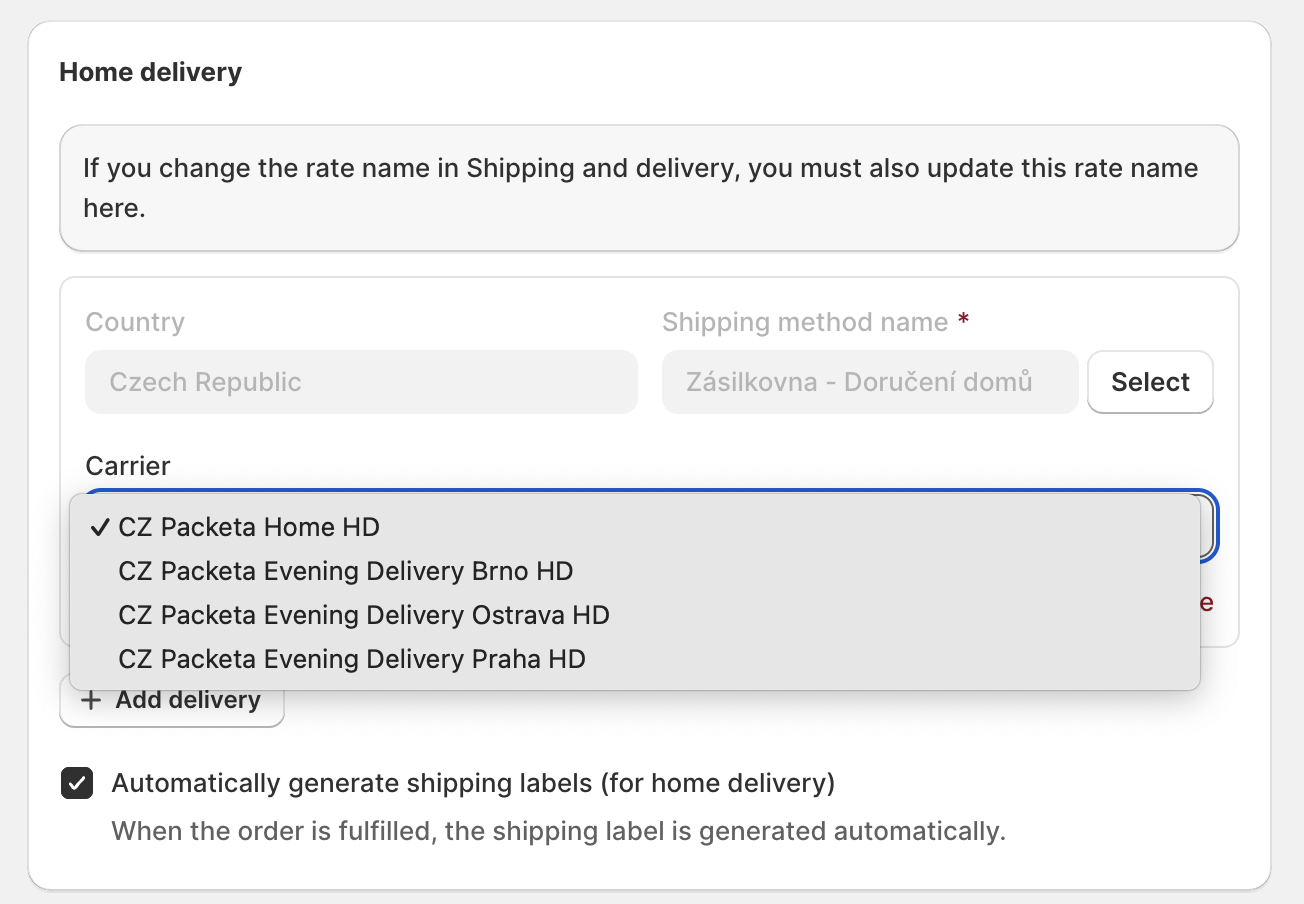
The screenshot shows the older layout. The card is now called Shipping rates mapping, and the automatic label options are in the General settings card below it.
If the courier offers extra services for this service, tick the ones you want for every parcel with this rate.
Repeat steps 3 to 7 for every home delivery rate and every country. If the same rate name is in two zones, for example Czechia and Slovakia, add a row for each country.
Save the courier.
To stop using a rate, click Remove in its row.
It compares the name of the shipping rate on the order with your mapped names. Upper and lower case do not matter, any other difference does.
Pickup point names are checked first and apply in every country. Home delivery names apply only to orders shipped to the country of the row.
A rate that is already mapped to another courier is greyed out in the dialog with (Already used in … provider). A rate mapped as a pickup point rate cannot be picked for home delivery.
If a mapped pickup point name no longer exists in your Shopify rates, a red warning icon appears next to it.
Important: When you rename a rate in Shopify, select the new name here too. Until you do, new orders with that rate are not recognised.
One Shopify rate name belongs to one courier.
DHL Express is available on request. When it is enabled, its pickup point dialog works Per country: you tick each rate under the destination country it applies to.
Label creation shows "The shipping method … is not assigned to any provider.": the rate name on the order is not mapped, was renamed in Shopify, or is mapped for home delivery in a different country. Map the name for that country, or choose a carrier for the order from the icon in the message.
The rate you need is not in the dialog: click Refresh shipping rates. Check in Shopify that the rate is saved in a shipping zone.
The rate is greyed out with "(Already used in … provider)": another courier already uses it. Remove it there first, or create a separate rate in Shopify.
The pickup point widget does not appear after ordering: the rate the customer chose is not mapped on the Pickup points tab, or the widget is not added to your pages yet.
