Czech Post appears in ShipDock as two couriers. Both are for shops shipping from the Czech Republic and both use the same Czech Post B2B login:
Česká pošta: the registered parcel Doporučená zásilka, delivered to the customer's address. It has no pickup points.
Balíkovna: home delivery with Balíkovna - Balík do ruky, and delivery to Balíkovna points, post offices and parcel lockers that the customer picks.
You connect each one separately, so you can use one of them or both. Once connected, you can create labels from your Shopify orders and send cash on delivery (COD).
A contract with Česká pošta and access to the B2B profile in the Czech Post portal postaonline.cz. If you do not have B2B access, ask your Czech Post account manager.
Your Czech Post details: your contract ID (ID CČK), your technological number (Customer id) and the post code of the post office where you hand over your parcels.
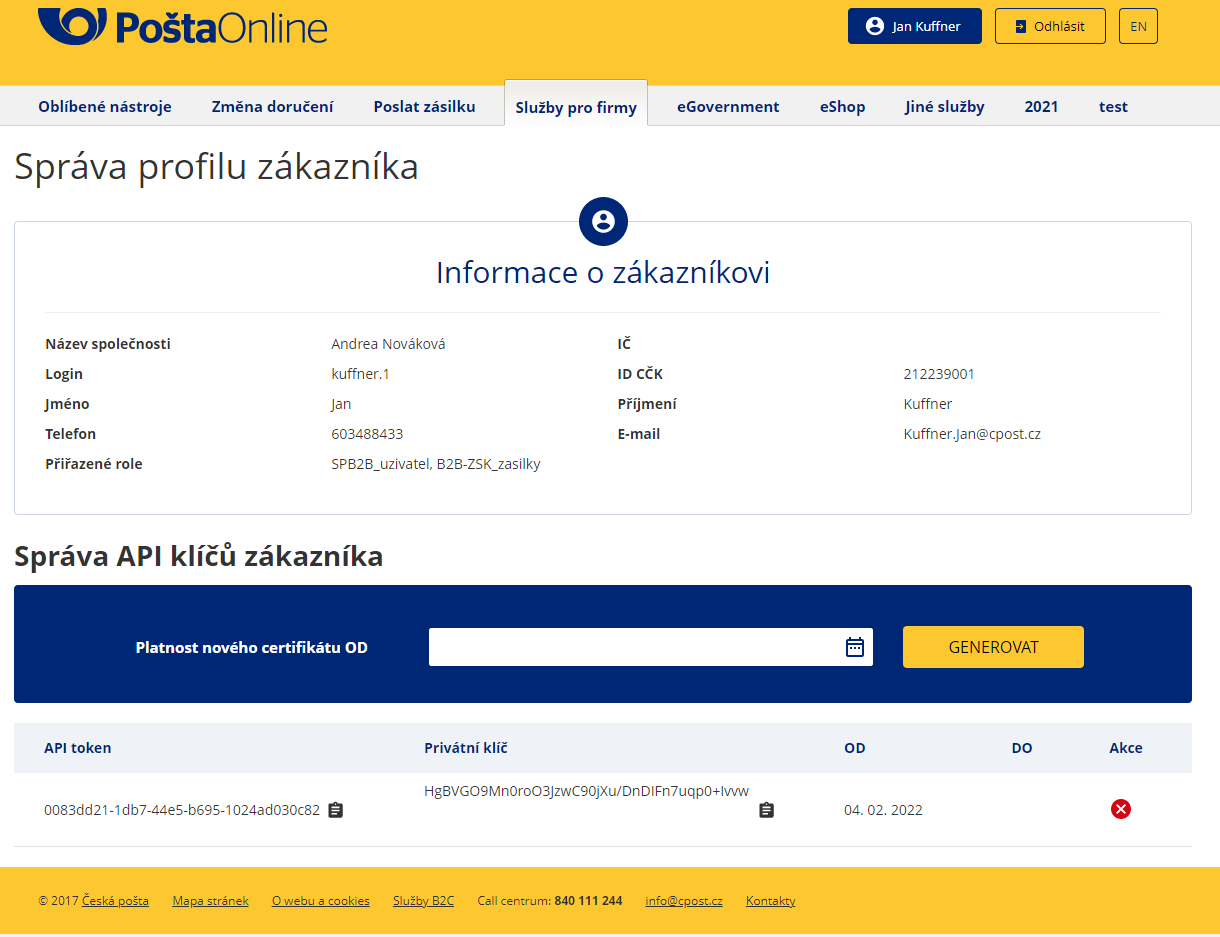
API keys: an Api Key and a Secret key generated in the B2B portal (see below).
ShipDock plan: Lite is enough to connect the couriers and show Balíkovna pickup points. Creating labels needs the Full plan.
No test mode: every label you create is a real shipment at Czech Post.
Log in to postaonline.cz.
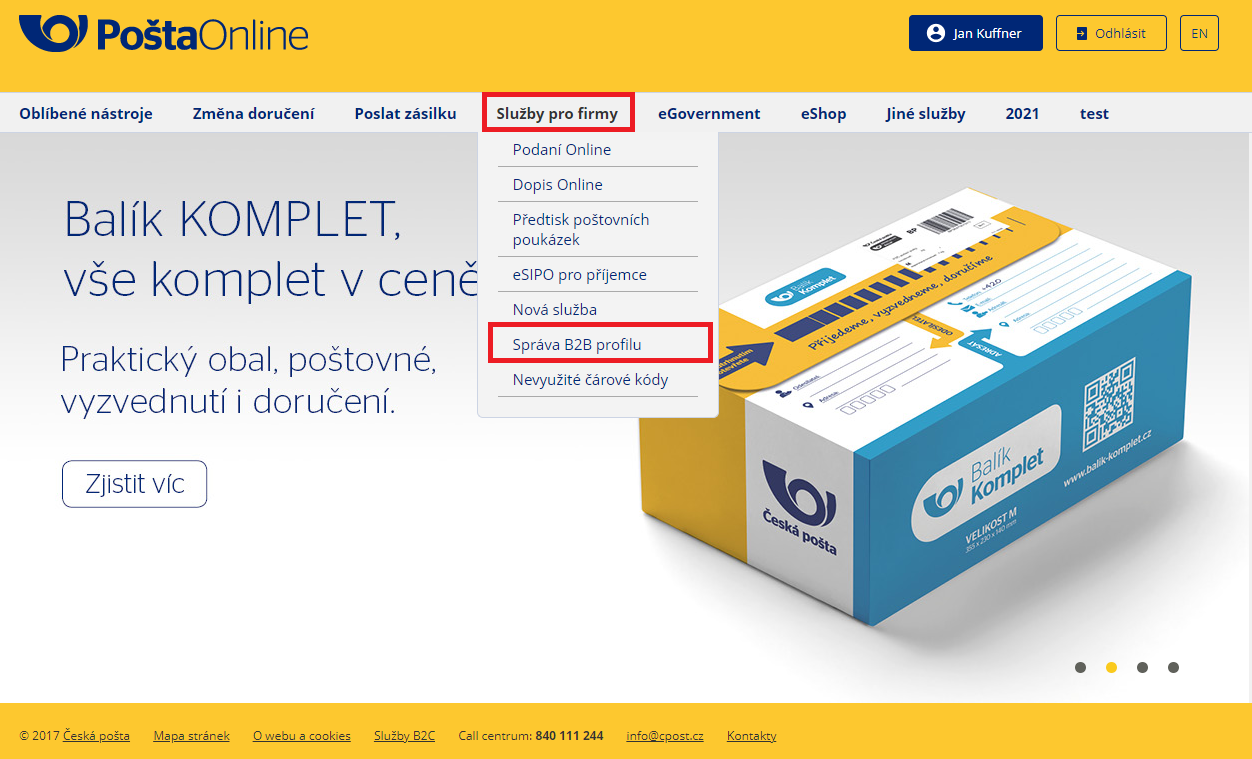
On the Business Services tab, click Manage B2B Profile.
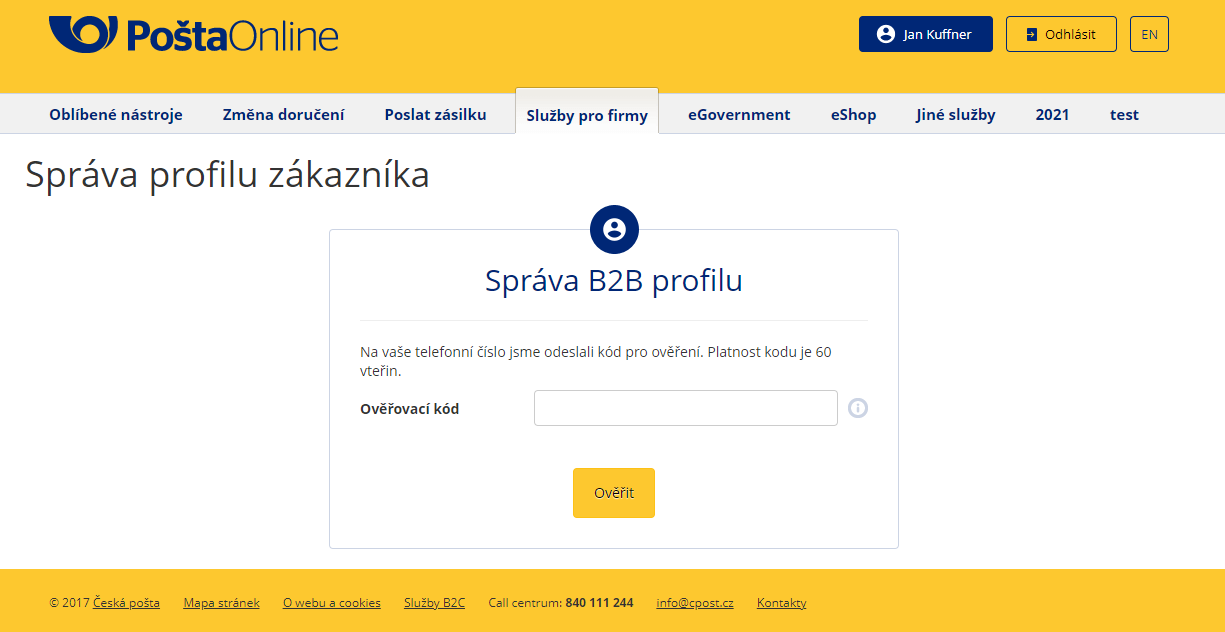
Click Manage and enter the code you receive by SMS.
In the account summary, generate the API keys. Keys have a valid from date and stay valid until you activate a new key.
In ShipDock, open Providers and click Create provider. (On the home page you can also click Add a carrier.)
In the country selector, choose Czech Republic.
On the Česká pošta card or the Balíkovna card, click Select. The courier is created and its detail page opens on the General tab.
In the Connection card, turn on Connect provider throught API if it is off. The login fields appear only when it is on.
Fill in the fields:
ID Contract: ID CČK of the submitter (your contract ID).
Api Key: Key generated in the B2B portal postaonline.cz.
Secret key: Key generated in the B2B portal postaonline.cz.
Customer id: Technological number of the submitter (technologické číslo podavatele).
Post code: Post code of your filing post office (PSČ podací pošty).
Click Save in the save bar at the top of the page. ShipDock needs the saved keys to load your locations in the next step.
Next to Location number, click Select location and choose a location in the Edit location window (see below).
In the Status panel on the right, choose Active. A new courier starts as Inactive.
Click Save again.
To connect the second courier, repeat the steps with the other card and the same login details.
The location tells Czech Post who the sender is and where COD money goes. There is no separate Sender details card for these couriers.
In the Edit location window, choose one option:
Select location: pick one of the locations already created for your account. Each one shows its Sender address, Sender contacts, COD address and COD bank. Then click Save in the window.
Create location: fill in a new location and click Save in the window. The new location number is filled in for you.
Location name (required) and Location add on
Sender Address: Company Name, Street, House number, Sequence Number, City, Zip Code. Country is fixed to CZ. Company Name, City and Zip Code are required.
COD Address: the same fields. Company Name, City and Zip Code are required.
COD Bank: Prefix account (up to 6 digits), Account number (up to 10 digits) and Bank (bank code, up to 4 digits). COD money is paid to this account.
Contacts: Mobile number, Phone number, Email
Important: A location cannot be edited after it is created, because Czech Post does not allow it. To change the sender address or the COD bank account, create a new location and select it.
Tell ShipDock which of your shipping rates go to which courier:
Česká pošta has only the Home delivery tab. Map your rates to Doporučená zásilka.
Balíkovna has two tabs. On Home delivery, map rates to Balíkovna - Balík do ruky. On Pickup points, map the rates where the customer picks a Balíkovna point.
On each tab, under Choose integration, pick how the rates reach the checkout:
Manual rates mapping: you create the rates in Shopify and map them here. Under Shipping rates mapping, click Add delivery, pick the Shopify shipping rate, then choose the service in Carrier.
CCS - Dynamic Rates (and CCS - Nearest Pickup Points on the Pickup points tab): ShipDock calculates the rates itself. These options are available only when ShipDock's carrier-calculated rates are active in your store.
The full walkthrough is in How to set up shipping rates.
On the Balíkovna Pickup points tab, the Exclusion card lets you hide pickup point types you do not want to offer: Parcelshop, OX box, Alza box and Pinguin box. To let customers pick a point, also add the pickup point widget, see How to add the pickup point widget to your store.
The tabs also have Automatically generate shipping labels (Order Fulfilled) and Automatically generate shipping labels (Order Created) (Full plan).
Finally, create a test order and create a label (see How to create and print shipping labels). Because there is no test mode, this is a real shipment.
Services: Doporučená zásilka (registered parcel to the address). Balíkovna: Balíkovna - Balík do ruky (to the address), delivery to a Balíkovna pickup point.
Delivers to: Czech Republic. Balíkovna: Czech Republic.
Pickup points: No. Balíkovna: Balíkovna points, post offices and parcel lockers (OX box, Alza box, Pinguin box) in the Czech Republic.
Cash on delivery: Yes, paid to the COD bank account of the selected location. Balíkovna: Yes, same.
Mark as paid automatically: Yes. Balíkovna: Yes.
Cancel from ShipDock: No, cancel the shipment with Czech Post. Balíkovna: No.
Test mode: No. Balíkovna: No.
Insurance value: The order total is sent as the insured value; change it per order with Override insurance value. Balíkovna: Same.
Label formats: PDF, A6 or A6 on A4 (4 per page). Balíkovna: Same.
Automatic mark as paid also has to be turned on in your COD settings, see How to mark COD orders as paid automatically.
Parcel size for delivery to the address: ShipDock sets the size category from the longest side of the package: up to 35 cm, 50 cm, 100 cm or 200 cm. Packages with a longest side over 200 cm cannot be sent.
Locations cannot be edited: create a new location instead.
Sender address: the location's sender address must be in the Czech Republic.
No cancellation from ShipDock: deleting a parcel in ShipDock removes it only from ShipDock. Cancel the shipment with Czech Post as well.
The Edit location window shows an error or no locations. The locations are loaded with your saved login. Check ID Contract, Api Key, Secret key, Customer id and Post code, click Save, then open Select location again. The error message in the window comes from Czech Post.
Creating a label fails with an authentication error. Check the fields on the General tab for typos or spaces. If you generated new keys in the portal, enter the new Api Key and Secret key on the General tab of both couriers and save.
"Package exceeds maximum allowed dimensions". The longest side of the package is over 200 cm. Check the product dimensions or override the package dimensions on the order.
"The shipping method … is not assigned to any provider". That Shopify rate is not mapped. Map it on the Home delivery or Pickup points tab, or change the carrier on the order.
"The customer didn't select a pickup point." The order uses a Balíkovna pickup point rate but no point was chosen. Send the customer the pickup point reminder from the order, or change the pickup point yourself.
Creating a label fails because the provider connection is disabled. Turn on Connect provider throught API on the General tab, fill in the fields and save.
