On stores without Shopify Plus, apps cannot add a pickup point widget to the checkout page. Customers choose their pickup point right after ordering instead, on the Thank you page, or later on the Order status page. This guide adds the ShipDock block to both pages. It works on every Shopify plan, Shopify Plus included.
You need a paid ShipDock plan (Lite or higher). Without one, the block stays hidden from customers.
Connect a courier in ShipDock and set up its pickup point shipping rates on the Pickup points tab (Providers → your courier → Pickup points). See How to set up shipping rates.
The widget appears only when the order's shipping rate is a pickup point rate of an active courier in ShipDock. It never appears for home delivery rates.
In Shopify admin, go to Settings → Checkout.
Next to the checkout configuration you want to edit, click Customize.
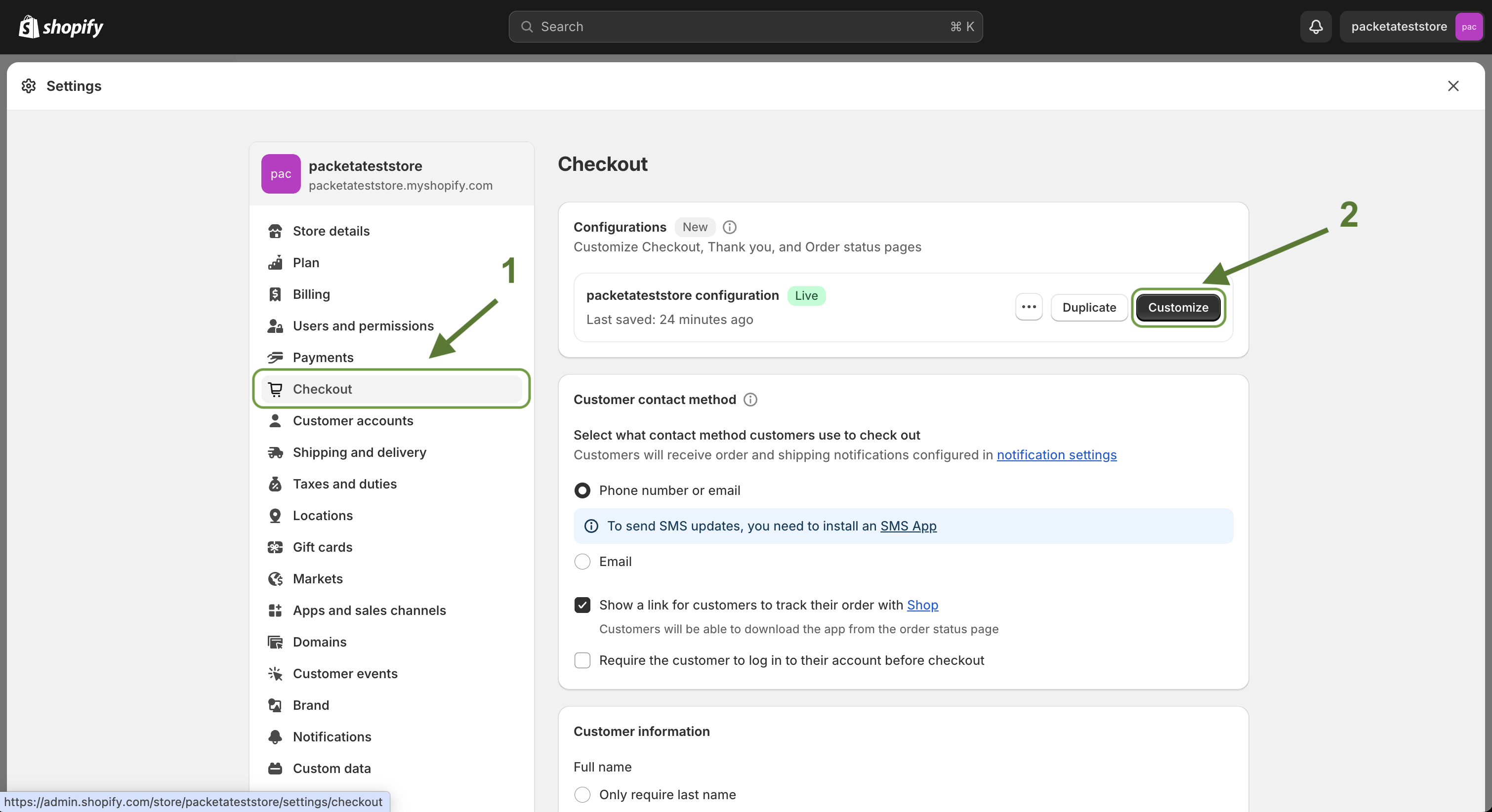
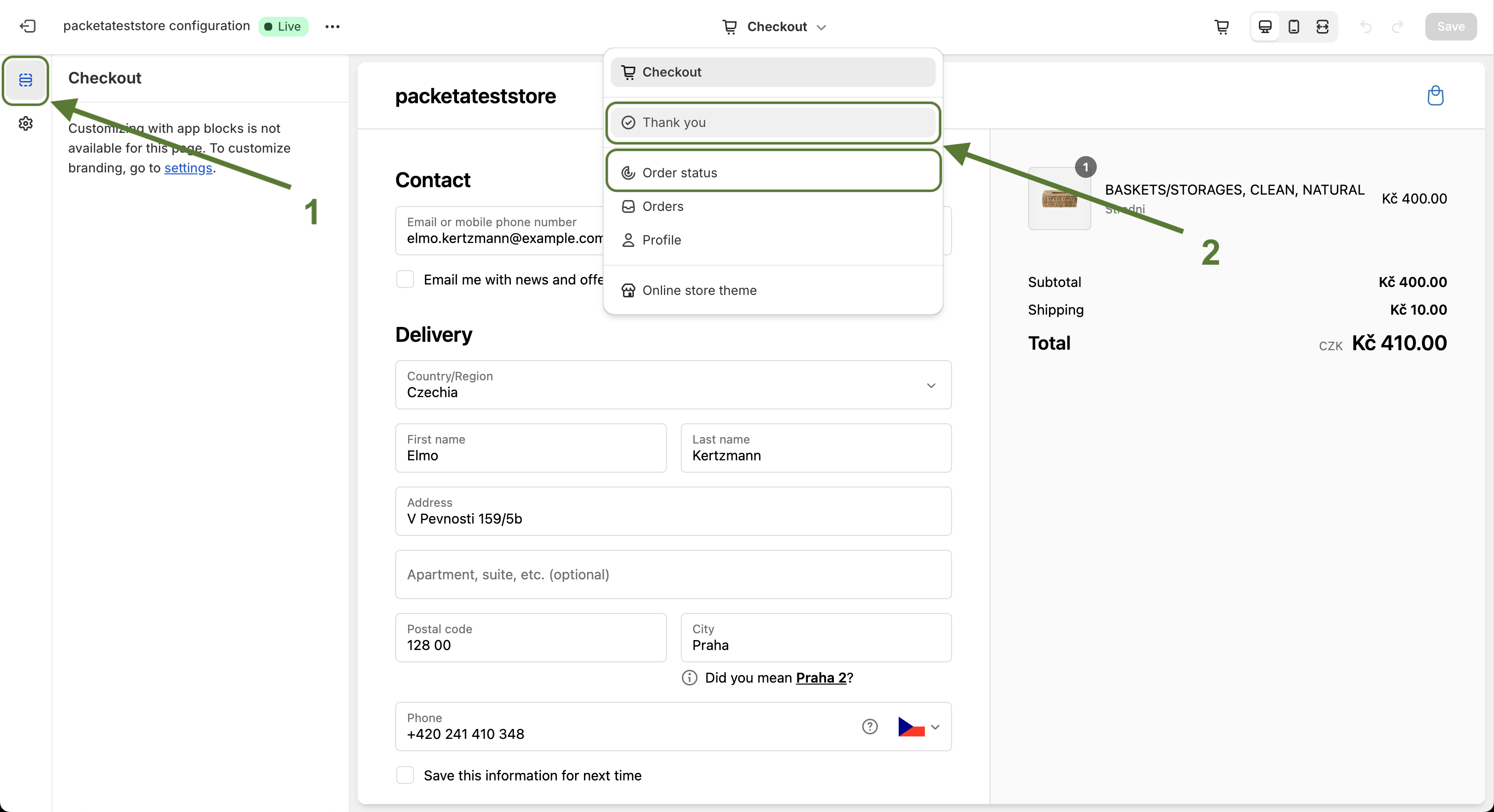
In the page selector at the top of the editor, choose the Thank you page.
Open the sections sidebar and click Add app block.
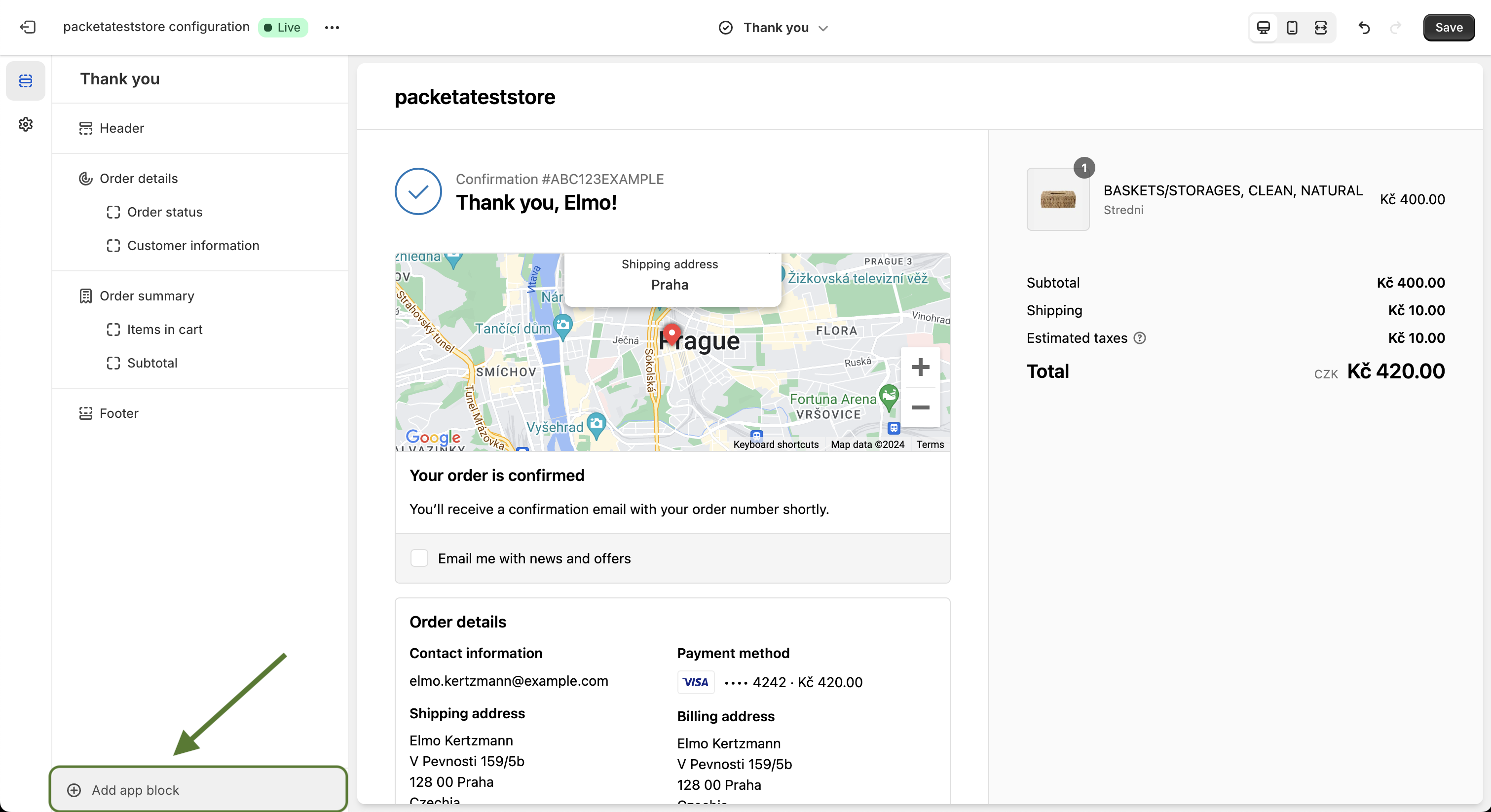
Choose Pickup point selector. Shopify places it in the recommended spot on the page.
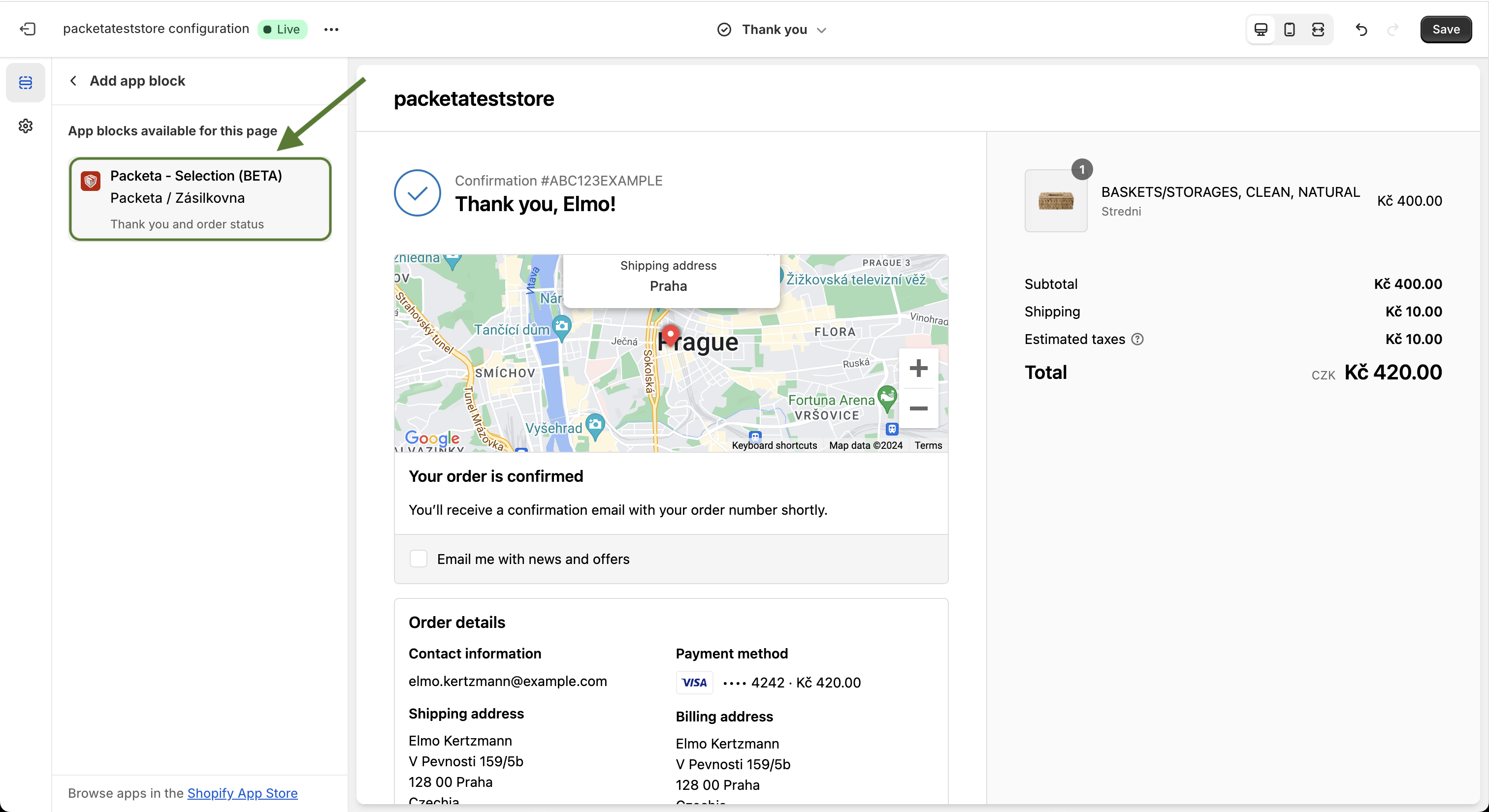
Click Save.
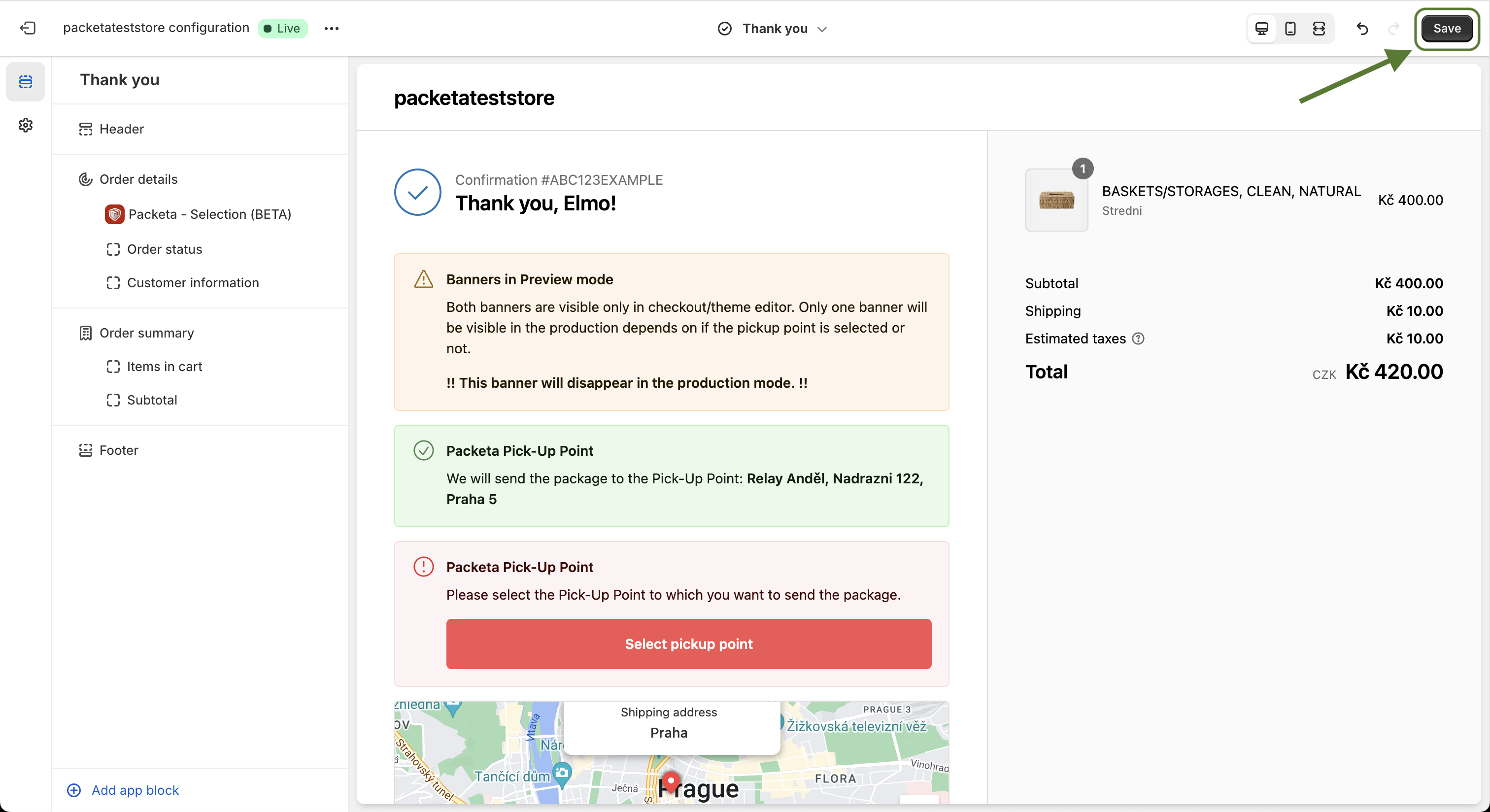
Switch the page selector to the Order status page.
Add Pickup point selector the same way and click Save.
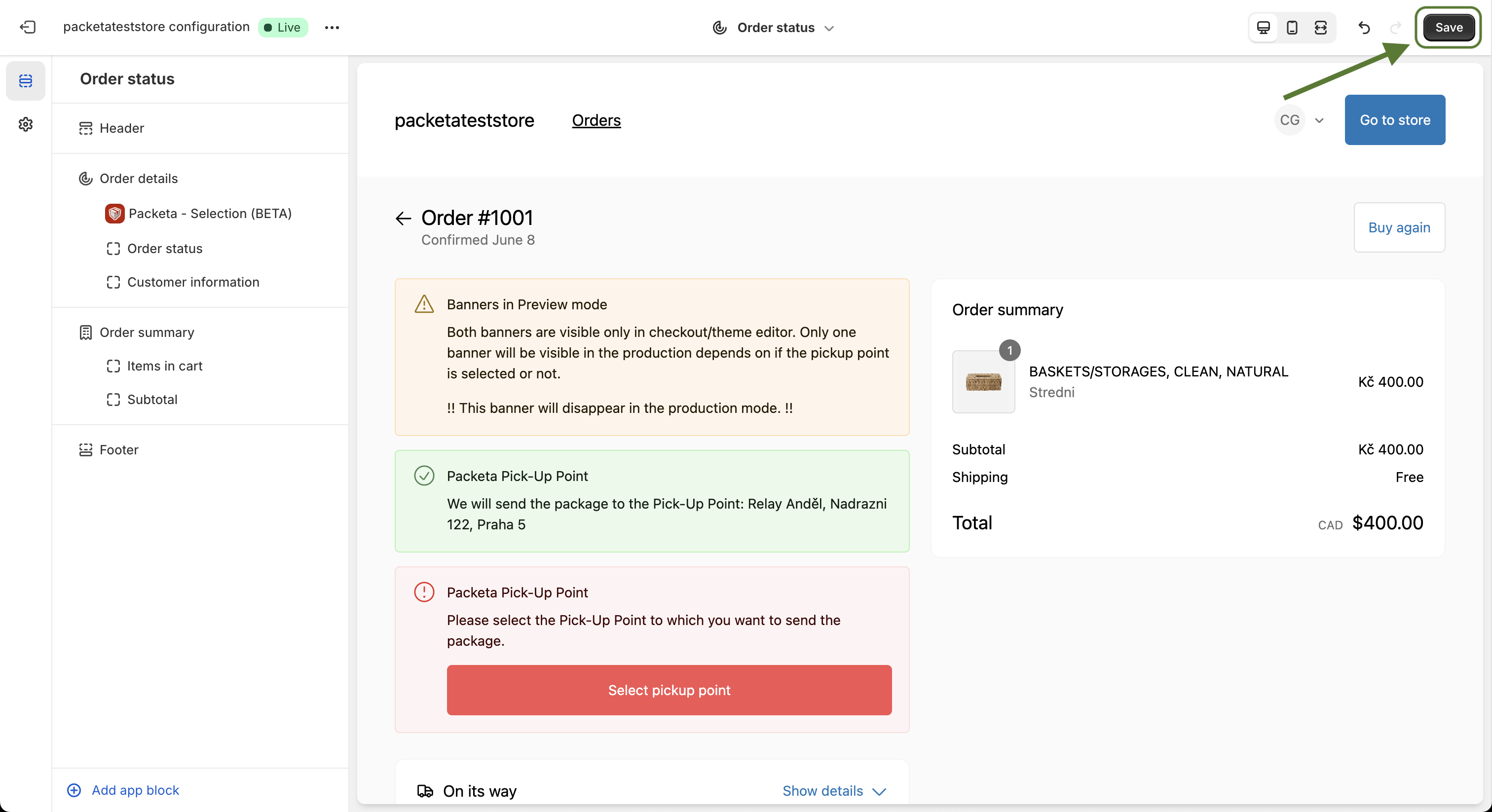
The screenshots and the video show the block under its earlier name Packeta - Selection. Today it is called Pickup point selector.
Tip: In ShipDock, the How it works banner on the courier's Pickup points tab has direct links to the Thank you page and Order status page in Shopify's checkout editor.
Note: Add the block to both pages. The Thank you page shows right after checkout. The Order status page is where customers come back later, and it is where the pickup point reminder email sends them.
The widget shows only for orders with a pickup point shipping rate. Its look depends on Display mode (TY / OS page) in Settings → Widget (Pickup points). See How to choose the pickup point widget display mode.
Banner (default for stores without Shopify Plus)
A red banner Pickup Point with the text Please select the Pickup Point to which you want to send the package. and a Select pickup point button.
The button opens a page with the courier's own pickup point map.
When the customer has chosen, the page shows the selected pickup point.
Banner works only for Packeta, DPD, PPL, GLS and Balíkovna. For other couriers, use List with Map.
List with Map (default for Shopify Plus stores)
A Pickup point box directly on the page, with a Search location field, a list of nearby pickup points and a Select from map button. The map button appears only after you add a Google Maps key (How to get a Google Maps API key for the pickup point map).
The customer picks a point and it is saved straight away (Saving the pickup point…). There is no redirect.
If you turn on Change of pickup point after ordering, customers also see a Change pickup point button next to the chosen point for a limited time. See How to let customers change their pickup point after ordering.
The order gets the tag packeta_unselected in Shopify. Once a point is chosen, it changes to packeta_selected. The tag names are the same for every courier.
In ShipDock Orders, the order shows Pickup point not selected. Click it to choose the point for the customer.
If the pickup point reminder email is on (Settings → Notifications), ShipDock emails the customer a link to their Order status page, where they can choose. To send it again, use Send reminder in Orders. See How to set up the pickup point reminder email.
The widget does not show on the page
Pickup point selector is added and saved on that page in the checkout editor.
The order's shipping rate is a pickup point rate on the courier's Pickup points tab. If you renamed the rate in Shopify, update the name in ShipDock too.
The courier is connected and active in ShipDock.
Your ShipDock plan includes the widget (see the next item).
The block shows "Upgrade your subscription" in the editor
The red banner This widget is available to subscribers only. means your ShipDock plan does not include the widget. Customers don't see the banner, the block is just hidden for them. Choose a plan in Billing in ShipDock.
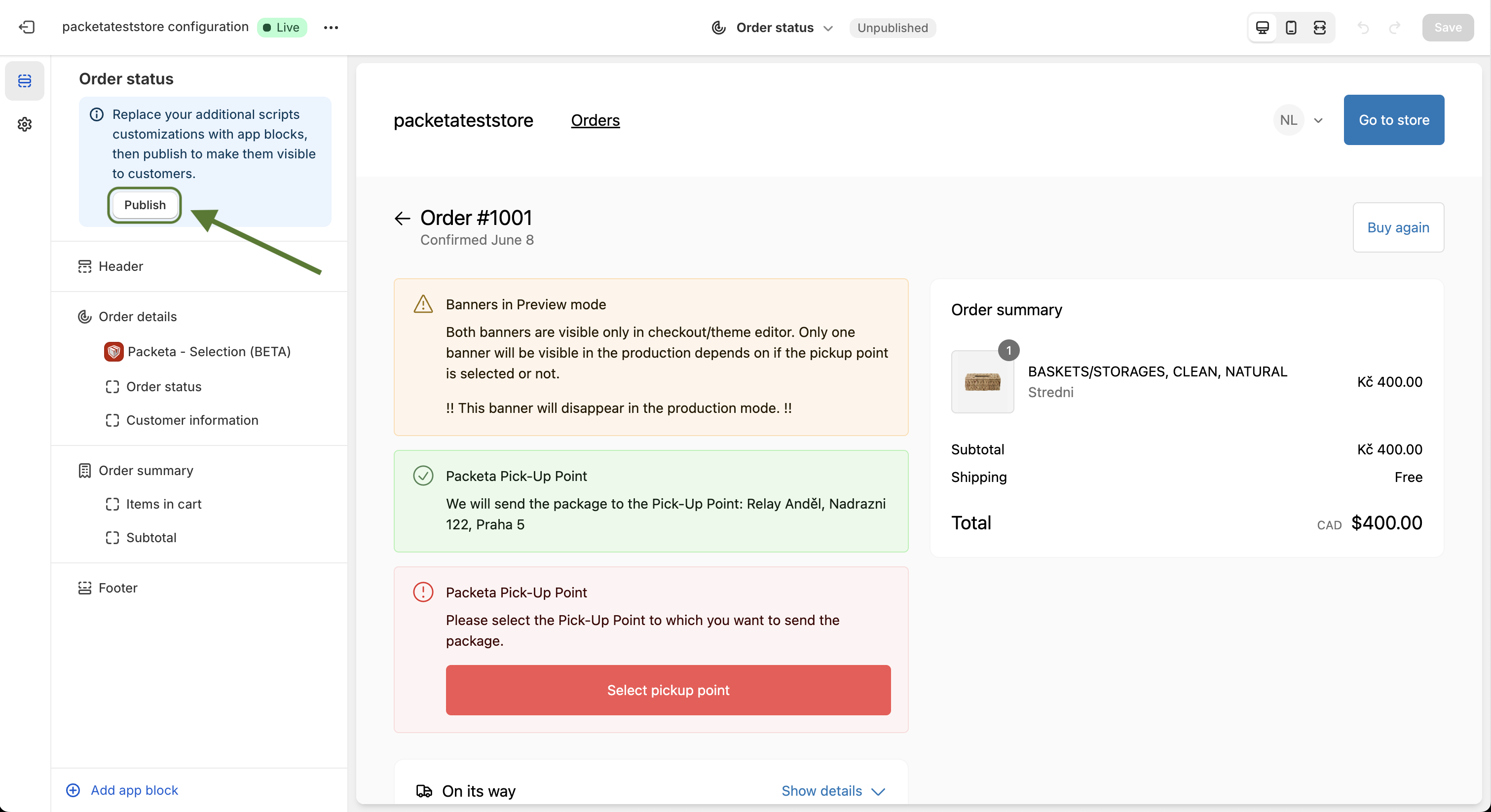
The Thank you or Order status page has no Add app block option
App blocks work only on Shopify's current Thank you and Order status pages. If Shopify asks you to upgrade these pages in the checkout editor, do that first: click Publish in the editor's sidebar.
The Select from map button is missing
Add a Google Maps key in Settings → Widget (Pickup points) → Google Map APIs. The list and search work without it.
