With CCS - Dynamic Rates on the Pickup points tab you create one pickup point rate per country inside ShipDock, with its own name and price. ShipDock sends it to your checkout live. The customer chooses the rate in checkout and then picks the specific pickup point in the ShipDock widget.
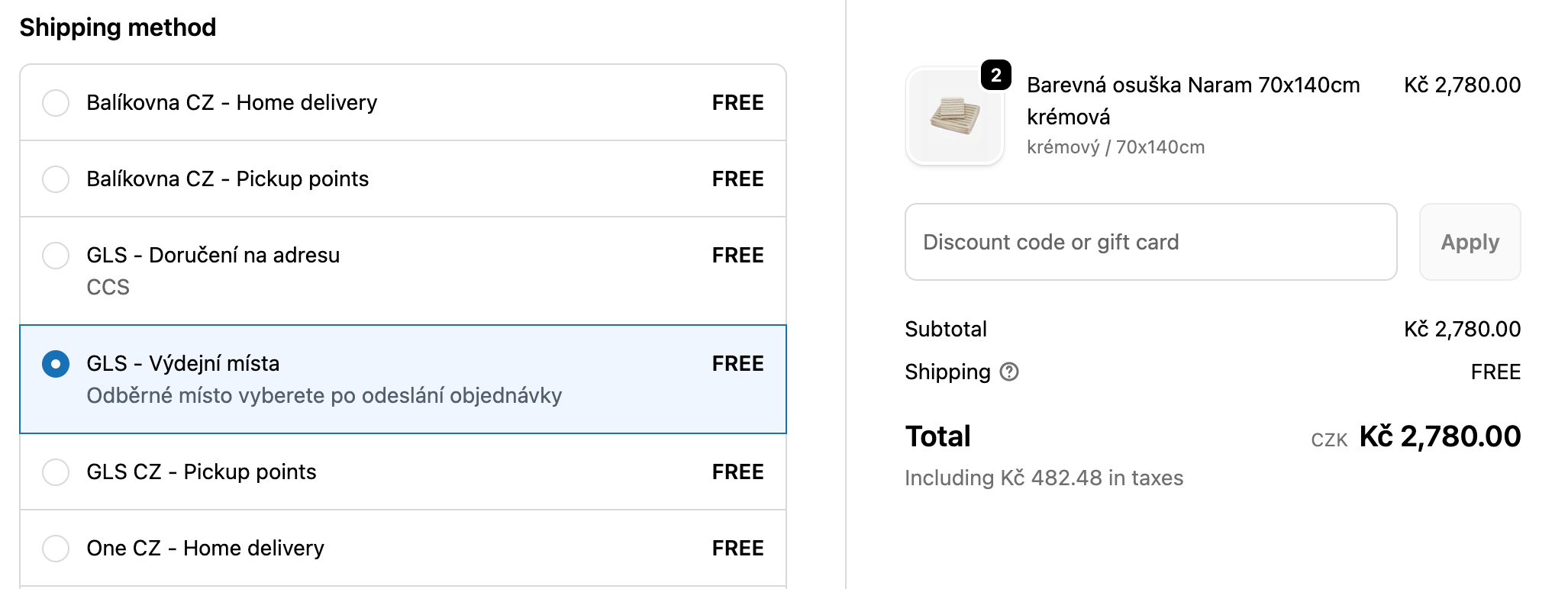
If you want each nearby pickup point to be its own shipping option instead, see How to show the nearest pickup points as shipping rates.
You need the Lite plan or higher.
Carrier-calculated shipping (CCS) must be active on your store and in ShipDock. See How to enable carrier-calculated shipping (CCS). Until it is active, CCS - Dynamic Rates is greyed out with the badge Store don't support CCS.
The courier is connected in ShipDock and its status is Active. Inactive couriers send no rates.
Each country you want to ship to is in one of your Shopify shipping zones.
Plan where customers pick the point: on the Thank you and Order status pages (all Shopify plans), or in checkout (Shopify Plus). You add the widget after the rates, see "Add the pickup point widget" below.
In ShipDock, open Providers.
Open the courier, or click Create provider to add a new one.

Go to the Pickup points tab.

Under Choose integration, select CCS - Dynamic Rates. Once CCS is active, it shows the badge Recommend.
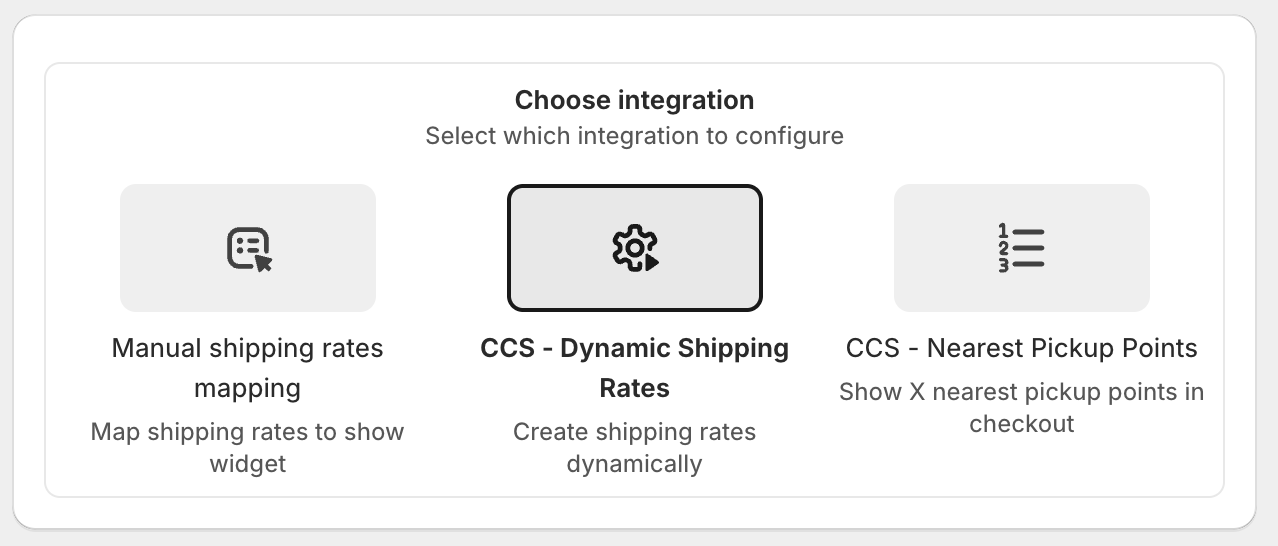
The screenshot shows the older names: today the options are Manual rates mapping, CCS - Dynamic Rates and CCS - Nearest Pickup Points.
In the Shipping rates card, click Add country.
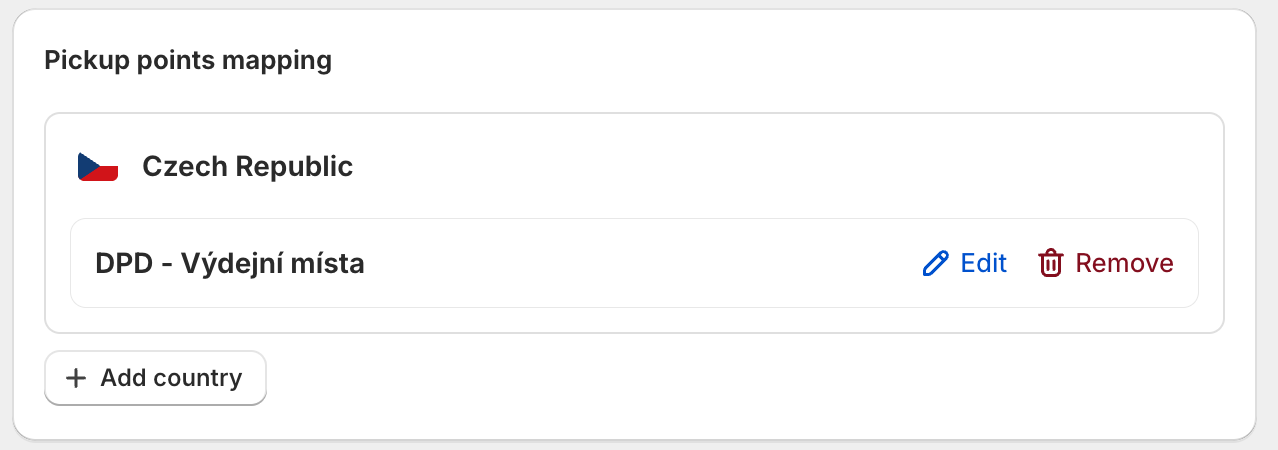
The screenshot shows the older card title Pickup points mapping.
In the Select country dialog, choose the country and click Select.
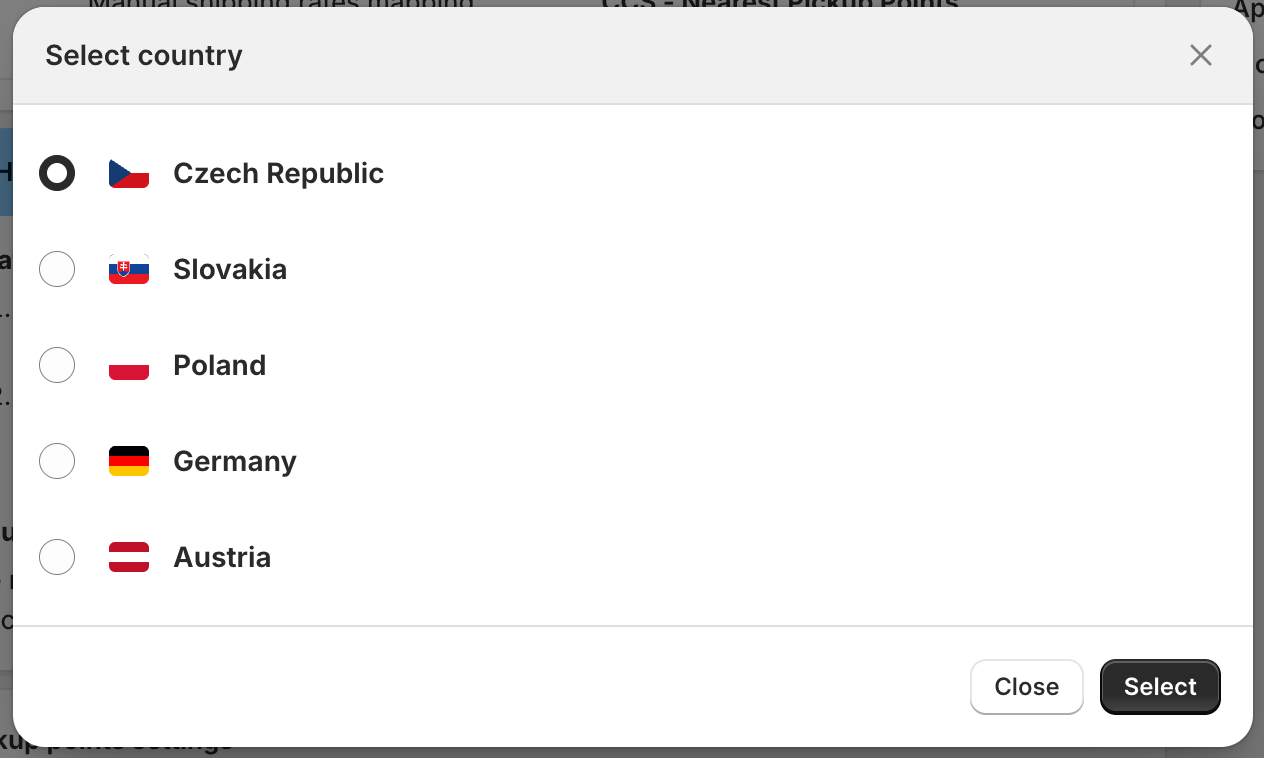
Today the dialog splits the list into Supported countries and Unsupported countries. You can only pick countries from your Shopify shipping zones where the courier has pickup points. No more countries available means every country from your zones is already added; add the country to a shipping zone in Shopify first.
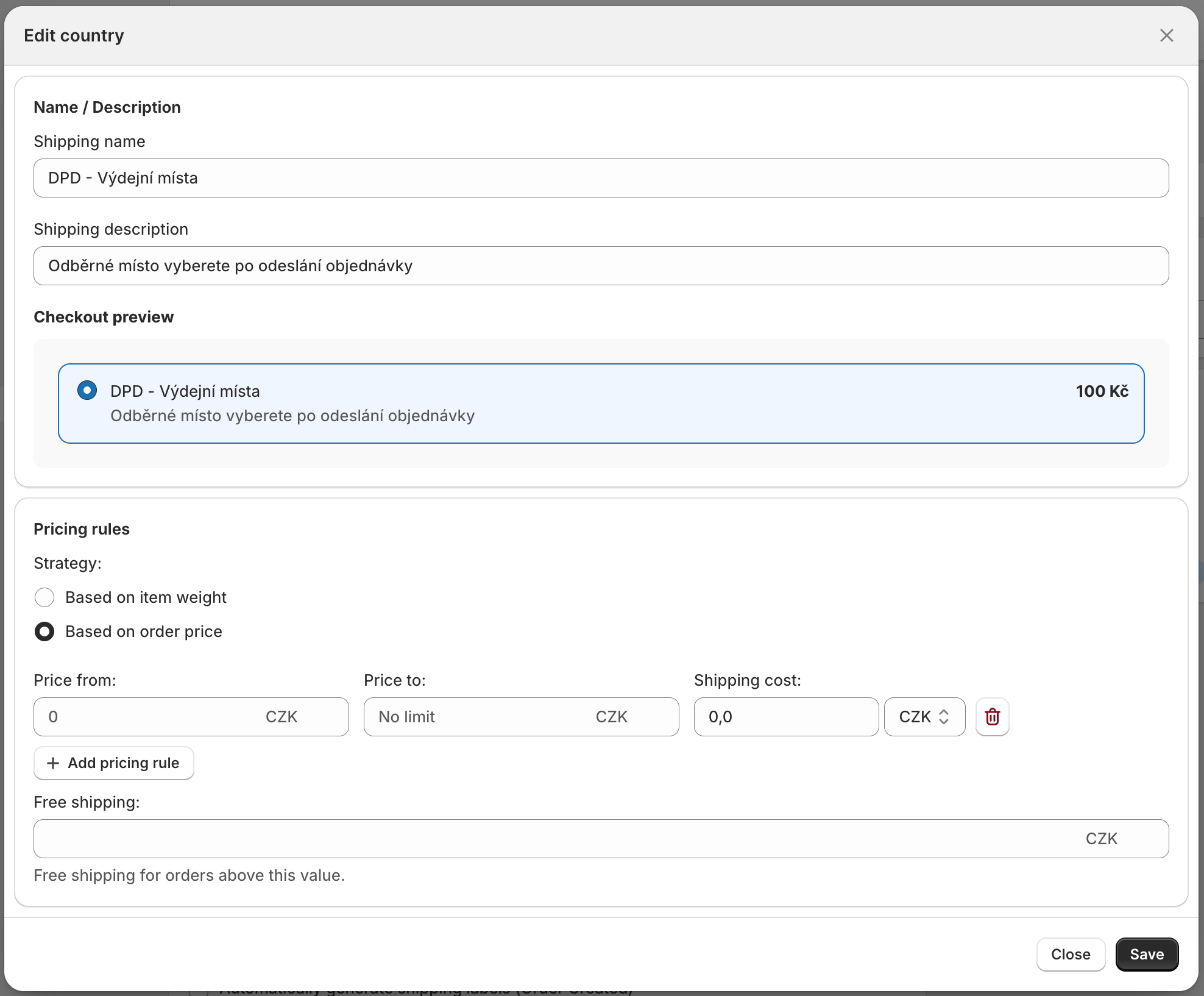
The Edit country dialog opens. Under Name / Description, fill in:
Shipping name (required): the rate title in checkout. ShipDock prefills the courier name and "pickup points" in the country's language, for example DPD - Výdejní místa for the Czech Republic.
Shipping description (optional): a second line under the title. ShipDock prefills a sentence in the country's language that tells the customer they choose the pickup point after placing the order (in English: You will select the pickup point after placing the order). If your widget is in checkout (Shopify Plus), change this text.
If the courier offers extra services for pickup point parcels, they appear as checkboxes. Checkout preview shows how the rate will look.
Under Pricing rules, set the price (see "Pricing rules" below).
Click Save in the dialog.
Repeat steps 5 to 9 for each country. Each country has one pickup point rate per courier.
Save the courier settings.
You can change or delete a country later with Edit and Remove.
Choose the Strategy:
Based on order price: the order total in checkout.
Based on item weight: the total weight of the cart in kg, from the product weights in Shopify. Products without a weight add 0 kg.
Fill in each row: Price from: / Price to: (or Weight from: / Weight to: in kg) and Shipping cost:. Leave the "to" field empty for no upper limit. Use Add pricing rule for more rows.
Optionally fill in Free shipping:, the order total from which this rate costs 0.
How ShipDock picks the price:
Rows are checked from top to bottom and the first matching row wins. Both limits are included. A row with both limits empty matches every cart.
If no row matches the cart, the rate is not shown in checkout at all.
Free shipping: always compares the order total, also with the weight strategy, and applies from that amount up. It only works when one of the rows matches.
Important: Price limits and Free shipping: are in your store currency, as the banner in the dialog says. Shipping cost: has its own currency selector, prefilled with the local currency of the country you added. ShipDock sends the price in that currency without converting it, so check the selector when you add a country.
In Shopify admin, go to Settings → Shipping and delivery and open your shipping profile.
Check that every country where you set up rates has the rate Shipdock - Shipping rates (Rates provided by app).
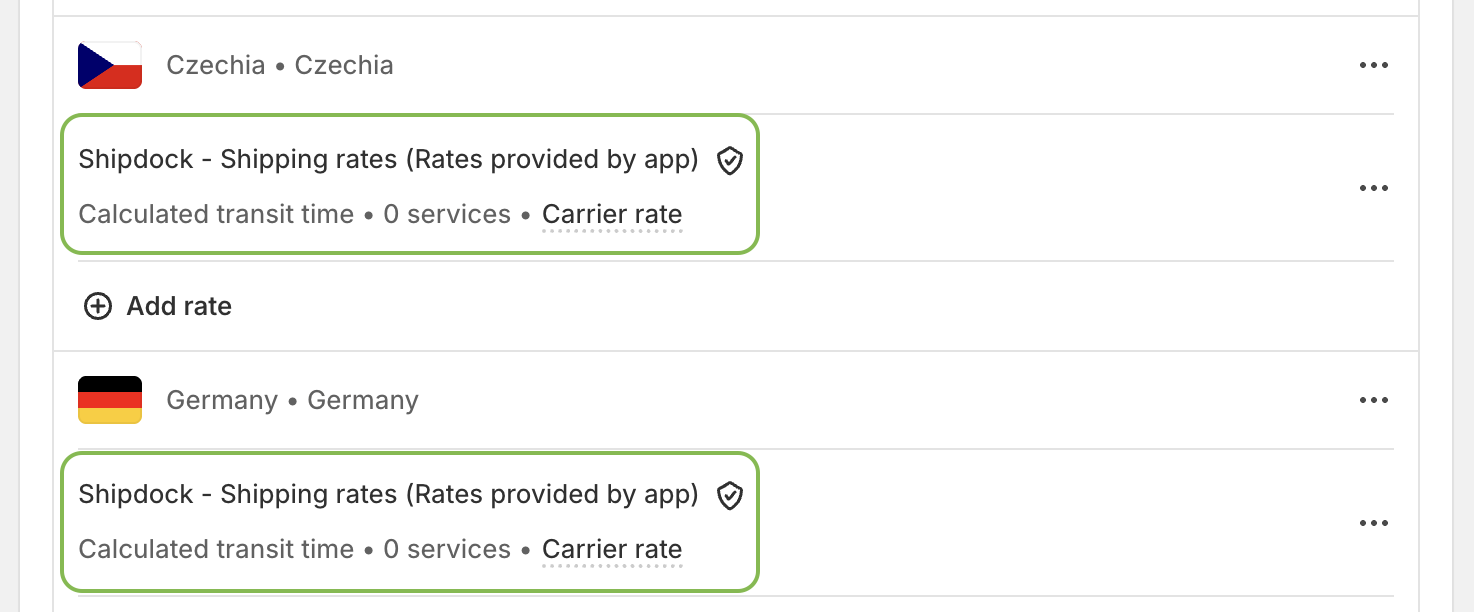
If it is missing in a zone, click Add rate.
In Rate type, choose Use carrier or app to calculate rates, then choose Shipdock - Shipping rates (Rates provided by app) below it. Leave Automatically show new shipping services to customers when they become available ticked.
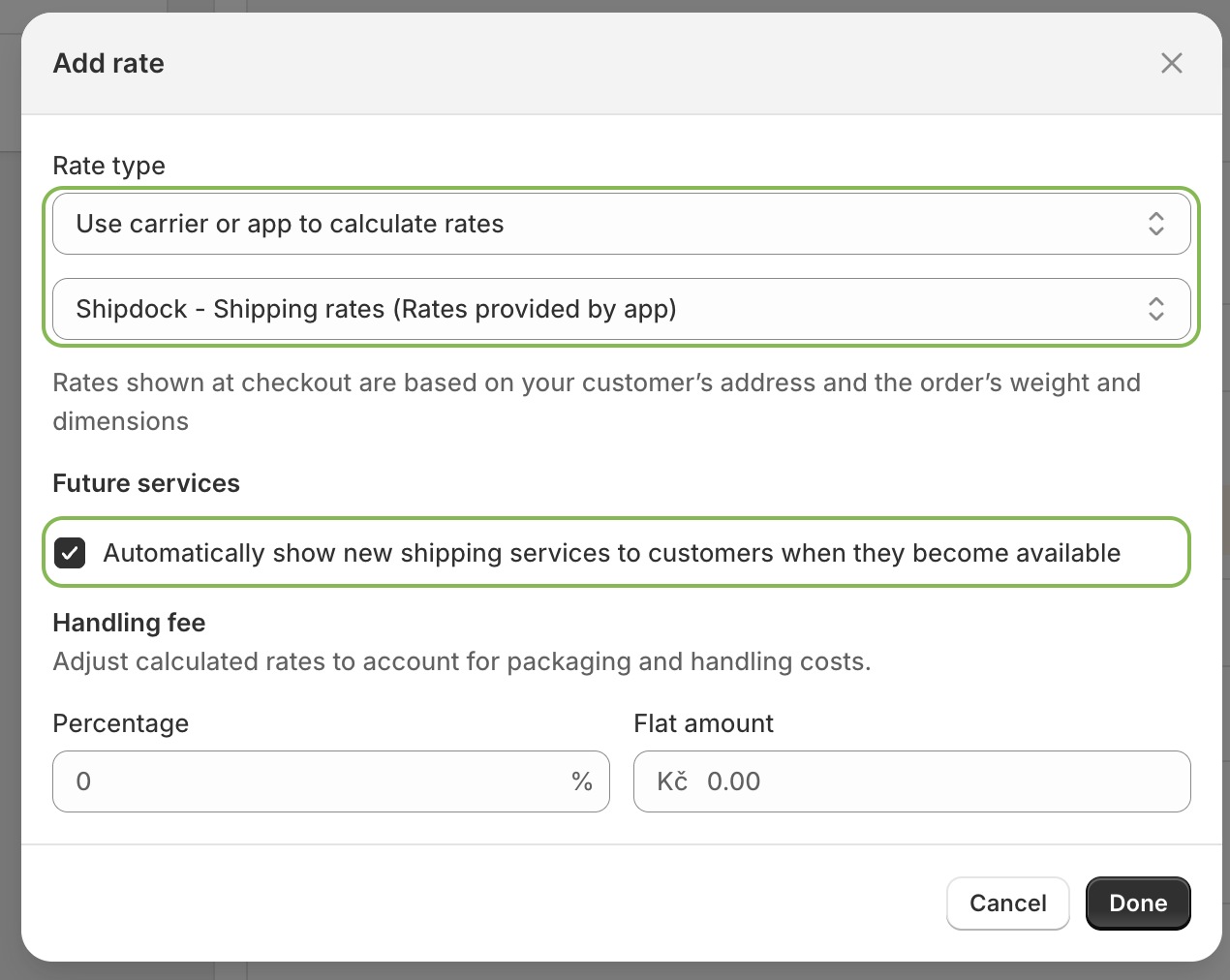
Click Done, save, and repeat for every zone.
ShipDock also adds Shipdock - Shipping rates to these zones by itself after you save the courier. The steps above are the check.
Note: If your store manages shipping in Markets (market-driven shipping), there are no zones. Add ShipDock as a shipping option of type Carrier or app calculated in every market instead. See How to enable carrier-calculated shipping (CCS).
The rate alone does not let the customer choose a pickup point. Add the ShipDock widget:
On any Shopify plan, to the Thank you and Order status pages: How to add the pickup point widget to the Thank you and Order status pages.
On Shopify Plus, also to checkout: How to add the pickup point widget to checkout (Shopify Plus).
Open your store, add a product to the cart and go to checkout with an address in one of the countries you set up. The pickup point rate appears with your name and description. After the order, the customer picks the point in the widget (in checkout on Shopify Plus).
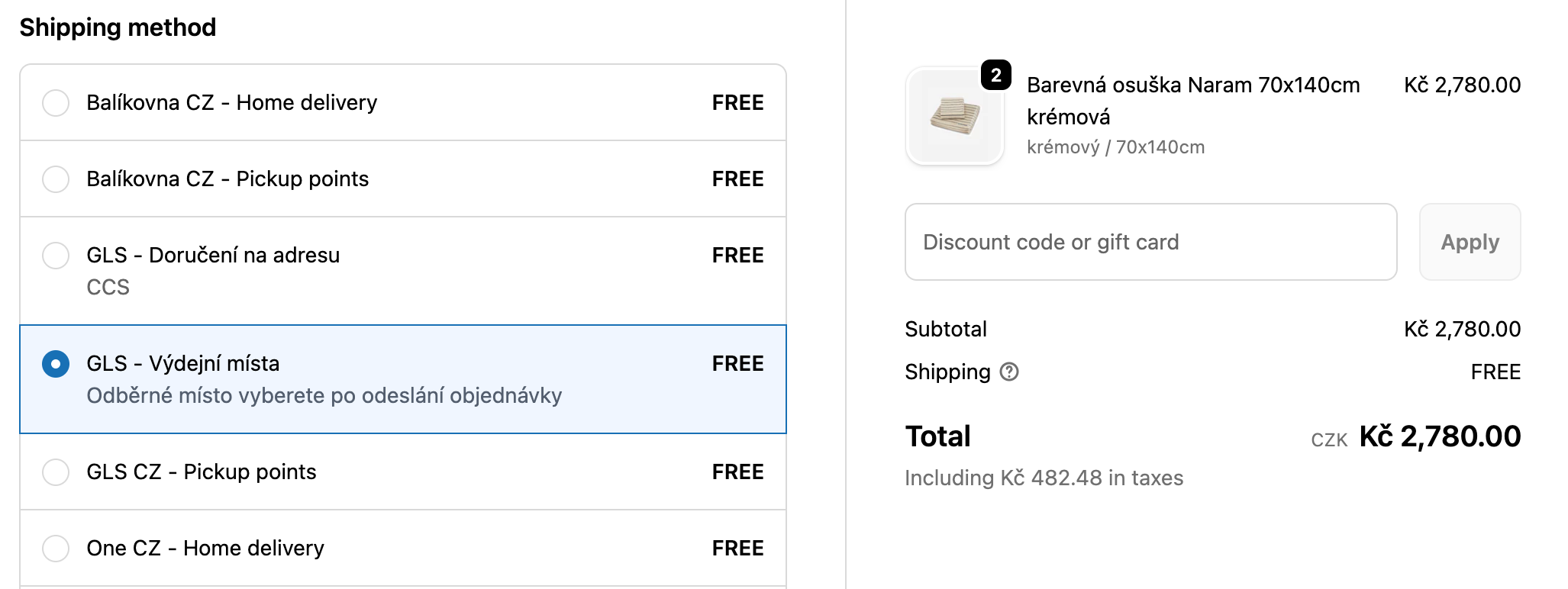
Note: If you used manual Shopify rates for this courier's pickup points before, remove them from the zones, otherwise customers see both.
No ShipDock rates in checkout: check that CCS is active in Settings → General, that Shipdock - Shipping rates is in the customer's shipping zone, that the courier is Active, and that the customer's country is added on the Pickup points tab.
The rate is missing for some carts: no pricing row matches the cart. Check the ranges and the Strategy:.
Customers can't choose a pickup point: the widget is not added to the Thank you and Order status pages (or to checkout on Shopify Plus).
