On Shopify Plus, customers can choose the pickup point directly in checkout. The ShipDock widget appears right under the pickup point shipping option they selected, and they cannot finish the order until they choose a point.
Your store is on Shopify Plus. Shopify allows app blocks on the checkout page only on Plus. Not on Plus? Use How to add the pickup point widget to the Thank you and Order status pages, or How to show the nearest pickup points as shipping rates.
A courier is connected in ShipDock and has pickup point rates on its Pickup points tab, set up with Manual rates mapping or CCS - Dynamic Rates. The widget shows only under these rates. See How to set up shipping rates.
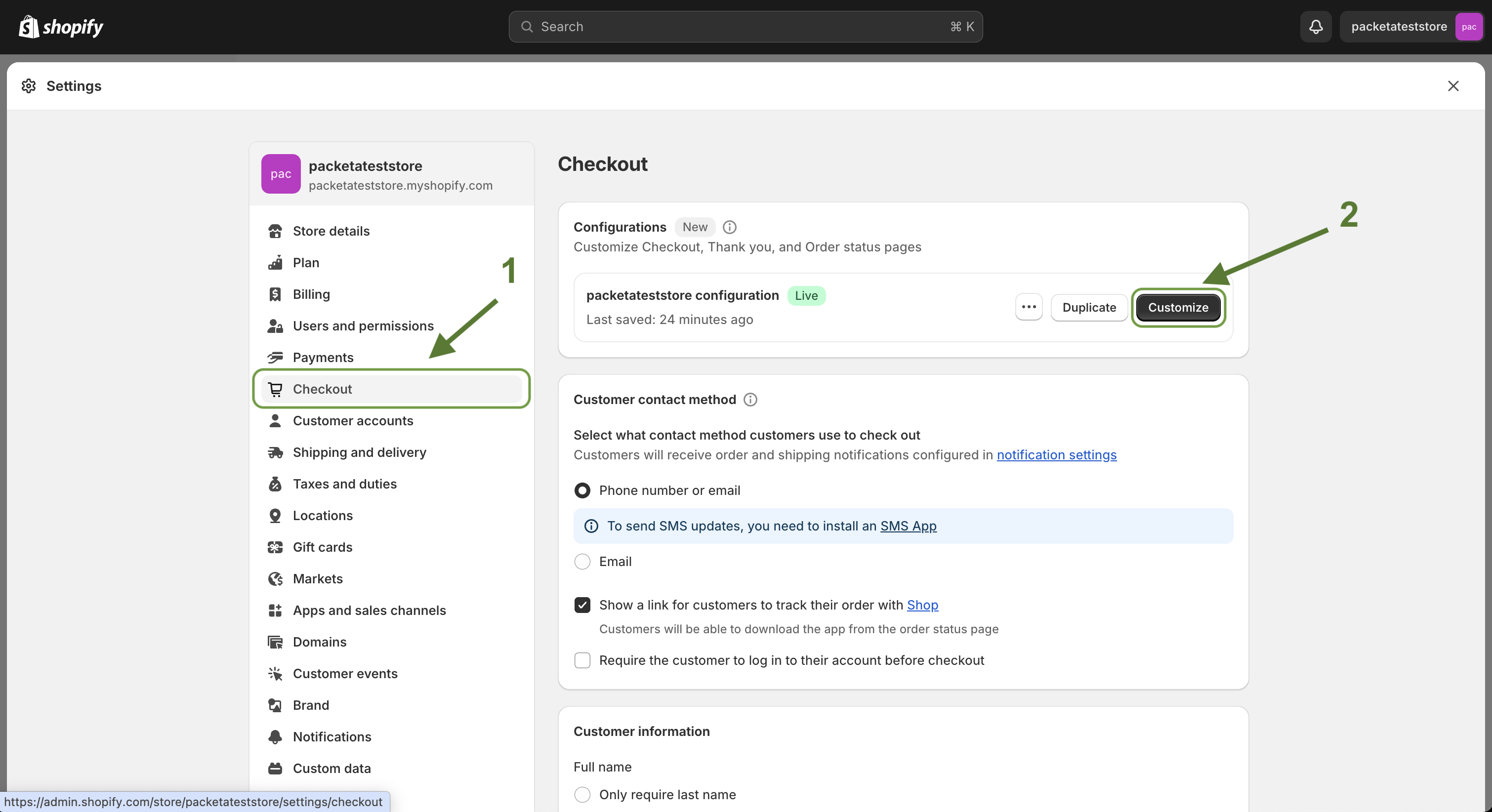
In Shopify admin, go to Settings → Checkout.
Next to the checkout configuration you want to edit, click Customize.
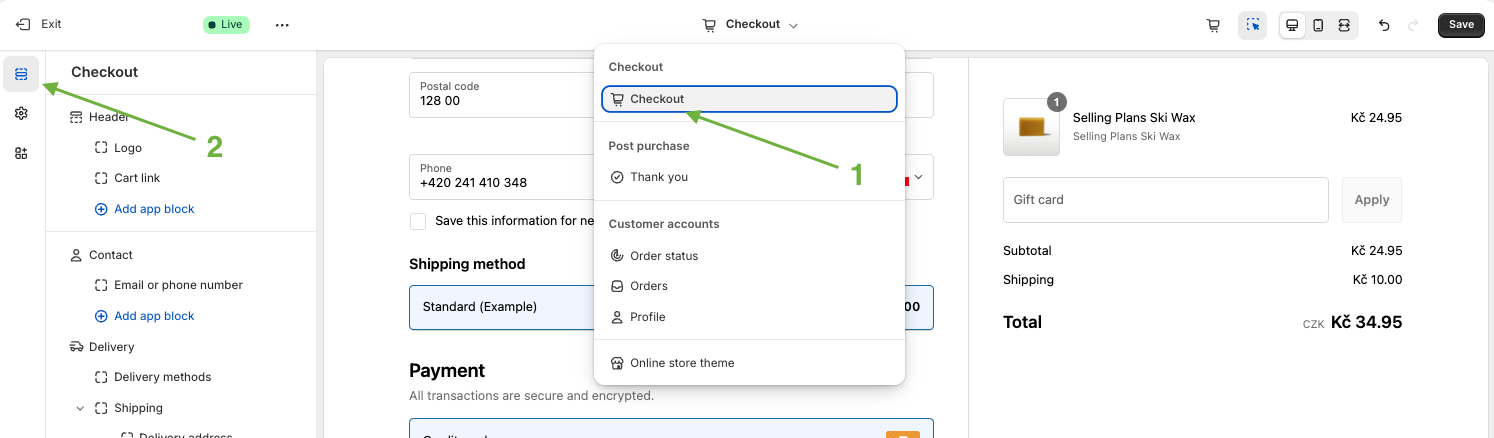
In the page selector at the top of the editor, choose the Checkout page.
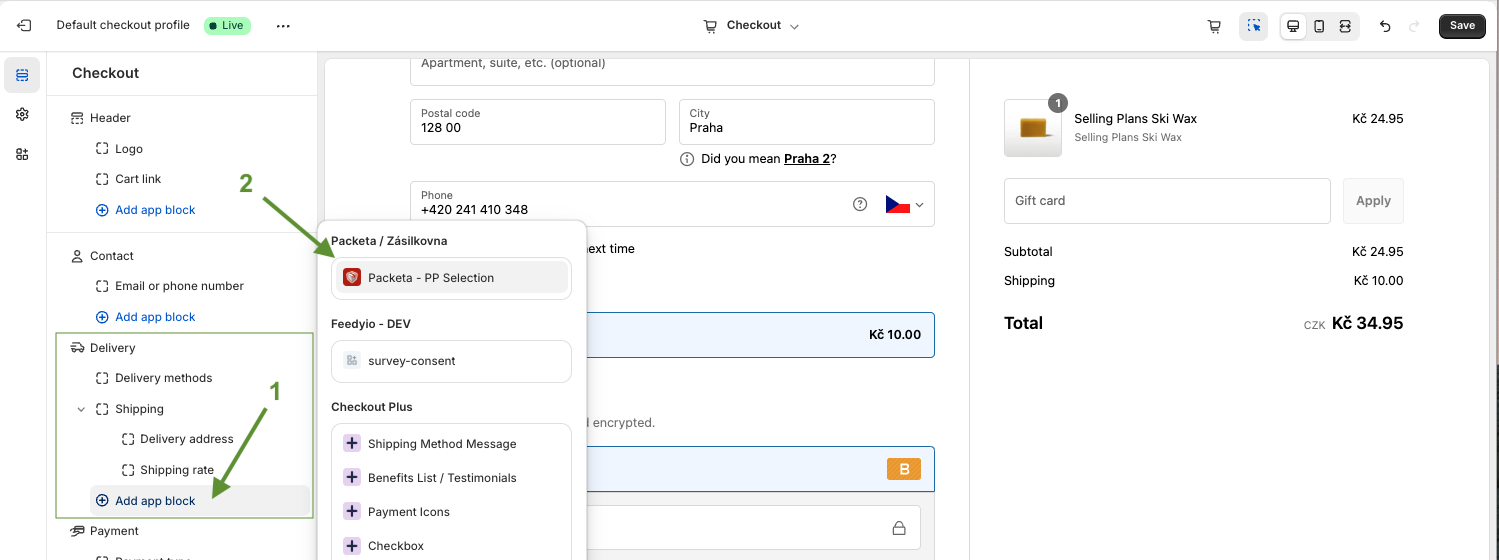
In the shipping method section, click Add app block and choose Pickup point selector. The block appears under the selected pickup point shipping option.
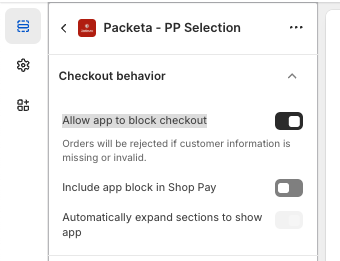
In the block's settings, under Checkout behavior, turn on Allow app to block checkout. Without it, Shopify lets customers finish checkout without choosing a pickup point.
Click Save.
Add Pickup point selector to the Thank you and Order status pages too. These pages then show the chosen pickup point, and customers can change it there if you allow that. See How to add the pickup point widget to the Thank you and Order status pages.
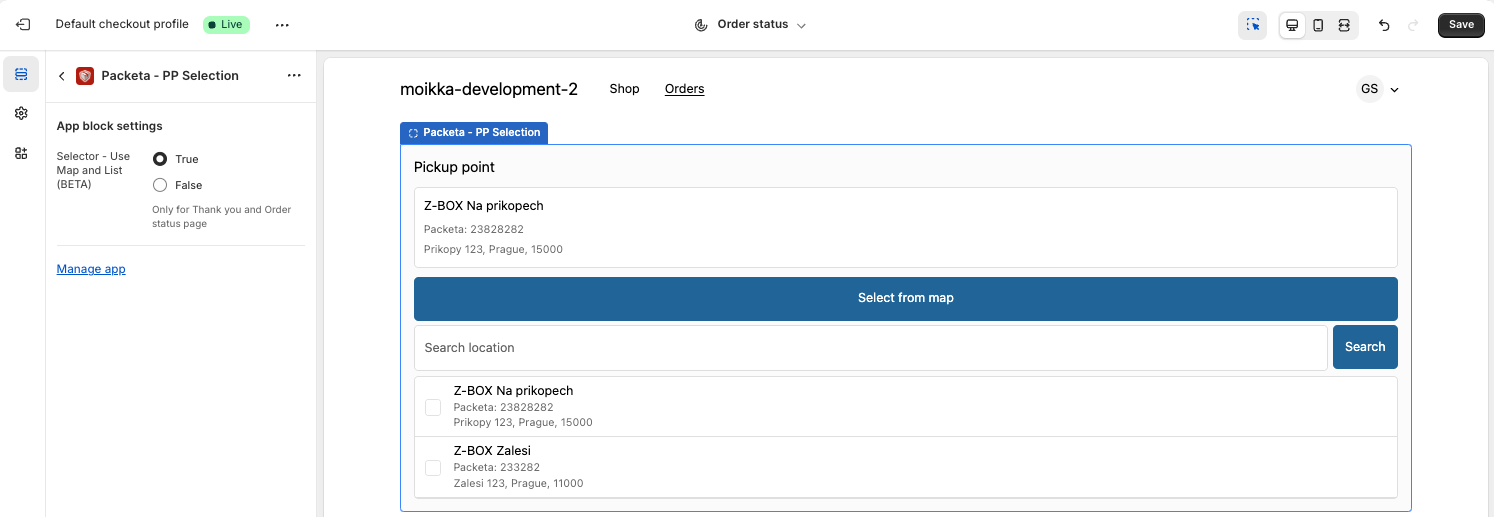
Place a test order: choose a pickup point rate, enter a full address and pick a point.
The screenshots show the block under its earlier name Packeta - PP Selection. Today it is called Pickup point selector.
Tip: In ShipDock, the How it works banner on the courier's Pickup points tab has a direct link to the Checkout page in Shopify's checkout editor.
The customer selects a pickup point shipping option.
Under it, the widget lists the courier's nearest pickup points for the shipping address. The customer can type another address in Search location and click Search.
With a Google Maps key, a Select from map button opens a map with the pickup points. See How to get a Google Maps API key for the pickup point map.
After choosing, the selected point is shown with its distance and a Change pickup point button.
If the customer tries to continue without a point, checkout stops with You haven't chosen a Pickup point.
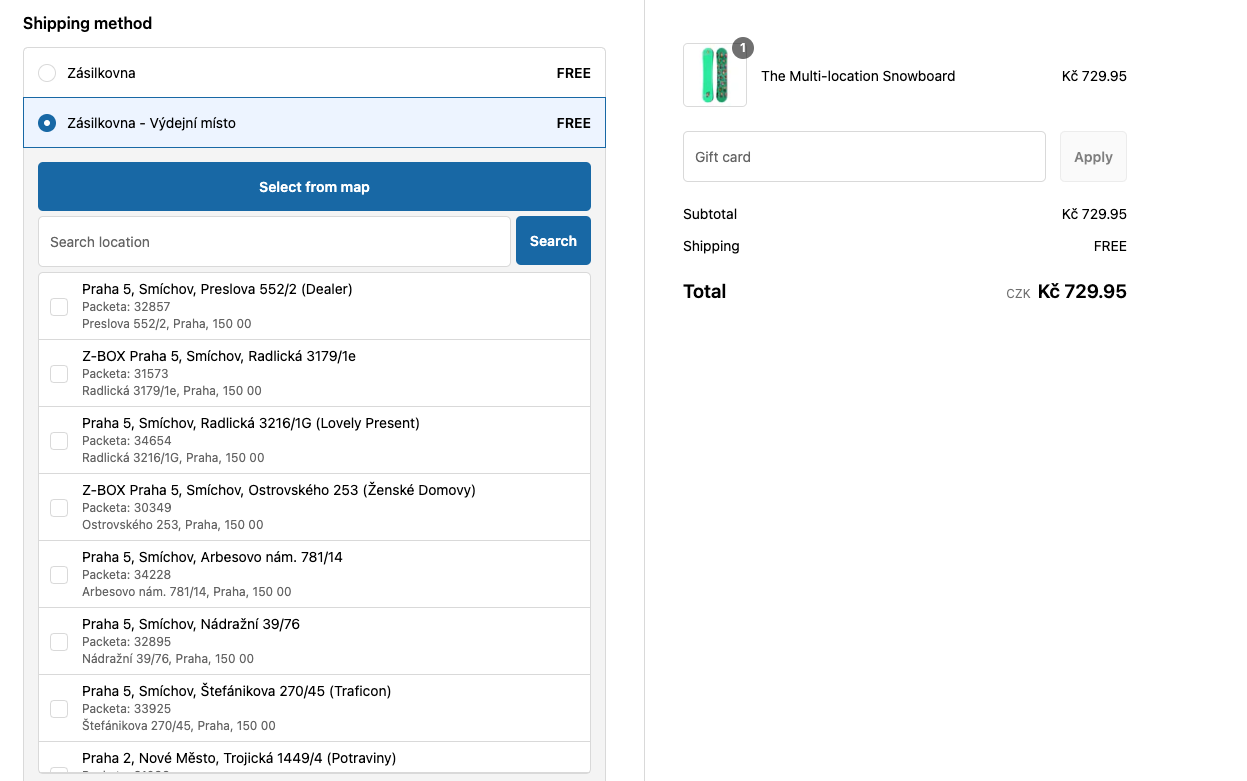
The widget needs the full shipping address first. If the street, postcode, city or country is missing, it shows Please add the full address instead of the list. If the customer switches to a different shipping option, the chosen pickup point is cleared.
Note: The Display mode (TY / OS page) setting has no effect in checkout. Checkout always shows the list with map. You can edit pickup point Exclusion (Providers → your courier → Pickup points) only while that setting is List with Map, which is the default on Shopify Plus.
The separate app block Packeta - Fields adds the fields First name, Last name, Email and Phone to checkout, so the customer can name the person who collects the parcel.
In the checkout editor, on the Checkout page, click Add app block and choose Packeta - Fields. Shopify offers it after the delivery address and next to Shopify's own pickup point list.
In the block settings, choose which fields to show and which are required: FirstName Enabled, LastName Enabled, Email Enabled, Phone Enabled, FirstName Required, LastName Required, Email - Required, Phone - Required. By default all four fields are shown and required.
Click Save.
What the customer enters replaces the name, email and phone of the shipping address as the recipient on the shipping label. The field labels are in English only.
The widget does not show in checkout
The block is placed on the Checkout page and saved. Checkout blocks work on Shopify Plus only.
It shows only under a selected pickup point rate, never under home delivery rates.
Please add the full address means the street, postcode, city or country is missing.
Customers can finish checkout without choosing a point
Allow the app to block checkout progress in the block's settings, then save.
"No pickup point was found, please enter a different address."
There is no pickup point of this courier near the address, or all nearby points are hidden by your Exclusion settings. The customer can search for another address in the same country.
The Select from map button is missing
Add a key in Settings → Widget (Pickup points) → Google Map APIs → Public Api Key and save. The list and search work without it.
