With Manual rates mapping, your customers choose from normal Shopify shipping rates, and ShipDock recognises the courier by the name of the rate they chose. This guide shows how to create those rates in Shopify and how to name them so ShipDock can tell pickup point delivery from home delivery.
If you use CCS - Dynamic Rates or CCS - Nearest Pickup Points, you set rates in ShipDock instead and can skip this guide. The options are compared in How to set up shipping rates.
You need the Lite plan or higher to map rates in ShipDock.
Decide which couriers and delivery types you offer in each country, for example Packeta pickup points and DPD home delivery.
ShipDock matches the name of the rate on the order with the names you map to a courier. Plan the names before you create the rates:
Create a separate rate for each courier and each delivery type. For example Packeta - Pickup point and Packeta - Home delivery. One rate name can belong to only one courier.
Never use the same name for a pickup point rate and a home delivery rate, in any country. A pickup point mapping applies in every country where the rate name appears, and ShipDock checks it before home delivery. If a home delivery rate in another zone has the same name, its orders are treated as pickup point orders.
Upper and lower case do not matter, every other difference does. Packeta - pickup point matches Packeta - Pickup point, but Packeta pickup point does not.
The same name in several zones is fine. You can add Packeta - Pickup point to the Czech and the Slovak zone. You can also use a different name per language, for example Zásilkovna - Výdejní místo and Zásielkovňa - Výdajné miesto, and map both.
Important: If you rename a rate in Shopify later, update the mapping in ShipDock too. Orders with a name that is not mapped are not recognised, and ShipDock cannot create their labels.
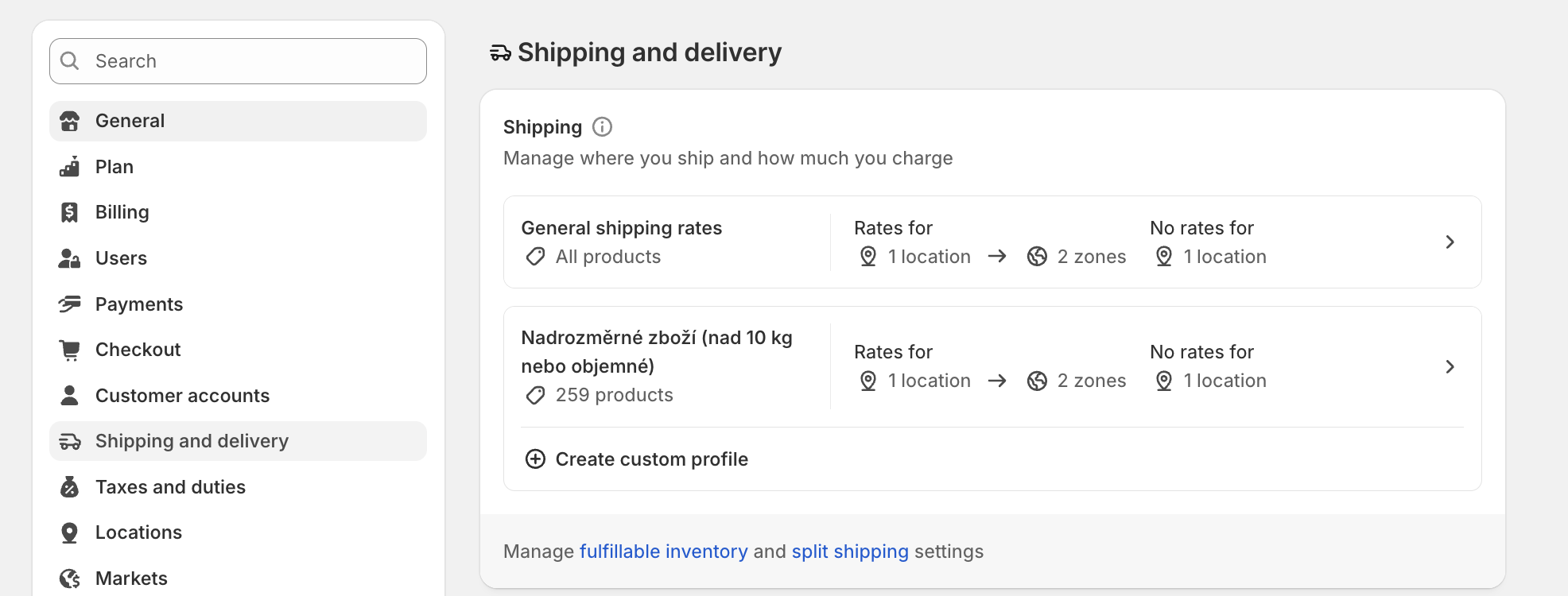
In your Shopify admin, go to Settings → Shipping and delivery.
In the Shipping section, click the shipping profile you want to add rates to.
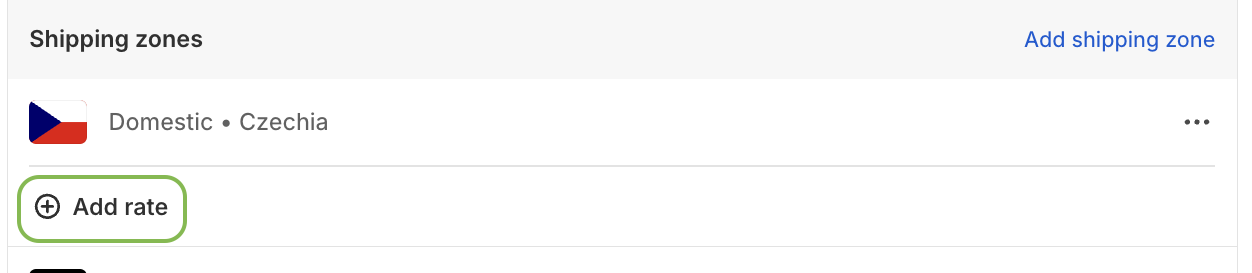
Next to the zone you want to add a rate to, click Add rate.
In the Rate type dropdown, select Use flat rate.
In the Shipping rate dropdown, select Custom.
In Custom rate name, enter the rate name, for example Packeta - Pickup point.
Optional, for a pickup point rate on a store without Shopify Plus: in Custom delivery description (optional), tell customers when they choose the point, for example The pickup point will be selected after you submit your order (in Czech: Odběrné místo vyberete po odeslání objednávky). On Shopify Plus with the widget in checkout, customers choose the point before they pay, so leave this out.
Enter the Price.
Optional: click Add conditional pricing to set weight-based or price-based conditions.
Check the Checkout preview to see how the rate will look in checkout.
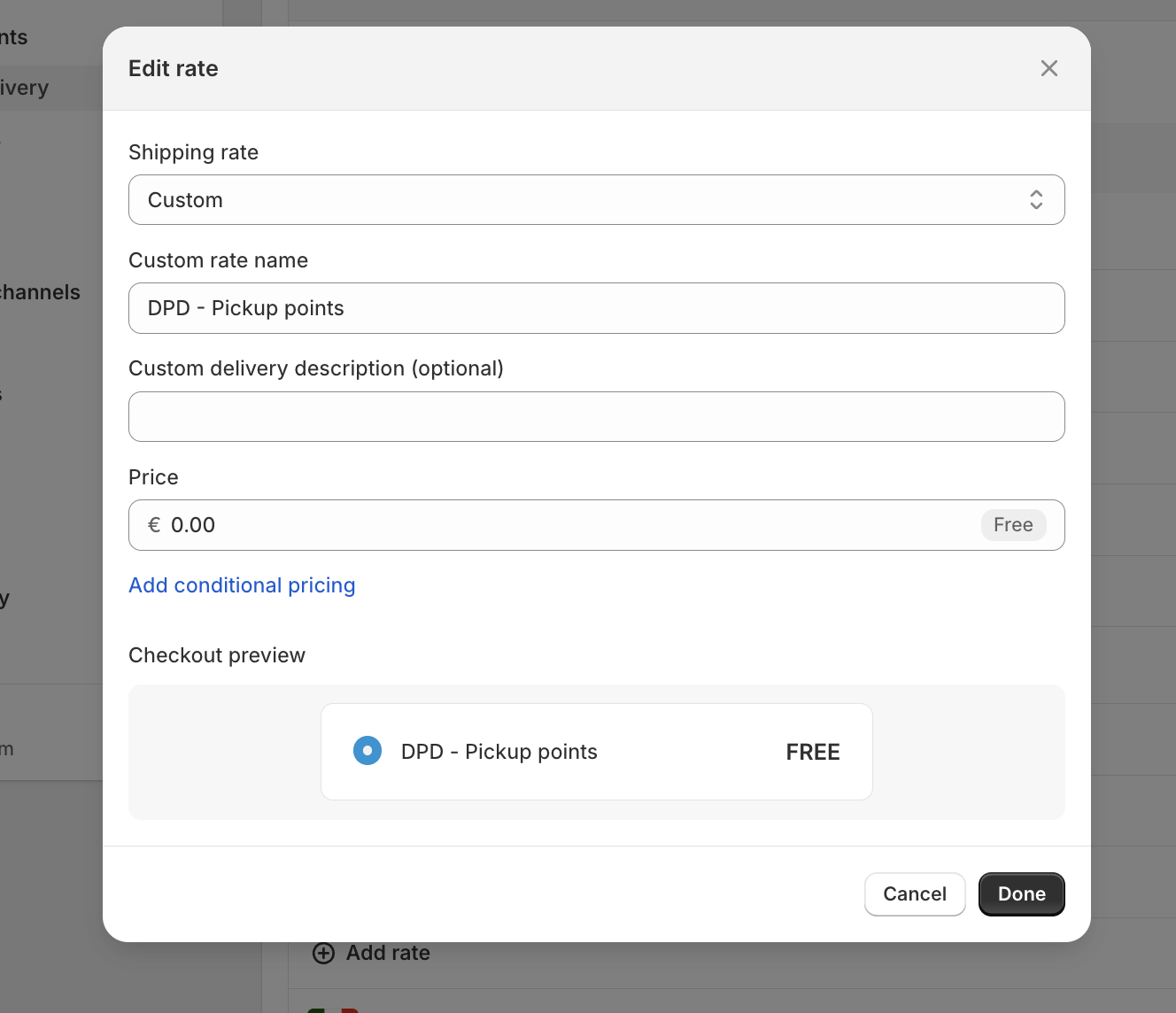
Click Done, then click Save.
Repeat for every courier, delivery type and zone you want to offer.
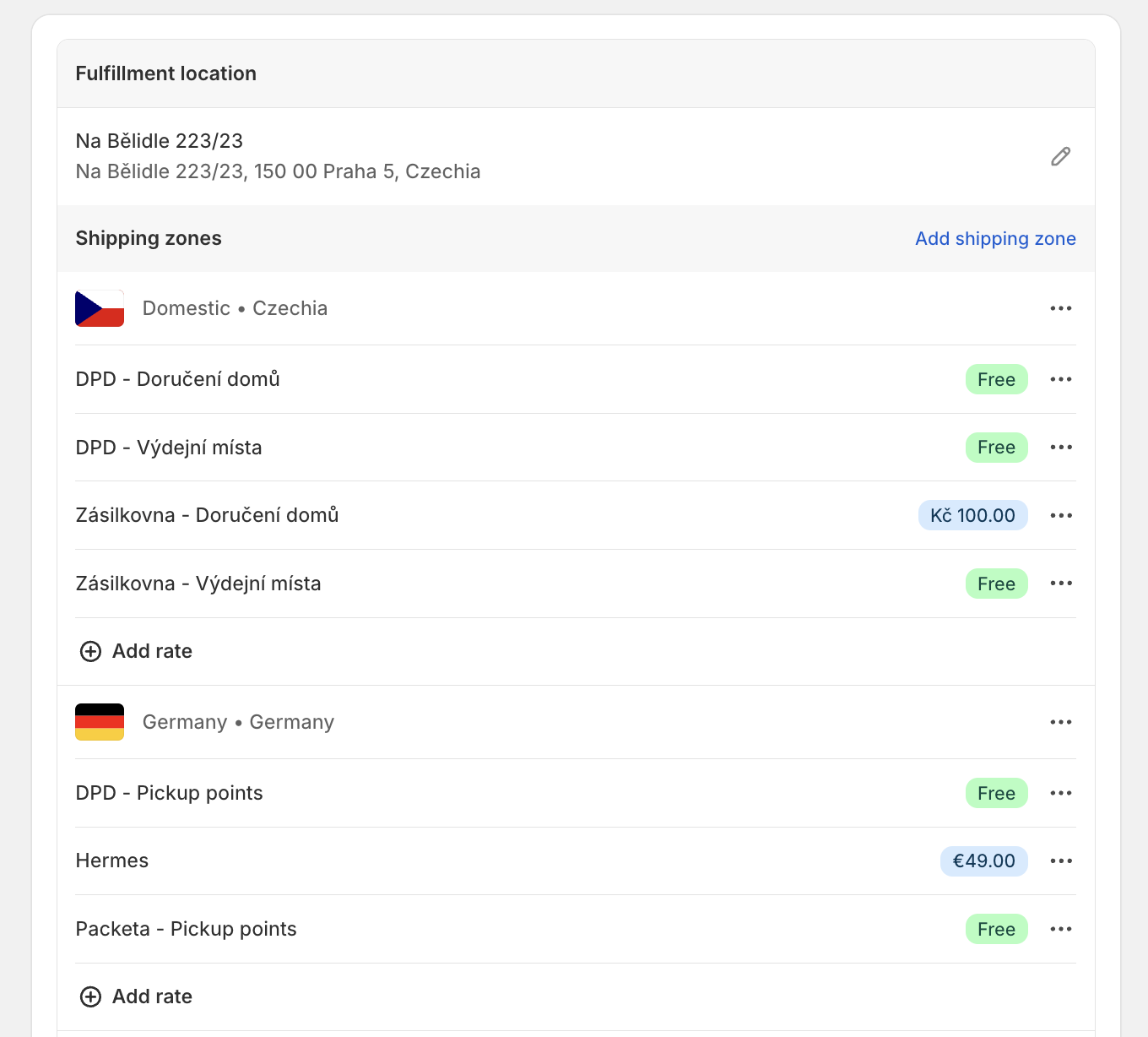
This is what a finished set of rates can look like, with pickup point and home delivery rates per courier in each zone:
Next, map the rates to your couriers in ShipDock: How to map Shopify shipping rates to a courier.
Create the same rate twice, with the same name and different price conditions: one with your normal price for orders below the limit, and one that costs 0 from the limit up.
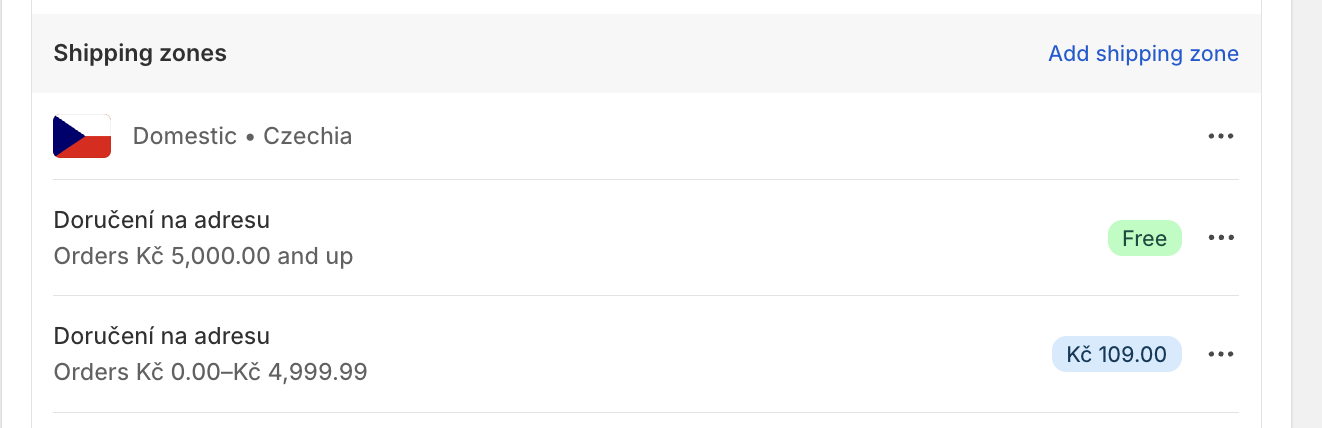
In your Shopify admin, go to Settings → Shipping and delivery.
In the Shipping section, click the shipping profile you want to edit.
In each zone where you want free shipping, click Add rate.
Enter exactly the same name as your paid rate.
Make sure the Price is 0.
Add a condition Based on order price and enter the minimum order price.
Click Done.
Edit the paid rate with the same name and give it a maximum order price just below the limit, so customers don't see both rates.
Click Save.
Because both rates have the same name, you map the name only once in ShipDock and it covers both.
A new rate is missing when you map rates in ShipDock: click Refresh shipping rates in the Select shipping method dialog. ShipDock lists the rate names from your Shopify shipping zones, so check that the rate is saved in a zone.
Label creation says the shipping method is not assigned to any provider: the rate name on the order is not mapped to a courier, or it was renamed in Shopify after mapping. Map the current name, see How to map Shopify shipping rates to a courier.
A home delivery order is treated as a pickup point order: the same rate name is mapped as a pickup point rate, in this or another country. Rename one of the rates in Shopify and update the mapping.
