To connect to the API and print labels, you must have:
Access to Magyar Posta / MPL Developer portal https://www.posta.hu/mplapi/kwr-registration
API Credentials to MPL API (contact your account manager)
A paid FULL plan
To display the Pickup Points widget, you must have:
A paid LITE or FULL plan

Register as a private individual(!) by clicking the ‘Register’ button on the MyPost interface. To register, please enter the required information in the window that appears. (If you have previously registered as an private individual on the MyPost interface, this step can be skipped)
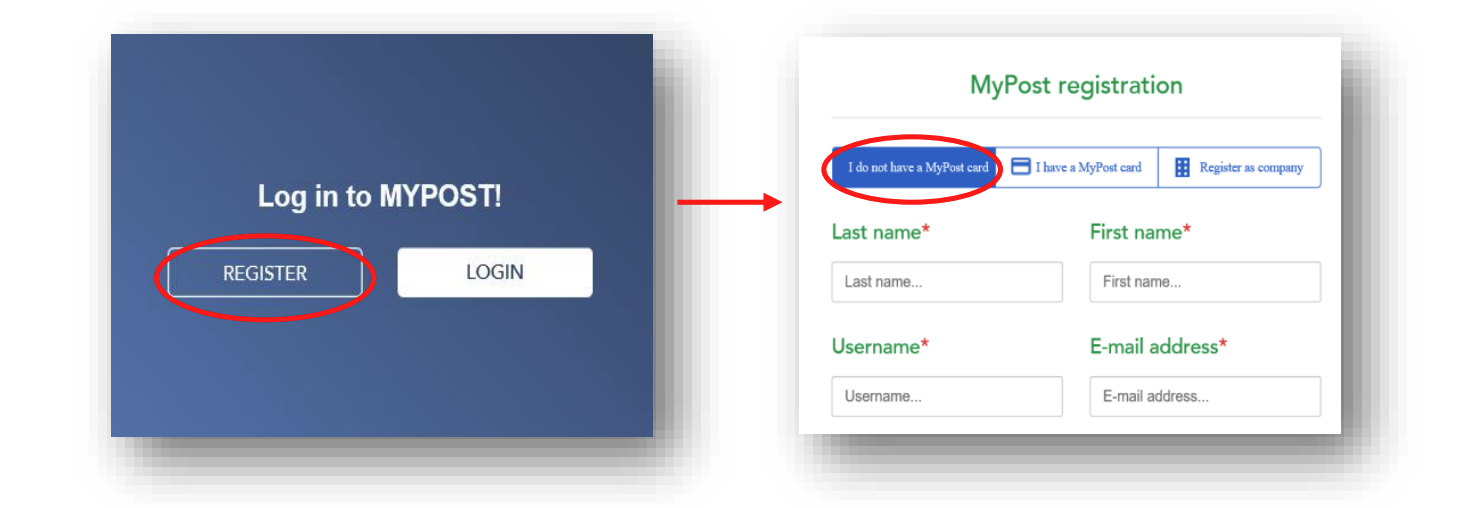
To set up MPL API access for the company, the data of the company and also of the private individual registered in the previous point (on the MyPost interface) will be needed, as follows:
On the MPL API information page, click ‘Registration’ menu item on the right, and then click the green ‘Registration’ button on the page that appears.
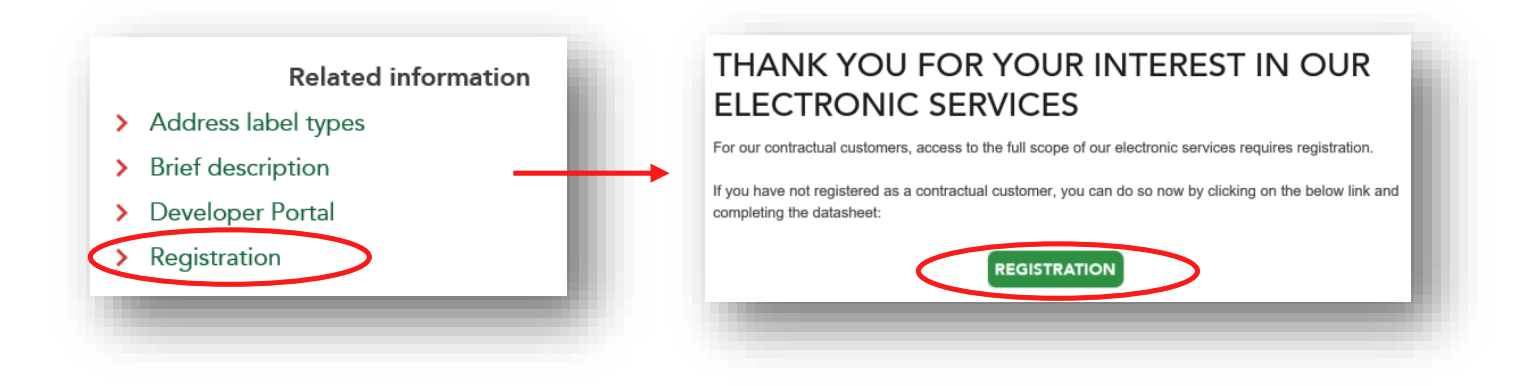
Please, fill in the excel spreadsheet accessed in this way with the data of the person registered in the first section, then send it to us at the [email protected] e-mail address.
Based on the excel spreadsheet received, we will soon set up the submitted person to have access to the API-keys for that company and will send a confirmation e-mail.
If you have received the confirmation e-mail, the registered user can obtain the API keys required to use the service by performing the steps below.
On the MPL API information page, in the menu bar on the right, click on ‘Developer Portal’ menu item, in the top green bar, on ‘Log in’, then enter your username and password for the MyPost registration and press the ‘Log in’ button.

After logging in, please select the company from the usage modes.

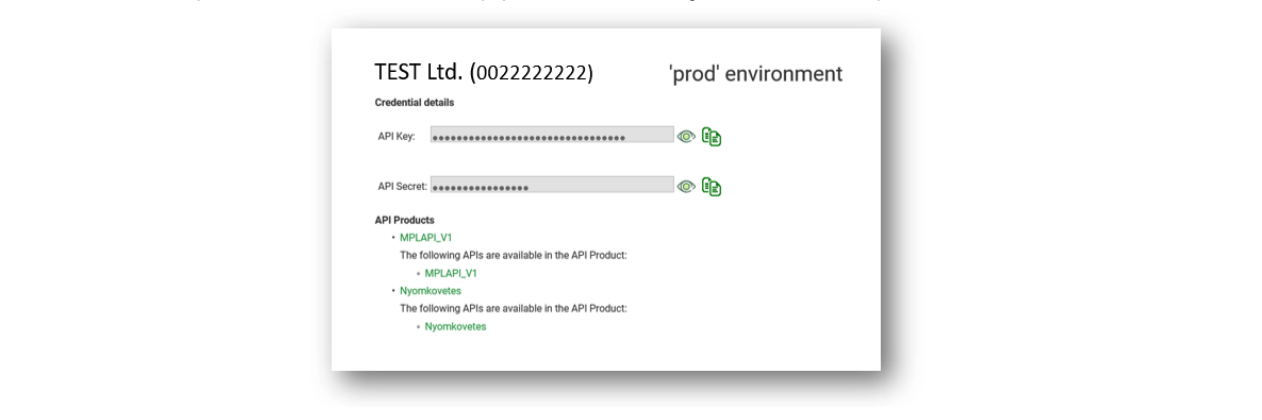
Scrolling down the page that appears, you will find the API keys at the bottom of the page, from which you will need the key pair marked ‘prod’ (API Key, API Secret).
For further information about registration and electronic services, do not hesitate to contact MPL Business Customer Services:
Telephone: +36 1 767 8272
from January 16 to October 31, from Monday to Friday: 08:00-17:00
from November 1 to January 15, from Monday to Friday: 08:00-18:00
E-mail: [email protected]
Once you have your API credentials ready:
In the app, go to Providers > Add Provider
Choose Maygar posta as the carrier
Fill in the required fields:
API Key
Api Secret
Accounting code
Agreement code
Map the provider to the correct shipping rates:
If you haven’t created shipping rates for Magyar posta yet, follow this guide:
👉 Configure shipping rates for carrier integration
If you already have Magyar posta shipping rates set up:
In the Home Delivery section, select the shipping rates that will use Magyar posta
Assign the appropriate service, e.g. Business Parcel
If you're using pickup points, make sure to also select the relevant rates in the Pickup Points section to enable pickup point selection for customers
Set the provider as active
Save the provider
To allow customers to select a Maygar Posta Pickup point during the checkout process, you need to activate and configure the widget.
Follow the appropriate guide based on your Shopify plan.