
By mapping rates, you ensure that:
The correct carrier is used when creating shipments
Pickup point widgets display only for the relevant shipping methods
Home delivery and pickup point options are automatically matched to the right provider
Mapping is essential for automated label generation and correct service selection at checkout or the Thankyou page.

From your Shopify admin, go to Our app > Providers
Create a new provider or select an existing one
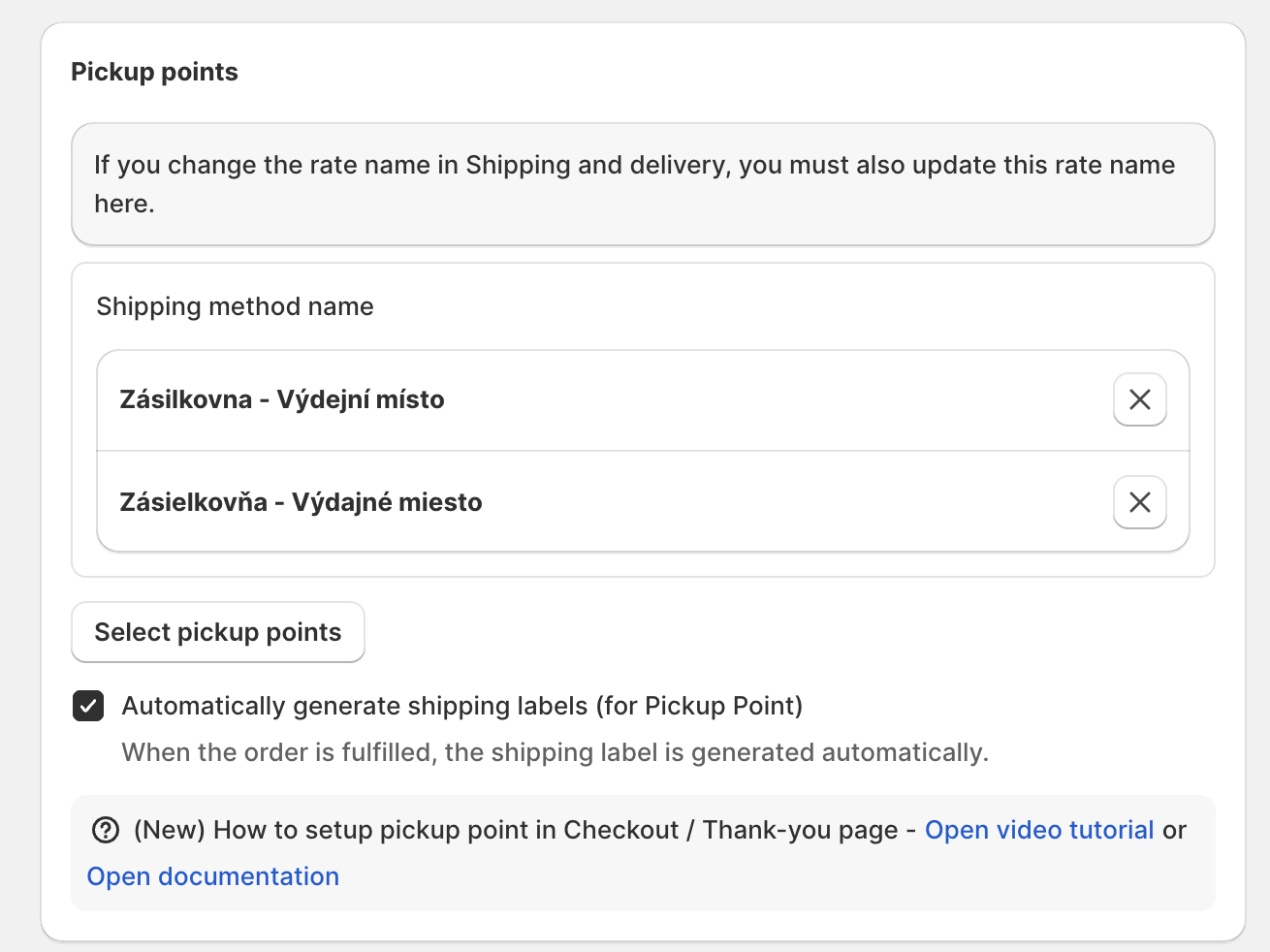
Go to the Pickup Points section:
Click on Select pickup points
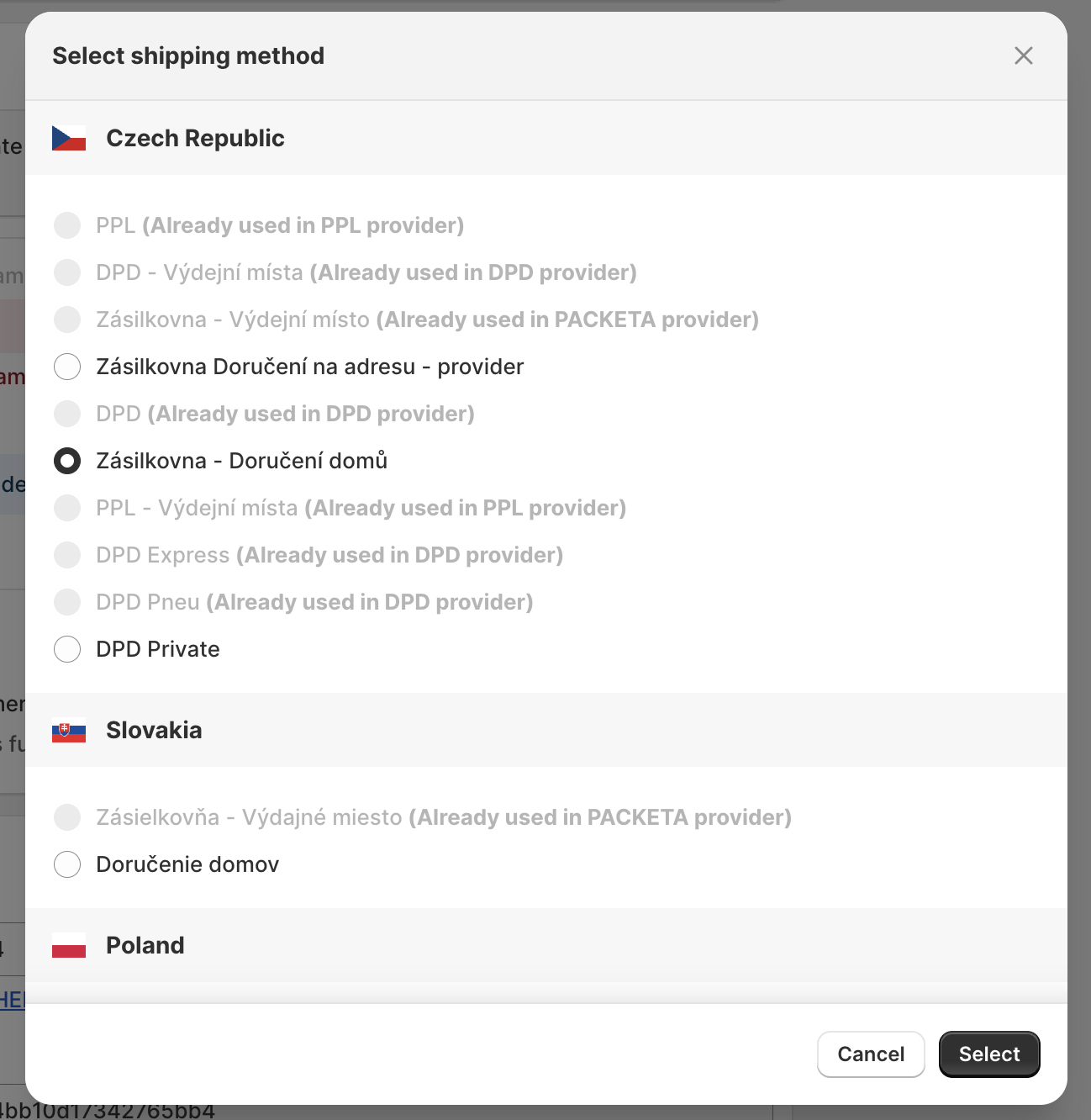
From the dialog window, select the shipping rates for which you want the pickup point dialog to appear.
Confirm by clicking the Select button
The section will now display the selected rates.
Go to Home delivery section
Click on Add delivery
From the dialog window, select the shipping rate you want to assign a carrier to, then click Select.
Choose the carrier you want to use for this shipping rate
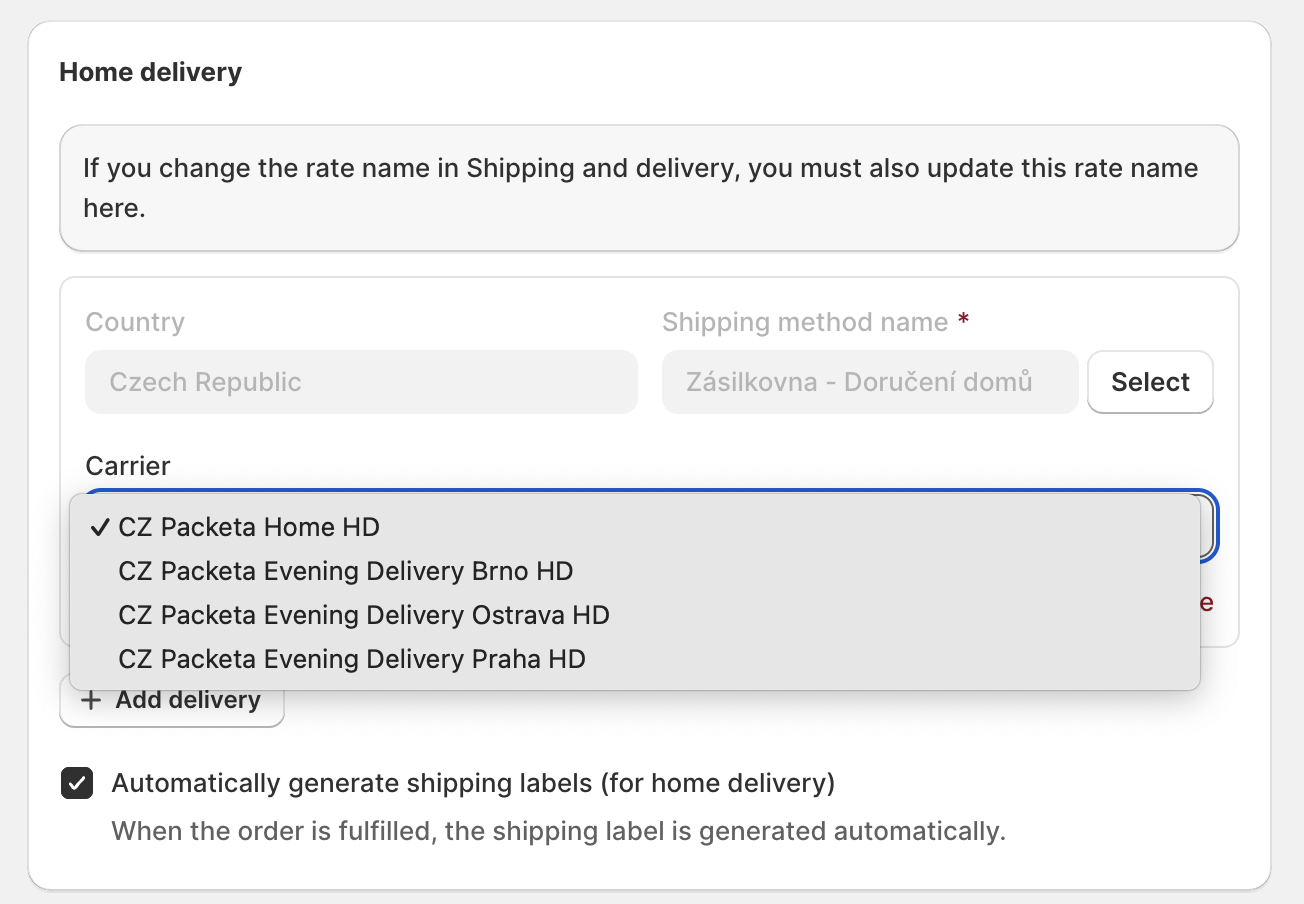
If you want to assign more carriers, repeat step 4.
Done! Your shipping rates are now mapped to the correct carriers and pickup points.
