
Shipping rates for Pickup Points and Home Delivery must have unique names within the same country.
If both rates share the same name (e.g., Standard Shipping), the app cannot determine whether to display a pickup point selector or assign a home delivery carrier.
Example:
Packeta – Pickup Point
Packeta – Home Delivery
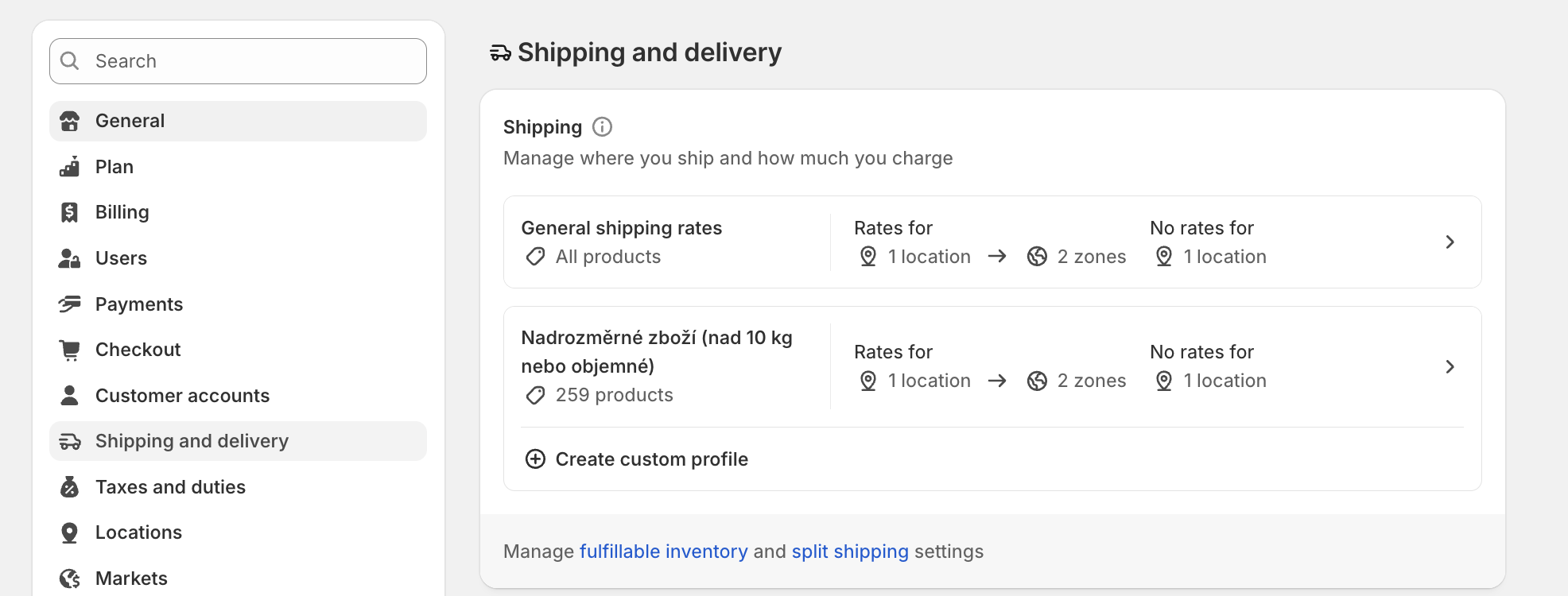
From your Shopify admin, go to Settings > Shipping and delivery.
In the Shipping section, click the shipping profile that you want to add shipping rates to.
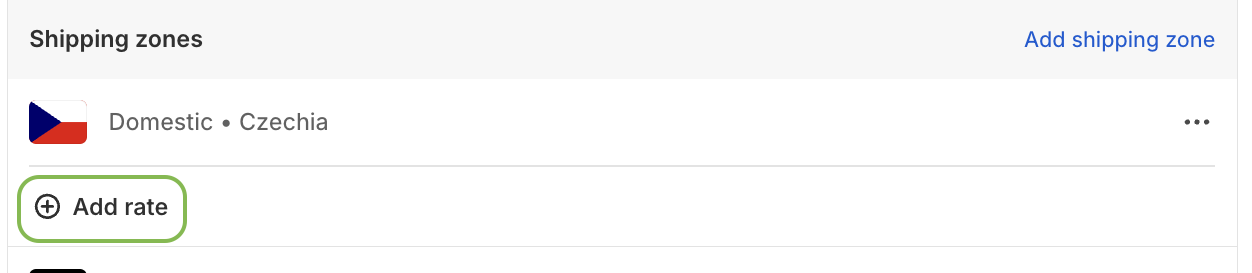
Next to the zone that you want to add a rate to, click Add rate.
Select Use flat rate in the Rate type dropdown
Select Custom in the Shipping rate dropdown
Optional: If you are creating a pickup point shipping rate, we recommend adding a note such as:
The pickup point will be selected after you submit your order
Odběrné místo vyberete po odeslání objednávky
Enter the shipping rate, for example: Packeta - Pickup points
Enter the price
Optional: Add weight-based or price-based conditions.
Review the checkout preview to ensure that your shipping rate is displayed as expected.
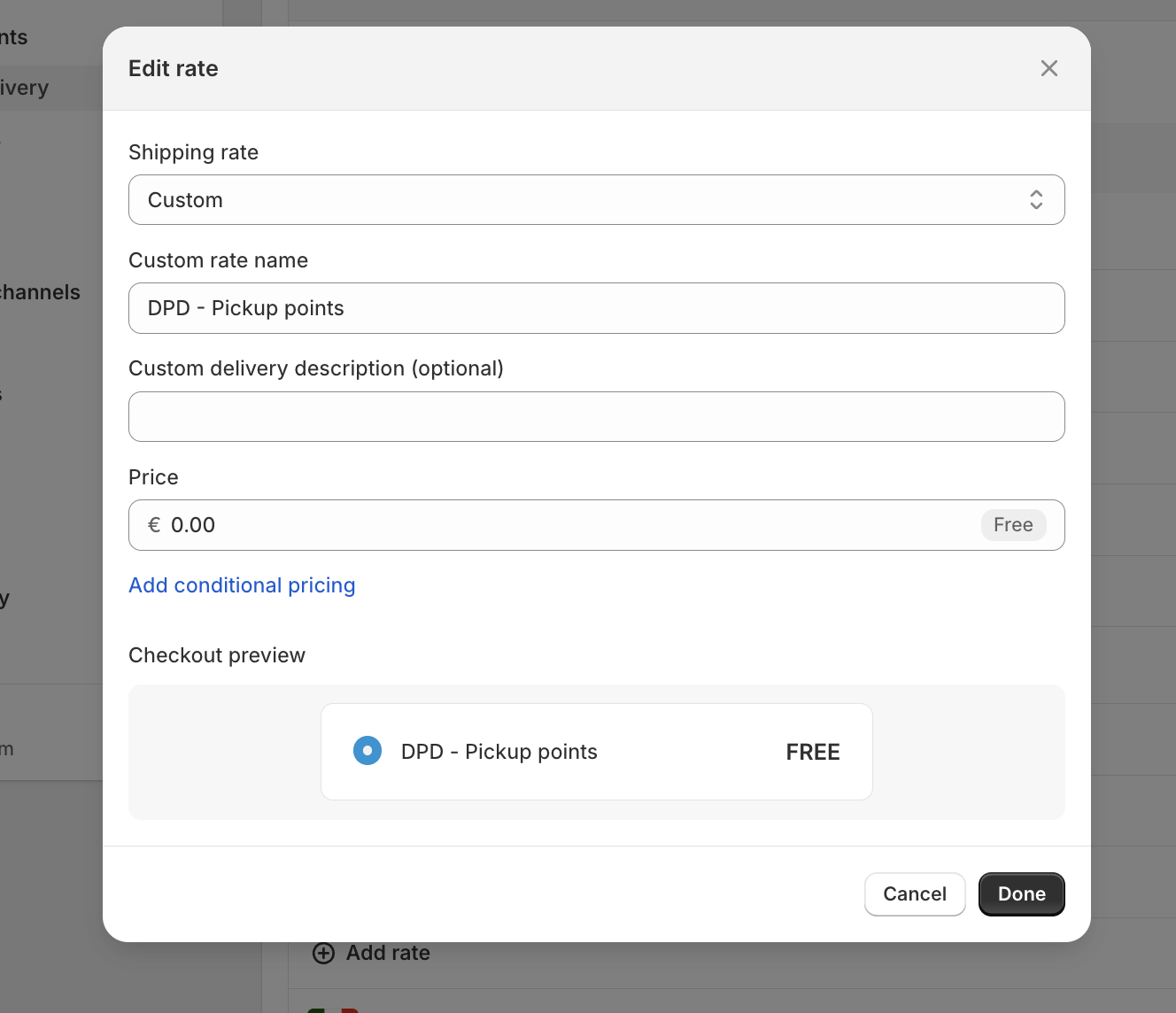
Click Done, and then click Save.
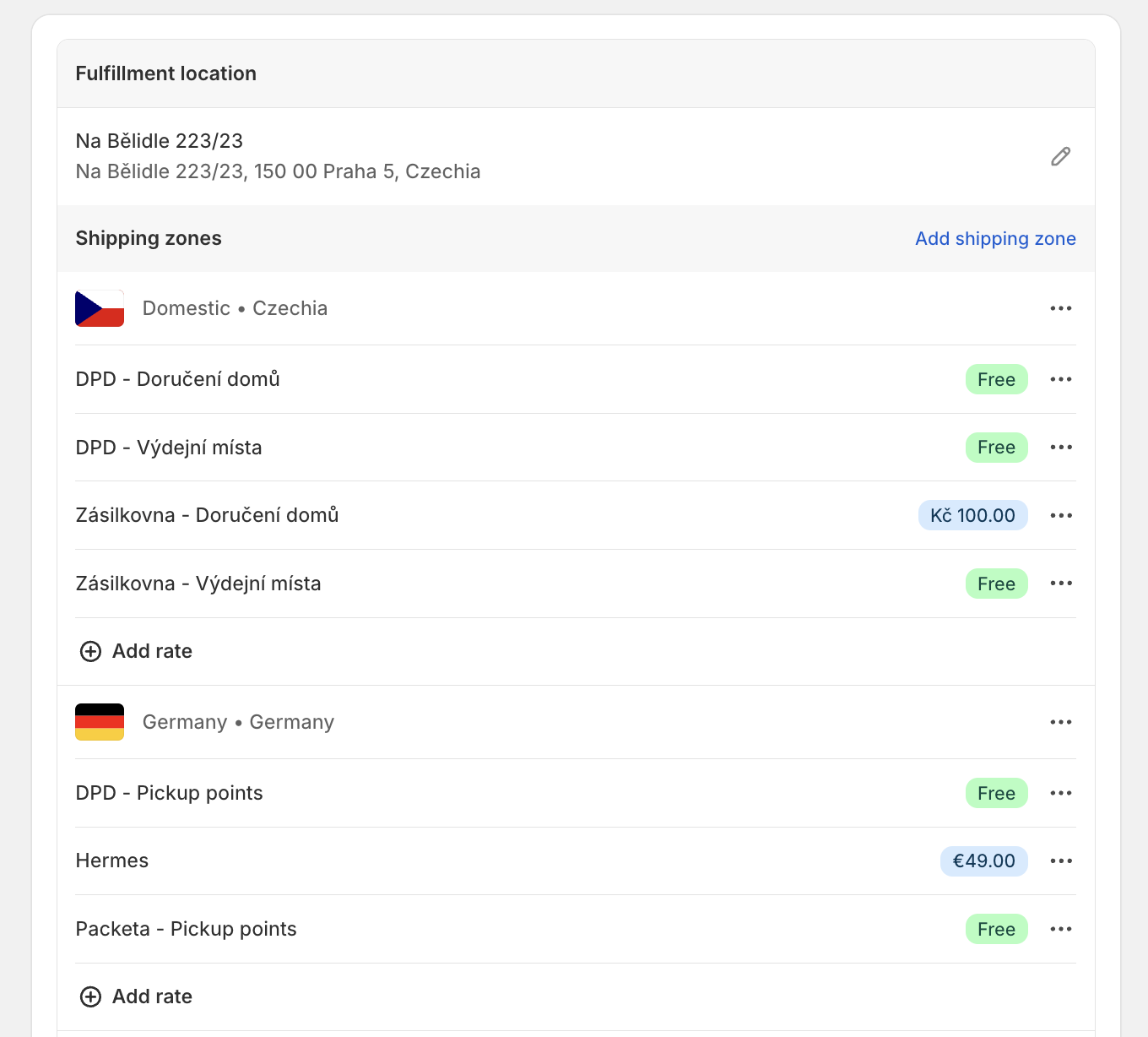
An example of what your shipping rates table might look like
If you want to provide free shipping for orders over a certain amount, you need to set up two identical shipping methods with different conditions:
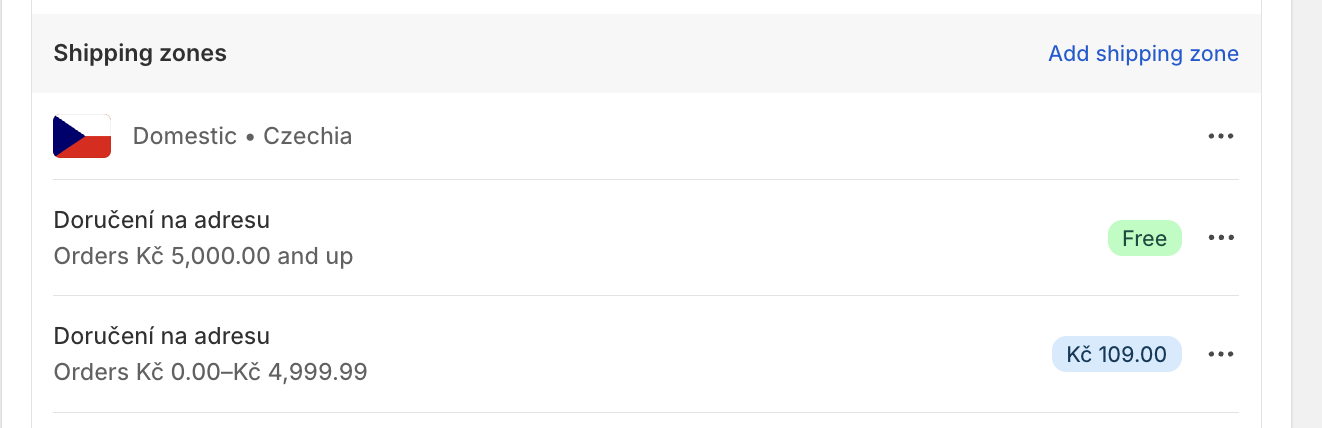
From your Shopify admin, go to Settings > Shipping and delivery.
In the Shipping section, click the shipping profile that you want to edit.
Add the shipping rate to each shipping zone where you want the free shipping rate:
Click Add rate.
Enter the name for the rate.
Make sure that the value of the Price field is 0.
Click Add conditions.
Select Based on order price.
Enter a minimum price.
Click Done.
Click Save.
What next:
🗺️ Map Shipping Rates to Carriers and Pickup Points
This feature allows you to link your existing shipping rates in Shopify (or another store platform) to specific carriers and pickup points in Shipdock.
